

You can slash your PC’s power draw by up to 75 % just by letting it sleep instead of idling with the monitor on. Turn the display off after a few minutes of inactivity, because screensavers waste keeping the panel lit. Enable hybrid sleep on Windows or Safe Sleep on macOS so your session is saved in RAM and on disk for fast wake‑ups. Set short sleep timers and keep USB and network wake enabled for instant resumes. Plug peripherals into a smart power strip to eliminate vampire loads, and choose ENERGY STAR‑rated components for lower standby consumption. These tweaks add up quickly, and the rest of the guide shows exactly how much money you’ll save.
How Sleep Mode Cuts Your Gaming PC’s Power Draw by Up to 75
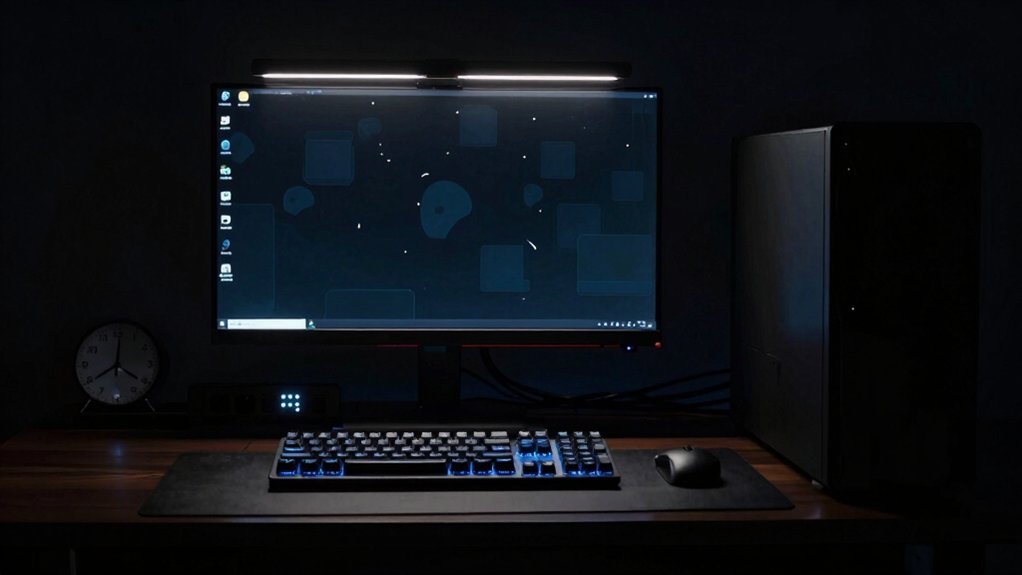
Ever wondered how much power your gaming rig guzzles while you’re away? When you hit Sleep mode, your gaming PC’s power draw plunges from hundreds of watts to roughly 5‑10 W for desktops and about 2 W for laptops. That slash translates into energy savings of up to 75 % during long breaks, because the system halts active processing while staying ready to wake/resume instantly. You’ll keep open games and apps, avoiding the slowdown of a full reboot, yet still reap near‑off consumption. Tuning power management settings in Control Panel or System Preferences ensures the PC enters Sleep reliably, balancing rapid re‑engagement with a hefty cut in electricity use. The result is a smarter, greener gaming habit without sacrificing performance. Durability and reliability considerations from budget SSD options can help ensure fast wake times and responsive resume behavior when reactivating from sleep.
Gaming PC Power Saving: Turn Off the Monitor Instead of Using a Screensaver
Why keep a screensaver running when you can simply turn the monitor off? On a gaming PC, the display hogs idle power, so a monitor off or sleep mode slashes consumption to 1–5 watts, while a screensaver keeps the panel lit and wastes energy. ENERGY STAR guidance confirms that display‑off states beat screensavers for real energy savings, and the transition back to gameplay is virtually instant. Set an automatic policy to switch the monitor off after a few minutes of inactivity; the system will still enter sleep mode, preserving readiness while cutting power consumption dramatically. By eliminating the idle power draw of a constantly lit screen, you lower your electricity bill and reduce your carbon footprint without sacrificing performance.
Enable Hybrid Sleep and Fast Wake on Windows/macOS for Long Sessions
After turning the monitor off to slash idle power, you can keep that momentum by enabling hybrid sleep for those long work or gaming sessions. Hybrid sleep stores your session in RAM and writes a hibernation file to disk, so you get a fast wake while protecting against power loss. On Windows, toggle “Hybrid sleep” in the Power Options; on macOS, use “Safe Sleep” via the terminal or Energy Saver preferences. This combination cuts energy use compared to leaving the system fully on, yet you resume instantly, preserving open docs and apps. You’ll notice smoother transitions, lower electricity bills, and peace of mind during extended breaks. PWM control can optimize fan speed for quieter operation during long sessions.
Hybrid sleep slashes idle power while preserving instant wake, protecting against power loss on both Windows and macOS.
- Enable hybrid sleep in Windows Power Settings
- Activate Safe Sleep on macOS via `pmset`
- Verify the hibernation file exists for backup
- Test fast wake by pressing the power button
- Monitor energy savings with a smart plug or OS reports
Configure OS Power Settings for Instant Wake Without Performance Loss
How can you make your computer jump back to work instantly without sacrificing performance? Open your operating system’s Power Options and set the sleep timer to a few minutes of inactivity. Enable “instant wake” by allowing the network adapter and USB devices to wake the machine, and disable aggressive power‑down of the SSD. This keeps RAM powered, so wake time drops to seconds while maintaining full performance. Adjust the display and hard‑disk sleep settings to lower wattage for energy savings, but leave the CPU at its normal speed. On macOS, use Energy Saver to turn on “Power Nap” and set the computer to sleep after a short idle period. These tweaks let sleep mode deliver quick resumes, protect data, and cut electricity use. USB-C connectivity supports plug-and-play simplicity across devices and ensures rapid reactivation without extra setup.
Plug Gaming‑Rig Peripherals Into Smart Power Strips to Cut Vampire Loads
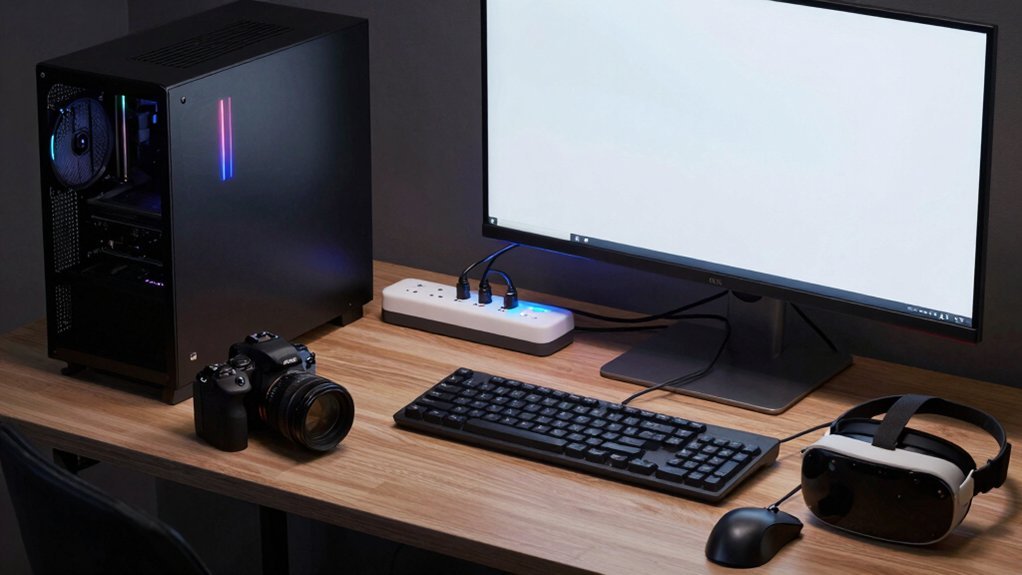
You can cut unnecessary power by plugging your mouse, keyboard, controllers, and external drives into a smart strip that shuts off idle when the PC sleeps. The strip’s switchable outlets eliminate standby draw, so those peripherals stop sucking power the moment you’re not gaming. Pairing this with ENERGY STAR‑rated gear maximizes the savings during idle periods and long breaks. USB-C PD 20W can support fast charging for devices while still enabling idle power reduction through smart cycling.
Smart Strip Power Management
Ever wonder how much energy your gaming rig wastes while you’re away? A smart strip lets you cut standby power instantly. When your PC enters sleep mode, the strip detects the low‑power signal and flips off all connected peripheral devices—monitors, keyboards, external drives, and speakers. This automatic power management eliminates vampire loads, delivering noticeable energy savings without any extra effort. By grouping everything behind one smart strip, you keep your setup tidy and ensure every device follows the PC’s sleep schedule, slashing wasteful watts and lowering your electricity bill. A single smart strip can support multiple devices with Tabletop stand mounting for convenient placement and quick access.
Eliminate Standby Power Draw
Wondering why your rig still burns electricity after you shut it down? Plug your mouse, keyboard, USB fans, and external drives into a smart power strip. The strip’s switchable outlets cut off standby power the moment you enter sleep mode, slashing vampire loads and boosting energy savings. Unused chargers on the same strip go dark, preventing phantom power. Centralized control means you never forget a peripheral left on, keeping wattage low during off periods. Surface Compatibility also ensures the adhesives used for cord organization can be removed cleanly without residue on most finishes.
Choose ENERGY STAR‑Certified Components for a More Efficient Gaming Rig
A gaming rig built with ENERGY STAR‑certified components can slash both idle and active power draw, often cutting electricity use by 30‑65 % compared to standard parts. When you pick a certified motherboard, power supply, and GPU, you’re not just boosting performance—you’re tightening power management and letting sleep mode work harder. These parts draw less at the socket, so vampire loads shrink and overall energy savings climb to 75 % in some cases. Pair them with a smart power strip that cuts off standby power, and your gaming rig stays efficient even when you’re not playing. Consider evaluating a surge protector with robust joule ratings and outlet spacing to ensure safe, organized connections for your high-performance setup outlet spacing.
Calculate Real‑World Money Savings From Power‑Saving Practices
You can estimate savings by comparing the watts your PC draws in active mode versus sleep and then multiplying by your electricity rate.
Plug the difference into a simple cost‑benefit formula—(watts ÷ 1000) × hours × rate—to see annual dollars saved.
Applying this to typical desktops or laptops often shows $50‑$200 per machine each year.
Power‑Saving Settings
How much could you actually save by tweaking power‑saving settings? By enabling Sleep mode and fine‑tuning power management, you slash idle power and boost energy savings. A modern desktop in Sleep draws just 5–10 W, while a laptop uses about 2 W. Automatic shutdown of monitors and disks after inactivity can shave $10–$50 off your yearly electricity bill per PC. Remember, screensavers waste power—switch to sleep or hibernate for faster wake‑ups and lower consumption. On a campus of 1,200 computers, optimizing these settings could generate roughly $60,000 in annual savings.
- Set monitors to sleep after 5 minutes of inactivity
- Enable automatic shutdown for disks and peripherals
- Use ENERGY STAR‑labeled devices for up to 75 % lower draw
- Replace screensavers with sleep/hibernate profiles
- Adjust BIOS/UEFI power settings for aggressive idle power reduction
Cost‑Benefit Calculations
Ever wondered how much money you can actually keep in your pocket by putting PCs to sleep? You can translate the tiny wattage drop into real dollars by plugging your usage patterns into simple formulas. A laptop at 2 W versus 30 W on saves about $15 a year; a desktop at 5 W versus 100 W saves $45. When you apply campus‑wide policies, the per‑machine annual savings of $50 scales to $60,000 for 1,200 devices.
| Device | Full‑on (W) | Sleep (W) |
|---|---|---|
| iMac | 67 $/yr | 33 $/yr |
| Dell Optiplex GX 280 | 96 W | 1 W |
| Laptop | 30 W | 2 W |
| Desktop | 100 W | 5 W |
These numbers show how sleep mode drives power savings, slashes energy costs, and boosts annual savings when policies enforce consistent sleep behavior.
Frequently Asked Questions
Does Putting a PC in Sleep Mode Save Energy?
Yes, you’ll save energy by putting your PC to sleep. It drops power draw to just a few watts, cutting electricity use and costs compared to leaving the machine fully on.
How Much Energy Does a PC Consume in Sleep Mode?
You’ll use roughly 2 W on a laptop and 5‑10 W on a desktop while sleeping, which translates to about 0.02‑0.1 kWh per day, saving most of your running‑power consumption.
Is It Better to Use Sleep Mode or Shut Down a PC?
Use sleep for short breaks—it’s faster and uses only a few watts—by shut down for long idle periods or when you need maximum power savings, as it eliminates all draw.
Does Sleep Mode Consume More Electricity?
You’ll find sleep mode uses only a few watts, so it consumes far less electricity than staying fully on. It’s not zero, but the draw is minimal compared to active usage.
In Summary
By putting your gaming rig into sleep, you slash its power draw by up to 75 %, keep your electricity bill low, and still enjoy instant wake‑ups. Pair sleep with a monitor‑off habit, hybrid sleep settings, smart strips, and ENERGY STAR parts, and you’ll see real‑world savings without sacrificing performance. These simple tweaks make your PC greener and your wallet happier.


Leave a Reply