

Unplug idle peripherals and use a smart power strip to cut phantom draw, then switch your Windows power plan to a high‑efficiency mode with short sleep timers. Upgrade to an Energy‑Star PSU, undervolt your CPU (and GPU if possible), and lower fan curves to reduce cooling power. Keep monitors dimmed or in dark mode and disable unused USB devices in Device Manager. These tweaks can shave several watts off idle use, and the rest of the guide shows you how to measure and track the savings.
Why PC Standby Power Matters
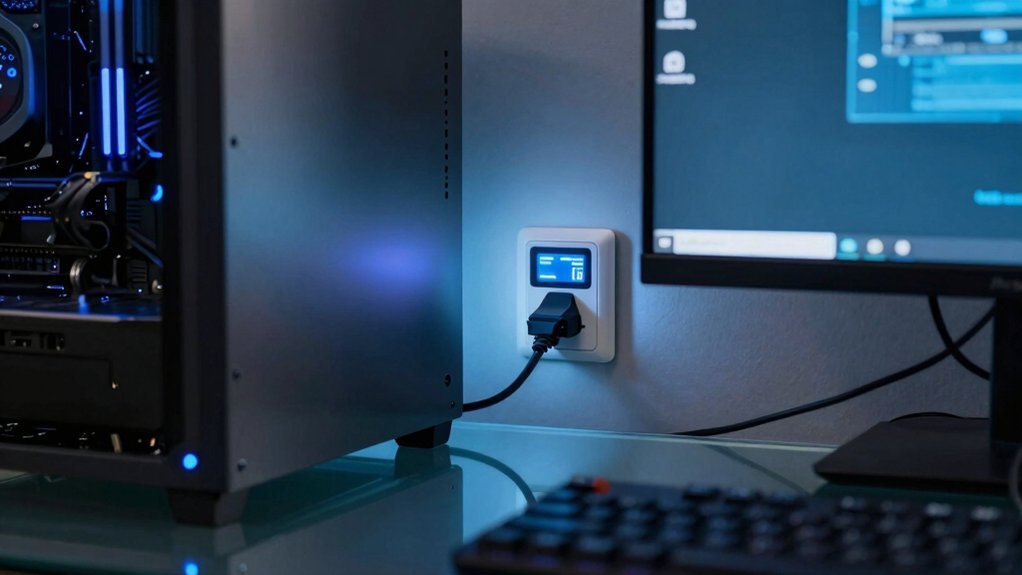
Why does PC standby power matter? You’re probably surprised, but the tiny watts your computer draws while off or idle add up. Standby power can represent 5 %–10 % of a household’s total electricity use, translating into up to $100 a year for the average U.S. family. Those hidden drains come from network cards, USB hubs, and monitors that stay in low‑power mode. When you cut that waste, you boost energy efficiency and shrink your carbon footprint. Even a modest reduction in standby consumption eases your electric bill and lessens demand on the grid. By unplugging peripherals, disabling fast‑startup features, and using smart power strips, you take immediate control of the hidden energy cost lurking behind your PC. Cable Clip Sizes can help organize and secure cords to minimize phantom loads and keep power strips tidy, supporting a cleaner and more energy-efficient setup.
Find the Top Standby Power Drains on Your PC
Check your USB ports and any attached gadgets—printers, headphones, webcams, and chargers often stay powered even when the PC is idle.
A smart power strip or simply unplugging unused peripherals can cut that drain instantly.
Adjusting energy‑saving settings and using ENERGY STAR‑rated hardware further trims the hidden standby consumption.
Additionally, disable or unplug unused USB devices in Device Manager to prevent phantom power draw from external peripherals standby power and ensure any external drives are safely ejected before standby.
Peripheral Peripherals Power Consumption
Ever wonder how much hidden energy your peripherals are sucking while your PC sits idle? External devices—printers, headphones, webcams—draw standby power even when you’re not using them. Unplug them or plug them into a smart power strip that cuts power automatically. Smart strips prevent idle draw from all peripherals, slashing overall consumption. Regularly audit the devices on your desk; disconnect anything you don’t need. Wireless adapters and Bluetooth dongles also linger in standby; turn them off or remove the dongle when idle. If you must keep certain peripherals on, place them on a controlled strip or choose hardware with energy‑saving modes. This simple discipline trims unnecessary waste and keeps your PC’s standby load lean. Outlet layouts can also help reduce congestion and ensure you’re not wasting power on unnecessarily powered hubs.
Idle USB Device Drain
Ever wondered how a few forgotten USB devices can keep your PC siphoning power even when it’s off? Those peripherals stay alive in sleep, pulling idle power and adding to your USB power draw. A webcam, mouse, keyboard, or hub can keep the bus powered unless you cut the port or unplug the device. Check your BIOS/UEFI for USB‑power‑off options, and consider a powered hub that you can switch off. Removing unused sticks is the simplest way to slash standby consumption. Stability and power management can further help reduce energy draw by ensuring devices only draw power when actively needed.
| Device | Typical USB Power Draw |
|---|---|
| Webcam | 0.5 W |
| Mouse | 0.1 W |
| Keyboard | 0.2 W |
| USB Hub (unpowered) | 0.3 W |
Use a Smart Power Strip to Cut PC Standby Power
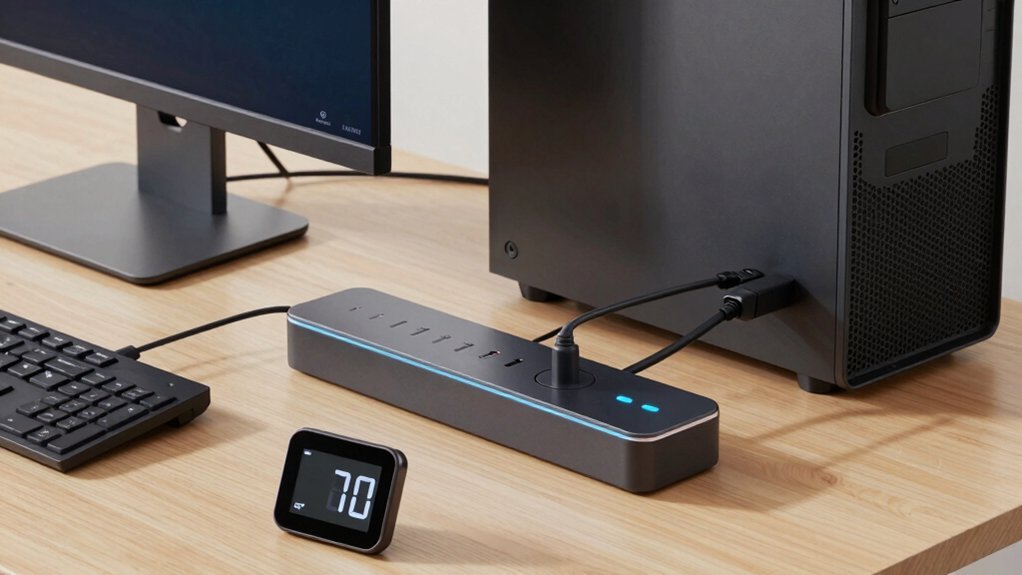
Wondering how to slash the phantom draw that haunts your PC’s idle state? A smart power strip lets you cut that power and standby waste without hunting for plugs. When the devices go idle, the strip’s electronics disconnect them, stopping current flow instantly. You’ll see a noticeable drop in your electricity bill because the strip eliminates continuous draw from peripherals that would otherwise stay on. Keep an eye on which gadgets stay attached—remove anything you don’t need to avoid unnecessary standby loads. By automating the unplugging process, you maximize savings while keeping your workstation ready to fire up at a moment’s notice. Power-management features help ensure that the strip can reliably shut off idle devices without compromising responsiveness.
Optimize Windows Power Settings to Lower PC Standby Power
You can start by picking the Best Power Efficiency plan, which cuts background activity and trims standby draw. Then set short sleep and hibernate timeouts and enable Energy Saver to dim the screen and limit processes when you’re on battery. In addition, consider selecting a USB power plan optimized for low idle consumption to further reduce standby draw driver size emphasis and enhance overall efficiency. Finally, lower brightness, switch to Dark Mode, and tweak adaptive brightness settings to keep the display’s power use to a minimum.
Power Plans
How can you shrink your PC’s standby draw? Pick a Windows power plan that favors energy savings over raw performance. In Settings > System > Power & battery, choose the “Power saver” or create a custom plan that lowers processor max state and caps background activity. Set the hard‑drive sleep timeout to a few minutes, and configure the monitor to turn off after a short idle period while dimming brightness. Adjust the screen, sleep, and hibernate timers so the system sleeps quickly when you step away. Regularly review these settings, tweaking component controls as needed to keep standby power at a minimum. By fine‑tuning power plans, you’ll cut idle consumption without sacrificing day‑to‑day usability. Overcharge protection
Sleep & Hibernate Settings
Ever wondered how a few seconds of idle time can cost you watts? Open Windows Power Options and set a sleep timeout that kicks in after the shortest practical idle period. This turns off active components while keeping RAM alive, slashing standby draw. For ultra‑low power, enable hibernate: the system writes RAM to disk and powers down completely, eliminating residual consumption.
Adjust the display and hard‑drive sleep settings in the same plan so monitors and disks enter low‑power states promptly.
Dive into advanced settings—PCI Express Link State Power Management, USB selective suspend—to trim idle power without hurting responsiveness.
Finally, review and update your power plan regularly to keep sleep and hibernate timings aligned with your current usage and hardware capabilities.
Adaptive Brightness Management
When the ambient light is low, adaptive brightness dims the display automatically, cutting the screen’s power draw without you noticing. In Windows, turn on Dynamic Brightness (often labeled Adaptive Brightness) in the Power & Sleep settings. This lets the system lower screen illumination during low‑activity periods, trimming idle power.
Pair the feature with shorter screen‑off and Sleep Mode timers—your PC will dim, then switch to Sleep Mode sooner, further reducing standby consumption. OLED panels benefit most, as dark content drives pixels near zero power while staying readable.
Periodically check each power plan to confirm Adaptive Brightness stays enabled, otherwise the screen may revert to full brightness and waste energy. By fine‑tuning these settings, you keep your workstation lean and your electricity bill lower.
Undervolt Your CPU and GPU for Reduced Idle Consumption
If you lower your CPU and GPU voltages while keeping stability intact, you’ll slash idle power draw dramatically. Undervolting cuts leakage and switching energy, so your system runs cooler and quieter when it’s not doing work. For AMD Ryzen, open the BIOS or Ryzen Master and use Curve Optimizer to apply a small negative offset—say ‑5—across all cores, then test stability with a stress tool. Intel users can decrement the voltage in 0.05 V steps, watching for crashes before committing. After each tweak, run a quick stability check to confirm you haven’t crossed the reliability threshold. The result is a noticeable drop in idle power, extending battery life on laptops and trimming your electricity bill at home.
Adjust Fan and Pump Curves to Save Cooling Power
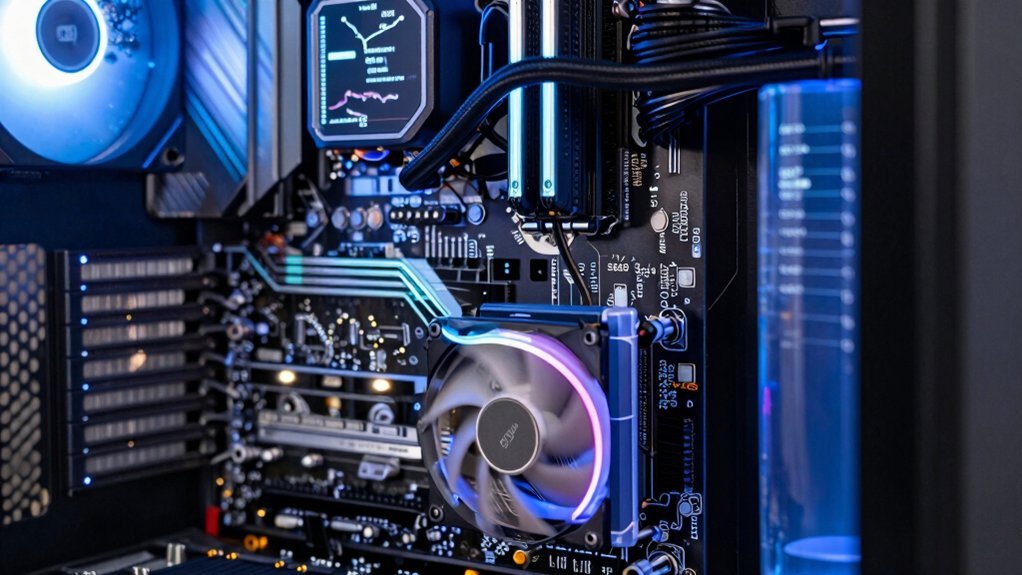
You can shave off a few watts by tailoring the fan and pump curves in your BIOS, lowering idle speeds while keeping temperatures in check. Set custom curves for case fans and the AIO pump, then -20% to -40% of peak speed at idle. Those tweaks trim power draw from cooling components without sacrificing thermal safety. Test each change, watching CPU and GPU temps under light loads; if they stay within safe limits, you’ve reduced cooling power consumption and quieted the system. Slower fans also generate less heat, which further eases the workload on other cooling stages. Keep an eye on temperature spikes, but once you find a stable curve, you’ll enjoy a noticeably lower standby power bill.
Unplug or Disable Peripherals When They’re Not in Use
Ever wonder why your electricity bill stays high even though your PC’s idle? You’re probably overlooking the hidden draw from external devices. Printers, headphones, webcams, and even charging cables keep siphoning standby power long after you stop using them. Unplugging peripherals when they’re not in use instantly cuts that waste, lowering your overall consumption without sacrificing performance. Take a quick inventory each week and pull out anything you don’t need.
If you can’t physically disconnect a device, route it through a smart power strip or an outlet switch so you can flip the power off during inactivity. This low‑cost habit trims the constant drain and helps your bills shrink while your system stays ready for the next task.
Pick Energy‑Star‑Rated Power Supplies for Lower PC Standby Power
Even after you unplug idle peripherals, the PC’s power supply can still draw a noticeable amount of electricity while the system sits idle.
Even when peripherals are unplugged, a PC’s power supply still draws noticeable electricity while idle.
Choosing an Energy Star‑rated power supply slashes that waste because the unit stays efficient across all loads, especially at no‑load and light‑load conditions typical of standby.
Look for a PSU that meets the 80 Plus certification you need and verify its wattage matches your system’s requirements; higher star ratings usually mean 90 %+ efficiency at idle, cutting heat and electricity use.
Upgrading to an Energy Star PSU can shave off a few watts continuously, which adds up to measurable annual savings on your electric bill.
Measure and Track Standby Savings With a Wattmeter
How much power does your PC really draw while it’s idle? Grab a wattmeter and plug it between your outlet and the tower; the display shows real‑time energy consumption, letting you quantify standby draw. Record the baseline, then apply a power‑saving tip—unplug USB chargers, enable sleep modes, adjust GPU idle settings—and watch the meter drop. Track the numbers over days to smooth out background processes and software updates, then calculate daily kWh and extrapolate annual cost. Use the data to prove each tweak works and decide where to focus next.
- Measure before and after each change.
- Log hourly or daily usage.
- Compare cumulative savings to estimate annual Energy reduction.
Frequently Asked Questions
How Do I Make My PC Consume Less Electricity?
You can lower your PC’s electricity use by unplugging peripherals, switching to a power‑strip, disabling Wi‑Fi/Bluetooth, setting shorter sleep timers, and choosing ENERGY STAR‑rated hardware for efficient standby.
What Is the Best Way to Reduce Standby Power?
Use a smart power strip with individual switches, then turn off or unplug your PC and peripherals when not in use. This cuts standby draw instantly, saving energy and money without sacrificing convenience.
How to Prevent a PC From Using Too Much Power?
You prevent excess PC power use by disabling unused peripherals, switching to ENERGY STAR‑rated hardware, enabling sleep/hibernate, using a smart power strip, and turning off background apps and unnecessary services.
Is It Better to Put Your PC to Sleep or Shutdown?
You should shut down for long idle periods because it cuts almost all power; use sleep only for short breaks when you need a fast wake‑up, balancing energy savings against convenience.
In Summary
By tackling standby power head‑on, you’ll slash your electricity bill and shrink your carbon footprint. Start with a smart strip, tweak Windows settings, and undervolt your CPU and GPU. Trim fan curves, ditch idle peripherals, and choose an Energy‑Star PSU. Keep a wattmeter handy to track progress. With these steps, your PC will sip power instead of guzzling it—saving money and the planet, one idle minute at a time.


