

Clean the dust off your GPU’s fins, fan and and case vents with compressed air, then tighten any loose cables that block airflow. Add a couple of cheap 120 mm intake fans at the bottom of your case to pull cool air directly onto the GPU and create positive pressure. Use free tools like MSI Afterburner to set a steeper fan curve so the fans kick in earlier. Undervolt or lower the power limit in small steps to cut heat while keeping performance. Finally, lower your room’s ambient temperature by opening windows or using a fan, and you’ll see even better cooling results. Keep going for more detailed tips.
Clean Dust to Lower GPU Temperatures and Boost Airflow
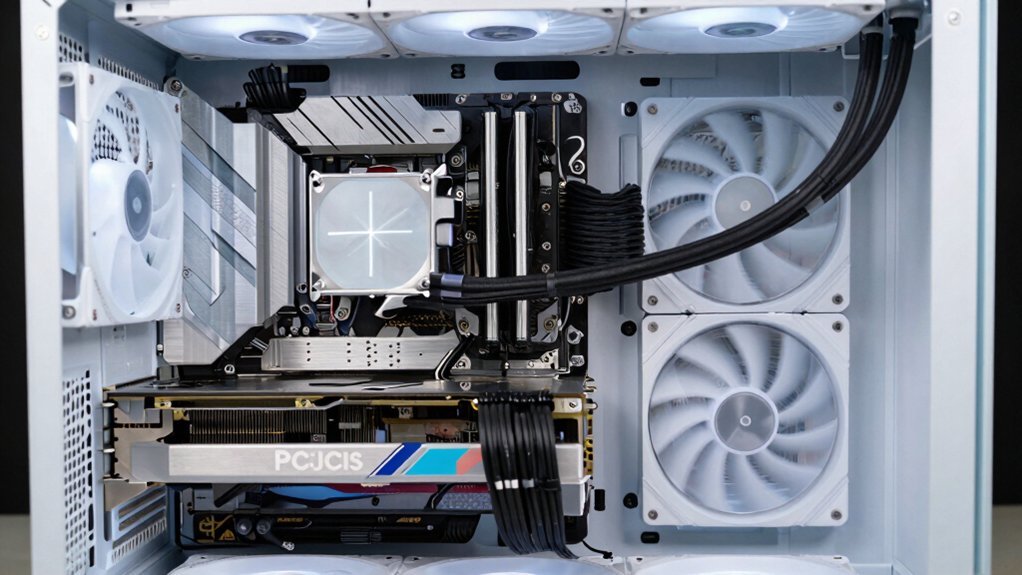
Ever wondered why your GPU runs hot even after a fresh thermal paste? Dust settles on fins, fans, and vents, choking airflow and forcing GPU temperatures up. Grab a can of compressed air, blast the shroud, heatsink, and fan blades; you’ll instantly restore cooling efficiency. While you’re at it, pull the case side panel and clear any debris from intake filters and cable bundles that block air. Tighten loose cables, route them away from the GPU, and keep the interior tidy. A quick cleaning routine—once a month—prevents thermal throttling and keeps temps stable during long sessions. By maintaining unobstructed airflow, you let the fans do their job, lowering temperatures without extra hardware. Regular maintenance aligns with best practices in ensuring proper airflow and ongoing protection against overheating ETL certification and design considerations that support safe, reliable operation.
Add Low‑Cost 120 mm Intake Fans to Lower GPU Temperatures
Looking for a cheap, non‑invasive way to drop GPU temps? Adding 120mm intake fans at the bottom of your case can slash heat without opening the GPU. The vents already have mounting holes, so a low‑cost upgrade with bottom‑mounted fans creates fresh airflow straight onto the GPU. You’ll also get positive air pressure, which pushes dust out and eases dust reduction.
Add cheap bottom‑mounted 120mm intake fans for direct GPU airflow, positive pressure, and lower temps.
Three budget-friendly 120mm fans can be aligned with the bottom vents to maximize airflow and maintain steady cooling performance. This simple tweak boosts GPU cooling, saves money, and keeps your rig tidy. Vent compatibility
Fine‑Tune GPU Fan Curve to Lower GPU Temperatures With Free Tools
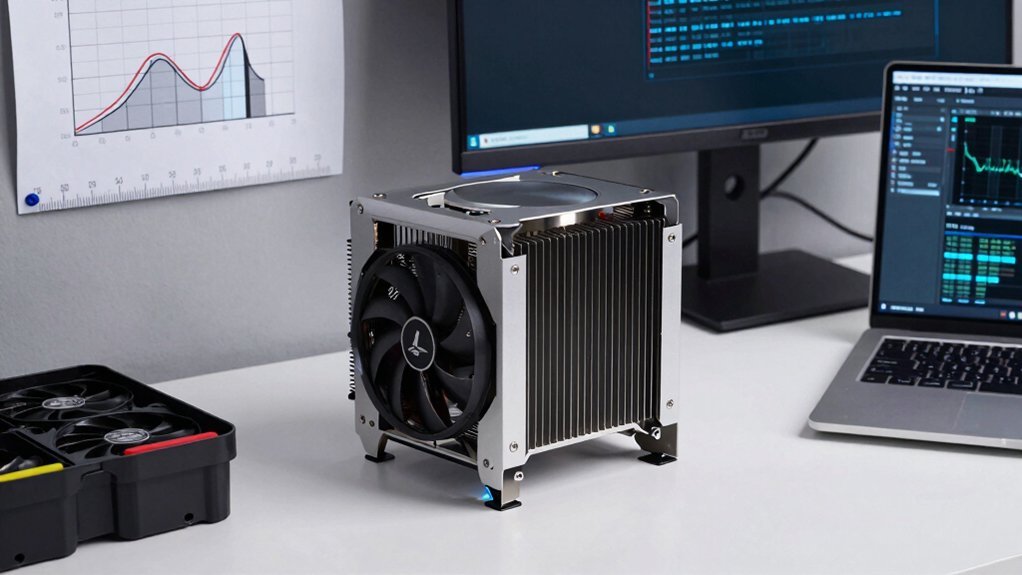
After adding cheap intake fans, you can squeeze even more performance out of your GPU by fine‑tuning its fan curve with free software. Open MSI Afterburner (or ASUS GPU Tweak III, EVGA Precision X1) and plot a steeper curve that ramps fan speed earlier. Set the curve so fans hit 100 % at roughly 75 °C during testing, then increase speed in small increments at higher temps. Run a long gaming session, watch the graphics card’s temperature readout, and note any heat spikes. If temps still creep up, adjust the curve a notch higher and retest. A well‑tuned fan curve boosts cooling efficiency, often lowering peak temperatures by several degrees while keeping noise reasonable and maintaining GPU stability. thermal management principles
Undervolt or Power‑Limit GPU to Lower Temperatures
How can you shave degrees off your GPU’s temperature without buying new hardware? You can lower the voltage or set a tighter power‑limit, which cuts heat while keeping most of the boost clock. The trick is to find the sweet spot where performance stays solid and GPU temperatures drop noticeably.
Open MSI Afterburner (or AMD Software) and enable manual voltage control.
Reduce the voltage in small steps, then run a demanding game for 10‑15 minutes.
Perform stability testing; if you see crashes or stutter, raise the voltage slightly.
Once stable, lock a modest power‑limit (e.g., 80 % of the default) to boost cooling efficiency further.
Additionally, you can leverage a keyboard/mouse combo that minimizes power draw during idle moments to help maintain cooler system temps overall, especially if you’re running multiple peripherals or a compact build with limited airflow. Power-Management
Cool the Room to Support Lower GPU Temperatures
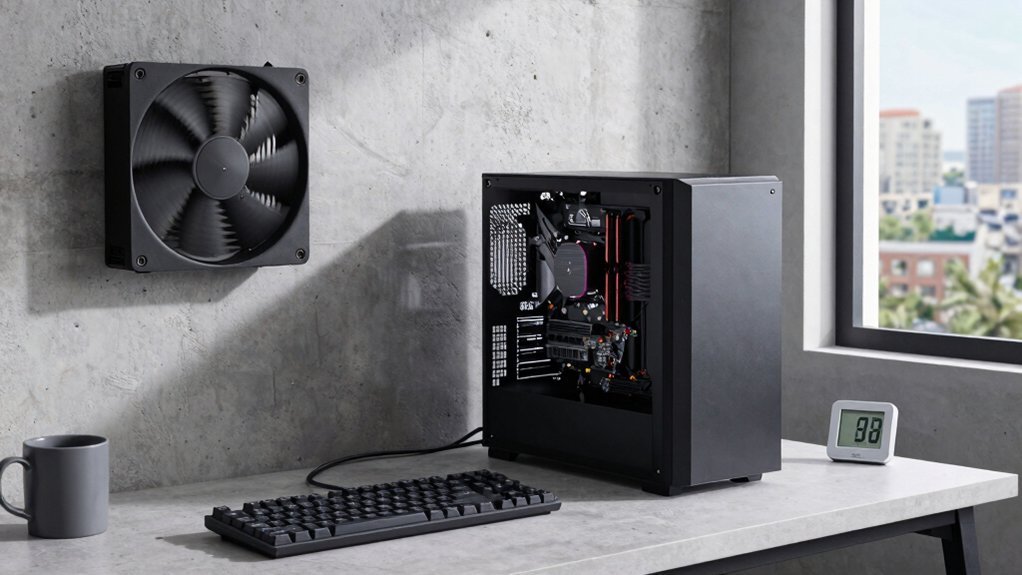
A cooler room directly lowers your GPU’s temperature by feeding it denser, colder intake air, which improves heat dissipation and lets case fans work more efficiently. Lower ambient temperature boosts case airflow, so intake fans pull in fresh air instead of pre‑heated room air, raising cooling efficiency and keeping GPU cooling steady. If you can’t run AC, open doors or windows and place a ceiling fan to move heat away from your rig. Consistently maintaining a comfortable climate is a low‑cost foundation that amplifies any fan tweaks or airflow upgrades you add later. Acknowledging that power supplies with adequate protection and efficiency can help maintain stable voltages under load supports safer operation in budget builds Protection Circuits and ensures your components stay within safe thermal margins during cooling improvements.
Frequently Asked Questions
What Can I Do to Lower GPU Temps?
You can clean dust, improve case airflow with extra fans, tidy cables, adjust the fan curve, undervolt the GPU, and lower graphics settings or enable DLSS/FSR to reduce temperatures.
Is 84 C Hot for a GPU?
Yes, 84 °C is hot for a GPU—it’s near the upper safe limit and can cause throttling or wear. You should boost fan speeds, clean dust, improve airflow, and consider better cooling to keep temps below 80 °C.
Is a 70 Degree GPU Hot?
No, a 70 °C GPU isn’t hot; it’s within normal gaming ranges. You’re safe, but keeping airflow clear and monitoring fan curves will give you extra headroom and prolong the card’s life.
Is 90 C Hot for CPU While Gaming?
Yes, 90 °C is hot for a CPU while gaming; it pushes you into the danger zone, risking throttling and reduced lifespan. Keep it below 80 °C for safety and performance.
In Summary
By keeping your GPU clean, adding cheap 120 mm intake fans, tweaking the fan curve, undervolting or power‑limiting, and cooling your room, you can slash temperatures without breaking the bank. These simple steps not only extend your card’s lifespan but also boost performance and stability. Implement them today and enjoy a cooler, quieter rig that runs smoother for longer.


Leave a Reply