
You’ll find five top‑free tools that let you stream to Twitch, YouTube and Kick with minimal hassle. OBS Studio works on Windows, macOS and Linux, offers deep plugin support and lets you fine‑tune audio and video. Streamlabs OBS gives you a drag‑and‑drop UI, built‑in overlays and multi‑streaming out of the box. Nvidia ShadowPlay uses NVENC for low‑CPU recording on modest rigs. These options cover beginners to power users, and the next section shows how to set up a full streaming stack.
How to Choose the Best Free Streaming Software for Your PC or Laptop

Looking for the right free streaming software? Start by checking platform compatibility; you’ll want a tool that handles Twitch, YouTube, and Kick without extra hassle. OBS Studio shines here, offering multi‑platform streaming across Windows, macOS, and Linux. If you’re on a modest laptop, weigh system performance: OBS can be tweaked with hardware encoding, while Nvidia Shadowplay leans on GPU power for minimal impact. Explore plugins to extend OBS’s capabilities—scene transitions, chat overlays, or audio filters—without bloating the UI. For newcomers, beginner‑friendly alternatives like Streamlabs OBS provide built‑in widgets and a simpler setup, though they sacrifice some advanced features. Ultimately, match the software’s flexibility, resource demands, and extensibility to your hardware and streaming goals. Platform compatibility
OBS Studio – Free Streaming Software Review (All‑Rounder for Budget Streams)
OBS Studio is compatible with a wide range of plugins and add-ons, expanding its capabilities beyond the built-in features to surround sound options and advanced audio processing.
Streamlabs OBS – Free Streaming Software Review (Beginner‑Friendly Features)
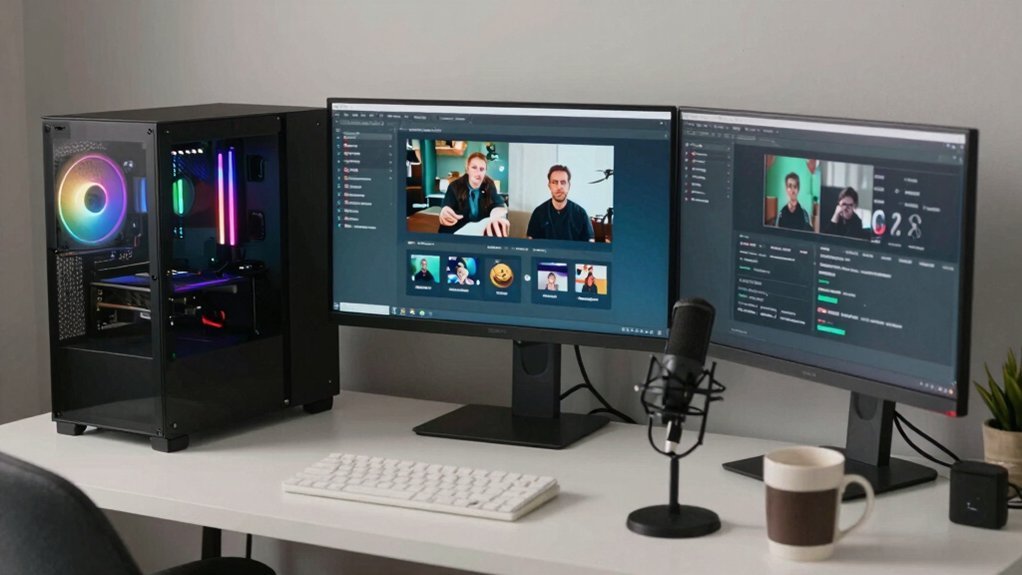
If OBS gives you power but feels a bit intimidating, Streamlabs OBS steps in with a smoother, starter‑friendly experience. This free streaming software builds on the OBS Studio alternative foundation while wrapping everything in a clean, drag‑and‑drop UI. You’ll find built‑in overlays, donation widgets, and themed alerts that let you go live in minutes without hunting for third‑party assets. RGB lighting can add flair to your scenes, echoing how RGB features enhance multi‑device setups like cooling or lighting accents for PS5 stations. Multi‑streaming is baked in, so you can broadcast to Twitch, YouTube, or Facebook simultaneously, and cloud sync keeps your scenes consistent across devices. The live streaming tools focus on ease of use, making it perfect for beginners who want a polished look without a steep learning curve. As an open‑source‑derived project, support comes from community forums and tutorials rather than a dedicated paid team.
Nvidia ShadowPlay – Free Streaming Software Review (GPU‑Based Recording for Low‑End PCs)
Wondering how to stream without sacrificing frame rates on a modest PC? ShadowPlay, built into GeForce drivers, leverages NVENC for GPU‑based recording, so your CPU stays free for the game. You’ll get smooth game capture with virtually no lag, making it perfect for low‑end PCs that can’t handle heavyweight encoders. The interface is minimal—just a toggle for recording or streaming—so you won’t drown in overlays or scene management. Because it’s bundled as free software, there’s no extra cost, but don’t expect advanced features like alerts or custom transitions. If you need a simple, reliable way to broadcast your gameplay without hurting performance, ShadowPlay fits the bill. NVENC provides GPU‑based encoding that minimizes CPU load and enhances overall performance, aligning with guidance on using hardware resources to maximize value across gaming setups.
Quick‑Start Checklist for a Free Streaming Stack
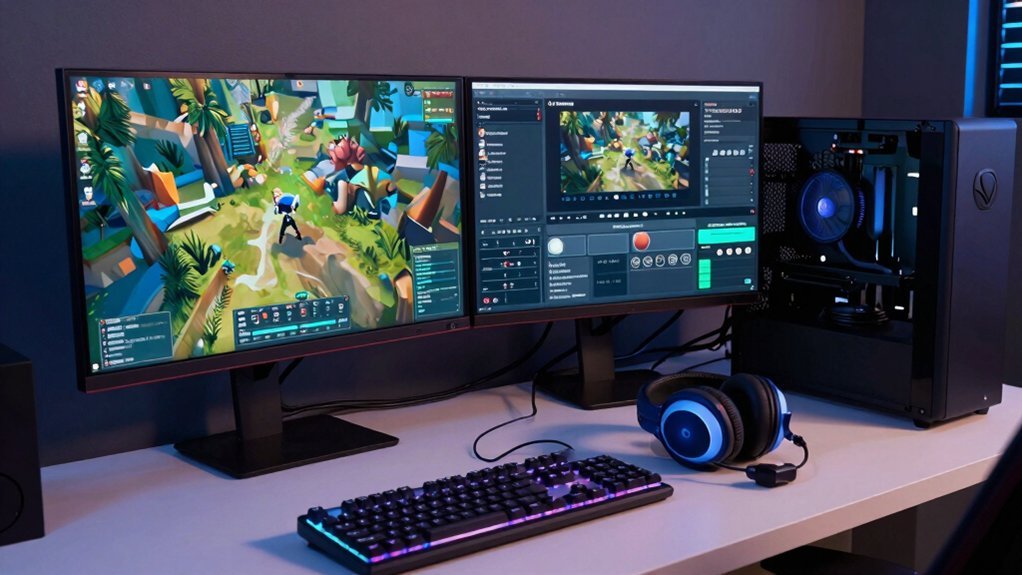
Ready to launch your stream without a hiccup? First, download OBS Studio, the free, beginner‑friendly powerhouse that runs on Windows, macOS, and Linux. Install it, then create a new scene and add sources: webcam, mic, game capture, and any overlay you like. Enable audio mixing to balance voice and game sound, and set up live recording if you want local backups. In Settings, configure the output to RTMP, entering your Twitch, YouTube, or Kick stream key for multi‑platform delivery. Choose the appropriate encoder—NVENC if you have an Nvidia GPU, otherwise x264—to keep performance smooth. Finally, test your bitrate, resolution, and frame rate, then hit “Start Streaming.” You’ll be ready for a professional‑grade broadcast with minimal hassle. Budget storage principles remind you to balance affordability with real protection and to plan for growth as your library expands.
Frequently Asked Questions
What Is the Best Streaming App for Gamers?
You’ll find OBS Studio the best streaming app for gamers—free, open‑source, cross‑platform, and highly customizable, letting you capture high‑quality gameplay with advanced features while staying cost‑free.
Is OBS 100% Free?
Yes, OBS is 100% free. You download it, install it, and use all its features without paying a dime, because the source code’s open‑source and there are no hidden fees or subscriptions.
Is Streamlabs or OBS Better?
You’ll find OBS better if you need full control and flexibility; Streamlabs simplifies setup with built‑in overlays and widgets, but it sacrifices some customization and can be a bit heavier on resources.
What Is the Best Free Streaming Software?
You’ll find OBS Studio the best free streaming software; it gives you full scene control, extensive plugins, cross‑platform support, and professional‑grade features that no other free tool matches.
In Summary
You’ve got the tools you need—OBS for flexibility, Streamlabs for simplicity, and ShadowPlay for low‑CPU performance. Pick the one that matches your hardware and comfort level, set up the quick‑start checklist, and you’ll be streaming like a pro without spending a dime. Happy gaming!


Leave a Reply