
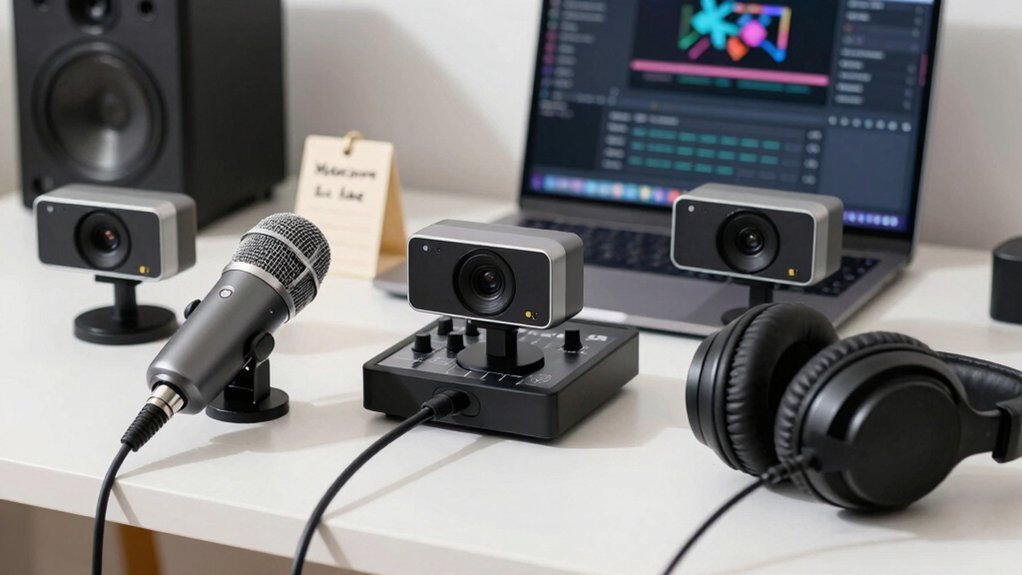
Pick a plug‑and‑play USB mic like the Blue Snowball for hassle‑free setup or the Blue Yeti if you want a mute button and gain dial without breaking the bank. Pair it with a budget webcam—Lifecam HD‑3000 gives 720p for $30, while the Logitech C920 offers reliable 1080p and a solid built‑in mic. Add a compact LED panel or ring light at 45° above eye level, and use a monitor clip or cheap phone holder as a DIY stand. This combo stays under $100 and gets you streaming‑ready fast, and the next steps will show you how to fine‑tune lighting and sync audio‑video.
Pick the Best Cheap USB Mic for Your Stream
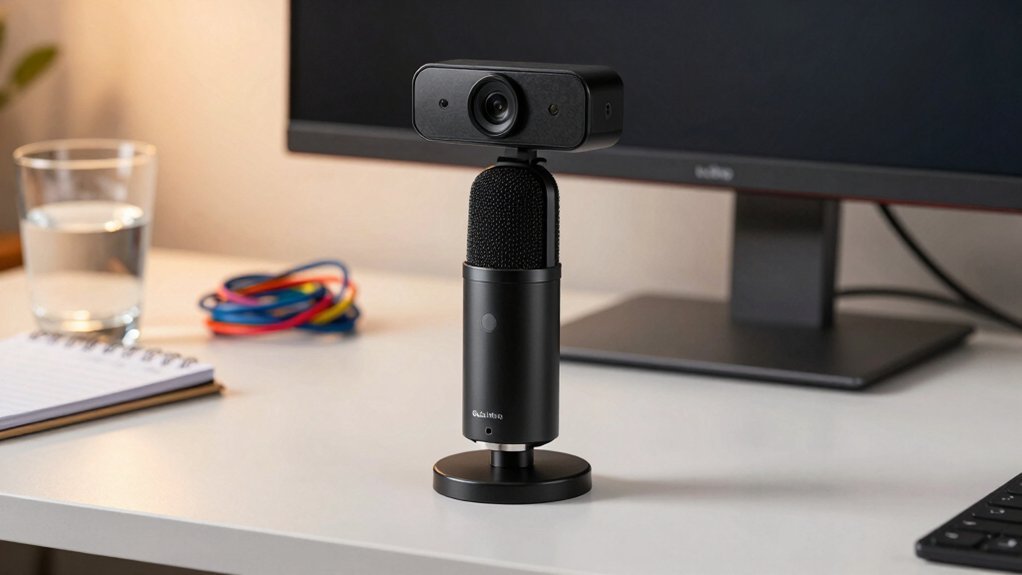
Choosing the right cheap USB mic starts with balancing price, ease of use, and sound quality. For a webcam microphone combo that won’t break the bank, the Snowball is the go‑to budget mic. It’s USB‑compatible, plug‑and‑play, and delivers clear audio for beginner streaming without any drivers. If you can stretch a bit, the Blue Yeti adds hardware mute and gain dial, giving you more control over your audio setup while staying budget‑friendly. Both mics integrate seamlessly with any USB‑compatible webcam, so you won’t need extra adapters. The Snowball shines for quick, hassle‑free installs, whereas the Yeti suits those who want tweakable sound without spending a lot. Either choice keeps your stream professional on a shoestring. XMP/DOCP/EXPO profiles enable higher memory speeds on compatible platforms to realize advertised performance and stability across systems.
Choose a Budget Webcam: Lifecam 3000, C920, or BRIO
A solid budget webcam can make a huge difference in your stream’s visual quality without draining your wallet. The Lifecam HD-3000 is a true budget webcam, delivering 720p video for about $30 and a decent built‑in microphone, but it lacks advanced features. The C920, priced around $60, bumps you to 1080p at 30 fps, offers a reliable built‑in microphone, and handles natural light well, making it the go‑to everyday camera for most streaming setups. If you can stretch a bit more, the BRIO brings 4K resolution, USB‑C connectivity, multiple field‑of‑view options, and a privacy shutter, though it sits at a higher price point. Pair any of these with a USB microphone for the best audio. Lighting options can further enhance your stream by improving visibility and reducing noise in darker rooms.
How to Light Your Desk on a Tight Budget?
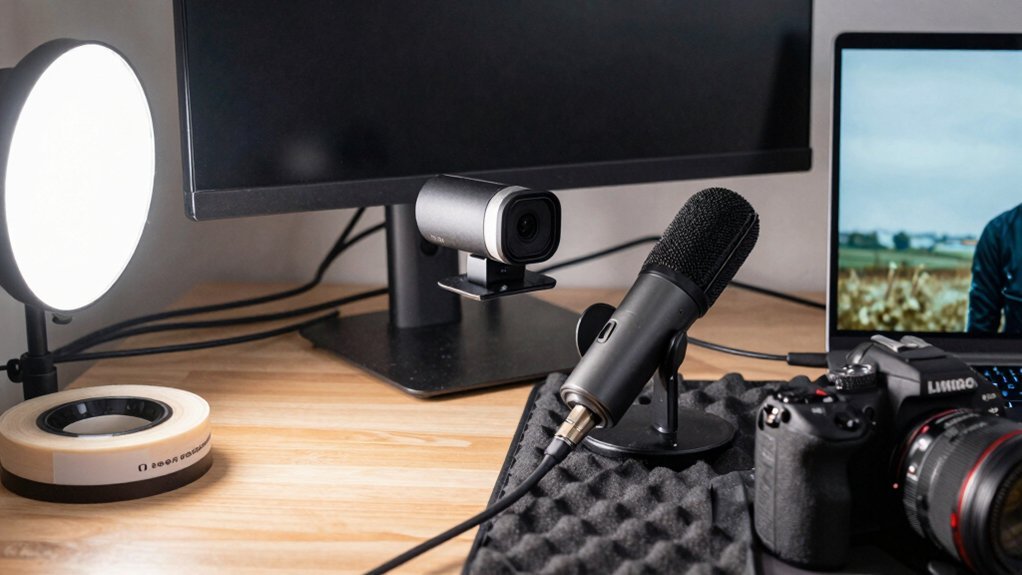
Ever wondered how a few inexpensive lights can transform your webcam’s look? Start by adding a compact LED panel or a ring light to your desk setup. Position the source about 45 degrees from your face and slightly above eye level; this creates soft shadows and boosts color accuracy. Choose a daylight-balanced 5500K bulb for natural skin tones and to avoid color shifting. If you have a window, blend natural light with your lamp for a balanced exposure. For extra softness, try bounce lighting—place a white foam board or a small mirror opposite the light. These affordable lighting opciones give you professional‑grade webcam lighting without breaking the bank, keeping your desk setup tidy and efficient. RGB lighting can add aesthetic value to your setup without compromising protection or outlet layout.
Set Up Your Gear in Minutes: Plug‑and‑Play Tips
After you’ve got your lighting sorted, you can get streaming up and running in just a few minutes. Pick a webcam microphone combo that promises a plug‑and‑play setup, then follow these easy steps for instant results. Include a wireless option for flexibility when you’re moving between rooms or setups to keep your workflow smooth plug-and-play setup. 1. Connect your USB mic – plug the Blue Snowball, Yeti, or Procaster into a free USB port; the driver installs automatically. 2. Attach the 1080p webcam – mount the Logitech C920 or Lifecam HD‑3000, then connect its USB cable. 3. Select the devices – open your streaming software, choose the USB mic and 1080p webcam from the dropdowns, and enable audio‑video synchronization. 4. Test the lighting boost – turn on your desk lamp, adjust the webcam’s exposure, and verify the image stays clear. These plug‑and‑play tips give you budget streaming gear with easy installation and reliable webcam mic compatibility.
Keep Costs Low With DIY Stands and Budget Accessories
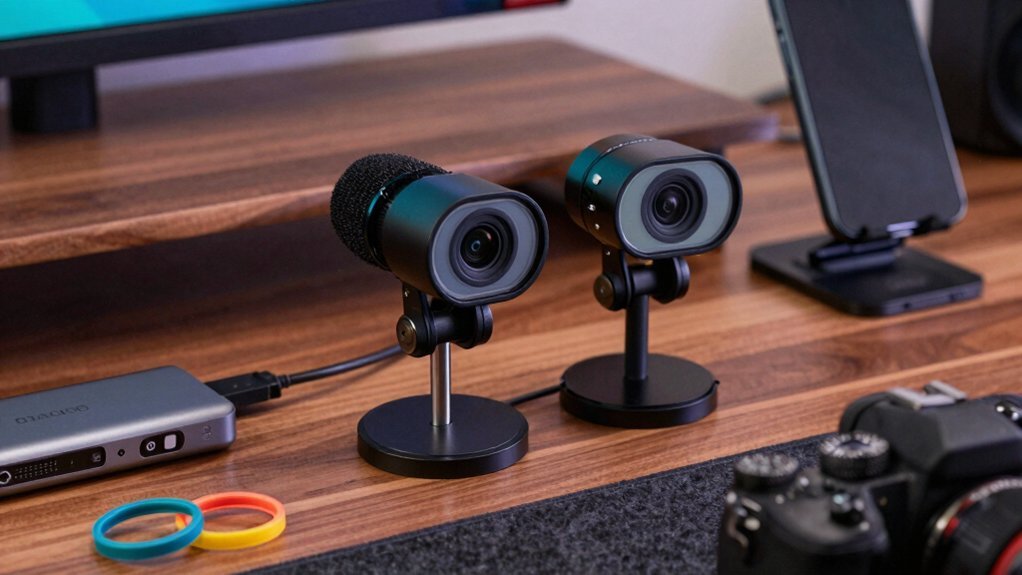
Looking to stretch every dollar while still getting a stable shot? You can turn a simple desk mount into a DIY stand for your webcam microphone combo, keeping the budget setup lean and functional.
Reuse an old monitor clip or attach a cheap phone holder to secure the budget webcam and USB mic, ensuring consistent camera placement without wobble.
Attach a monitor clip or phone holder to lock your webcam and mic in place, eliminating wobble.
An inexpensive mic like a Blue Snowball delivers clear streaming audio, and a DIY stand lets you angle the mic for optimal pickup.
Pair these with budget accessories—such as a small LED panel for lighting improvement—to boost image quality.
With a few repurposed parts, you maintain professional‑looking streams while staying under budget.
To maximize reliability, consider choosing a budget SSD-friendly setup for your streaming PC to ensure snappy performance and quick file access when recording or live-casting. reliability
Frequently Asked Questions
How to Choose a Mic for Streaming?
Pick a mic that fits your budget, space, and noise level. Prioritize USB plug‑and‑play, clear sound, and simple controls. Test it with your streaming software before committing to a purchase.
What Is a Good Budget Camera for Streaming?
You should grab the Logitech C920; it delivers crisp 1080p video, solid white balance, and reliable performance at a low price, making it the best budget camera for streaming.
Which Is Better for Streaming, Condenser or Dynamic Mic?
You’ll want a condenser mic if you stream in a quiet room—its bright detail captures your voice clearly. In noisy spaces, choose a dynamic mic; it rejects background sounds better.
Which Microphone Do Most Streamers Use?
You’ll find most streamers gravitate toward the Blue Yeti because it balances price, USB plug‑and‑play ease, and on‑board gain controls, making it a reliable, budget‑friendly choice for everyday broadcasts.
In Summary
You’ve got everything you need to launch a solid stream without breaking the bank. By pairing a reliable USB mic with a budget webcam, lighting your desk smartly, and using DIY stands, you’ll look and sound professional while keeping costs low. Set it up, test the audio, and start streaming—no expensive gear required. Enjoy the simplicity and focus on creating great content.


Leave a Reply