

Pick a 27‑inch 1440p or 4K panel with HDMI 2.1, under 5 ms input lag, and FreeSync Premium for smooth console play. Budget options like the ViewSonic Omni VX2728J‑2K give QHD clarity and low lag, while the HP Omen 27k hits 4K 144 Hz at a similar price. Curved ultrawide screens add immersion, but flat panels are easier to mount and fit tighter desks. If you follow the decision framework—budget ceiling, resolution, refresh, HDR, and sync—you’ll spot the best value and avoid cheap tricks.
Pick the Right Console Monitor on a Tight Budget
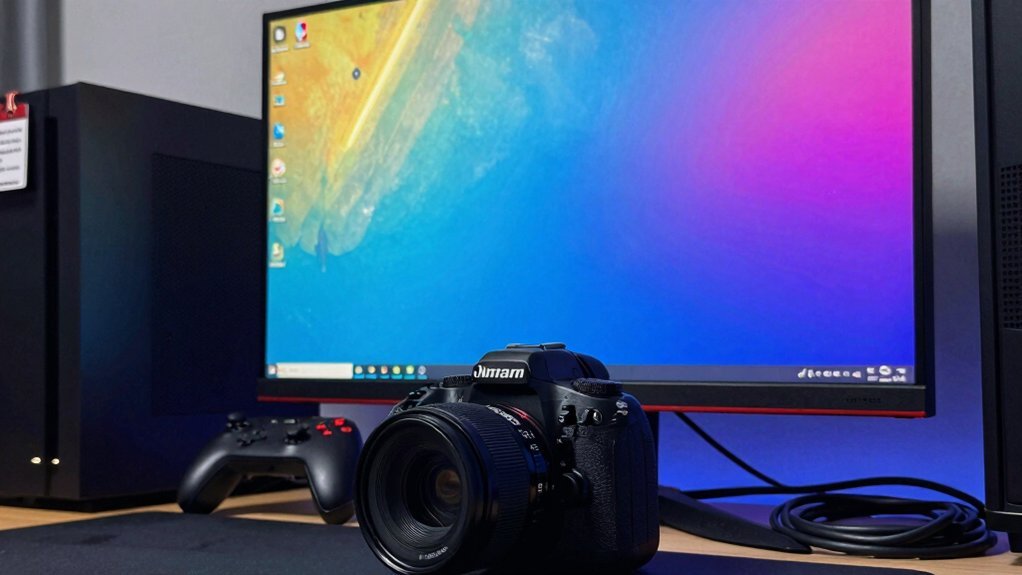
Looking for a budget‑friendly console monitor? Aim for a 27‑inch panel; it gives you enough immersion without crowding your desk. Choose a model that supports FreeSync Premium to keep frame‑rate spikes smooth, especially on consoles that push 60 Hz or higher. HDMI 2.1 is a must‑have if you plan to use next‑gen hardware, because it lets you hit 4K at 120 Hz or 1440p at 144 Hz without extra adapters.
The ViewSonic Omni VX2728J‑2K offers QHD clarity and low input lag at a modest price, while the HP Omen 27k delivers 4K detail and a 144 Hz refresh for a similar cost. Both balance color accuracy and response time, letting you game competitively without breaking the bank. 27-inch displays in this budget tier often provide the best balance of immersion and desk space, making them a practical pick for console setups.
Decision‑Making Framework for Budget Console Monitors
A solid decision‑making framework for budget console monitors starts by weighing price against performance, focusing on core specs that matter to gamers. First, set your budget ceiling and then shortlist models that hit key console targets: 1080p or 1440p resolution, 60‑120 Hz refresh, and low input lag under 5 ms. USB-C Power Delivery and adaptively synced features should be considered in relation to your console’s output, ensuring the monitor can handle the signal without stutter. Check in‑store availability and read calibration reviews—reliable out‑of‑the‑box color accuracy saves you time and money. Finally, weigh total cost against these performance metrics; discard any option that lacks essential I/O or spikes beyond your budget. This systematic approach narrows choices to value‑driven, low‑lag monitors that deliver a smooth console gaming experience.
HDR Basics for Budget Console Monitors
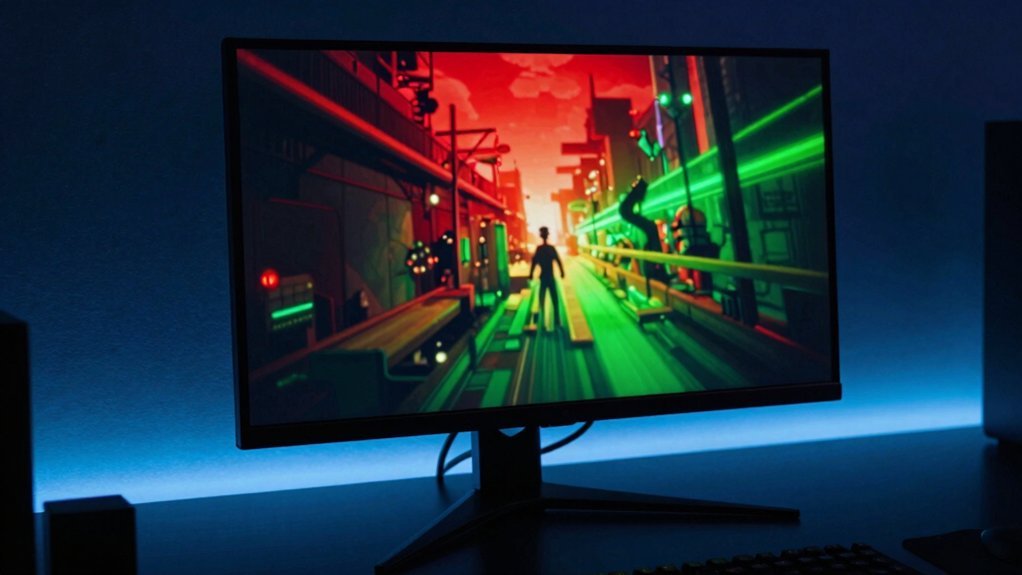
You’ll notice HDR can boost contrast and color depth, making games feel more immersive even on a modest monitor.
To get the most out of a budget screen, aim for at least 400 nits of brightness, a decent color gamut, and FreeSync Premium or G‑Sync support for smooth HDR rendering.
Keep in mind that while OLED or QD‑OLED models deliver the best HDR performance, many 1440p LCDs still provide a noticeable upgrade over SDR when paired with the right console settings. surge protection
HDR Benefits for Gaming
Brightness jumps dramatically when you enable HDR on a budget console monitor, turning dull scenes into vivid, lifelike experiences. You’ll notice brighter highlights, deeper shadows, and a wider color gamut that make explosions, sunsets, and character details pop.
OLED panels, like the PG27AQDP, push peak brightness to around 1,300 nits, delivering near‑infinite contrast that lets blacks stay truly black while highlights stay brilliant.
HDR10 support ensures most console titles display their intended dynamic range without extra tweaking. You’ll also appreciate out‑of‑the‑box color accuracy, meaning you spend less time calibrating and more time enjoying immersive gameplay.
When shopping, compare HDR brightness, color coverage, and consistency across games to pick the monitor that best enhances your console experience.
Budget HDR Implementation Tips
Wondering how to get decent HDR on a cheap console monitor? Focus on peak brightness, contrast, and HDMI bandwidth. Aim for at least 400–600 nits and a 1000:1 native contrast ratio; these numbers give visible HDR highlights even on a budget panel. Choose a monitor that supports HDR10 and has HDMI 2.0 or 2.1, ensuring stable color gamut coverage and proper signaling. Global dimming is common, so expect softer blacks, but a higher contrast ratio mitigates the effect. Prioritize models with DisplayHDR 400 certification, like the HP Omen 27k, to guarantee a baseline HDR experience without overspending. To ensure a reliable gaming experience, consider how a solid panel and a stable power delivery can influence HDR performance panel quality and the importance of consistent peak brightness across scenes.
Identify Low‑Lag Numbers That Matter for Gaming
How do you gauge a monitor’s low‑lag performance? You start with GTG response time and input lag, because they directly affect how quickly a frame appears after you press a button. A 0.5 ms GTG, like the Alienware AW2525HM, means pixels switch almost instantly, while a low input‑lag rating—often under 5 ms on modern 1080p panels—keeps your commands tight. High‑refresh models, such as 500 Hz AW2524HF, push frame updates faster, reducing motion blur on fast console titles. OLED and QD‑OLED screens add near‑zero GTG (0.03 ms on the Asus ROG Swift PG27AQDP) and superb contrast, further sharpening reaction. Even budget picks like ViewSonic Omni VX2728J‑2K keep input lag low, though they may miss HDMI 2.1. Check both metrics together to ensure smooth, responsive gameplay. low-lag metrics help you compare how different panels perform under real play conditions.
How FreeSync and G‑Sync Affect Your Console Gaming

When you connect a PS5 or Xbox Series X|S to a monitor that supports VRR, FreeSync Premium or G‑Sync‑compatible technology instantly cuts screen tearing and stutter by matching the display’s refresh rate to the console’s frame output. You’ll notice smoother 60–120 Hz play without a VRR‑capable GPU, and budget models often list FreeSync or G‑Sync Compatible as a key spec. FreeSync covers more low‑cost monitors, while G‑Sync‑compatible panels still rely on the console’s fixed rate but keep tear‑free visuals and low input lag. Always check the VRR range—40–144 Hz or 48–120 Hz—to match your console’s output. Moreover, budget storage principles suggest planning for future expansion and labeling to keep a growing system organized, which in the context of a gaming setup can help you manage multiple monitor configurations, consoles, and accessories without compromising performance or ease of use. VRR range and the rest of the specifications should be verified with the retailer to ensure compatibility with your exact console model and any firmware updates that may affect performance.
Which Cheap Monitors Actually Support 120 Hz at 4K via HDMI 2.1?
You’ll notice that true HDMI 2.1 4K 120 Hz is rare in cheap monitors because the bandwidth ceiling forces manufacturers to cut refresh rates or resolution. When a budget screen does claim 4K 120 Hz, it’s usually a higher‑end model with OLED or DP‑enabled panels, not the low‑cost options most consoles target. Bias lighting considerations, such as matching 6500K true white for color accuracy and minimizing perceived surround contrast, can still improve the viewing experience on budget displays. Brightness Adjustment Range options and flicker‑free operation are also relevant factors in evaluating eye comfort on affordable monitors.
HD 2via1 Compatibility
Ever wonder which budget monitors actually deliver 4K 120 Hz over HDMI 2.1? You need a panel that explicitly lists HDMI 2.1 support; otherwise you’ll be stuck at 4K 60 Hz or 1440p 120 Hz via DisplayPort. The HP Omen 27k is a rare cheap option that can hit 4K120, but only certain revisions carry the HDMI 2.1 port—check the model number before you buy. Most entry‑level screens still ship with HDMI 2.0, so they can’t push the full 4K120 bandwidth. OLED and QD‑OLED budget lines rarely include HDMI 2.1 at all, making true 4K120 compatibility a niche feature in cheap gaming monitors. Choose wisely, and verify the exact HDMI version on the spec sheet.
HDMI 2.1 Bandwidth Limits
Can a budget monitor really deliver 4K 120 Hz over HDMI 2.1, or are you stuck at lower rates? The short answer is: most cheap screens don’t. HDMI 2.1’s bandwidth can handle 4K 120 Hz, but many low‑cost panels lack the scaler or firmware to push that envelope. You’ll find a few models that advertise HDMI 2.1, yet they cap at 4K 60 Hz or 144 Hz via DisplayPort only. The HP Omen 27k, for example, hits 144 Hz at 4K but not 120 Hz over HDMI 2.1, showing the gap in budget support. Some 1440p/4K units use hybrid HDMI 2.0/2.1 chips, where 4K120 works only with specific firmware or dual‑port tricks. To guarantee true 4K120 over HDMI, verify the monitor’s exact HDMI 2.1 bandwidth compliance and update status before buying.
Cost‑Effective 4K Options
Looking for a budget 4K monitor that actually hits 120 Hz over HDMI 2.1? You’ll find few cheap options, but the HP Omen 27k stands out. It offers a 144 Hz IPS panel, DisplayHDR 400, and two HDMI ports—one supporting HDMI 2.1—so you can run next‑gen consoles at full 4K/120 Hz. Most low‑cost 4K screens settle for 120 Hz only on a specific port or rely on HDMI 2.0, limiting performance. When you need a practical console display without breaking the bank, prioritize models that list HDMI 2.1 and HDR support.
- HP Omen 27k: 144 Hz IPS, DisplayHDR 400, HDMI 2.1
- 4K at 120 Hz via HDMI 2.1 is rare in cheap monitors
- Many budget 4K panels use HDMI 2.0, capping refresh rates
- Look for explicit HDMI 2.1 and HDR specs for console readiness
Why 1080p Gives the Best Value for Most Console Games
Why settle for anything less when 1080p delivers the sweet spot of price, performance, and visual fidelity for most console games?
You’ll find that consoles are built to push 1080p at high frame rates without breaking the bank, so a monitor that matches that target maximizes value.
A 1080p panel lets you grab cheap, esports‑grade refresh rates—think 144 Hz or even 240 Hz—while keeping input lag near zero.
Fast response times and low input lag matter more than extra pixels, especially in fast‑paced shooters or racing titles.
With simple design, FreeSync or G‑Sync compatibility, and a budget‑friendly price tag, 1080p monitors give you smooth motion clarity and responsiveness without demanding a high‑end GPU.
This balance makes 1080p the most practical choice for most console gamers.
Top 1440p Monitors Under $200 for PS5/Xbox
Even though 1080p hits the sweet spot for most console games, many PS5 and Xbox owners want the extra detail of 1440p without blowing their budget. You can still enjoy crisp visuals and a snappy refresh rate while keeping costs low. Here are four solid picks under $200:
- HP Omen 32q – 32‑inch 2560×1440 panel, 165 Hz refresh rate, great for immersive PS5/Xbox sessions.
- Cooler Master GM34‑CWQ ARGB – 34‑inch curved ultrawide, 3440×1440, offers a wide field of view and smooth motion.
- ViewSonic Omni VX2728J‑2K – 27‑inch 2560×1440, color‑accurate, budget‑friendly, solid for competitive play.
- HP Omen 27k – 27‑inch 4K monitor, listed for comparison; not a true 1440p option but shows price range flexibility.
These models balance size, refresh rate, and price, delivering a satisfying 1440p experience without breaking the bank.
Budget 4K Console Monitors That Won’t Break the Bank
Want crisp 4K visuals without emptying your wallet? The HP Omen 27k hits the sweet spot for budget 4K consoles. Its 27‑inch IPS panel delivers 3840×2160 resolution at 144 Hz, so you get razor‑sharp images and buttery‑smooth motion in titles like Horizon Forbidden West or Forza Horizon 5. FreeSync Premium and G‑Sync compatibility keep frame‑rates steady, while dual HDMI ports—including a possible HDMI 2.1—let you plug in a PS5 or Xbox Series X without adapters. USB‑C adds future‑proof connectivity for laptops or docking stations. With 400 nits of brightness and solid color accuracy, the Omen 27k feels premium despite its modest price, making it a top pick for anyone seeking affordable 4K performance on consoles.
IPS vs. VA vs. TN: Which Panel Gives the Best Console Experience on a Budget?
Which panel type gives you the best console experience without breaking the bank? You’ll find that IPS, VA, and TN each shine in different areas, so your choice hinges on what you value most in a budget setup.
- IPS: Delivers vibrant colors and wide viewing angles, perfect for group play and HDR‑like titles.
- VA: Offers deeper blacks and higher contrast, making dark scenes pop without a hefty price tag.
- TN: Provides the lowest input lag and highest refresh rates, ideal for fast‑paced shooters.
- Budget balance: A 27‑inch IPS model often blends color fidelity and decent response, while VA excels in contrast and TN wins on raw speed.
Curved vs. Flat: When a Curve Improves Console Gaming
You’ll notice the curve widens your field of view, pulling the action toward you and making immersion feel natural.
It also cuts glare and reflections, so bright room lighting won’t wash out the picture.
Plus, the consistent aspect ratio keeps games looking right without stretching or squashing the image.
Immersive Field‑of‑View Benefits
When you sit a comfortable distance from a large screen, a gently curved panel can wrap the image around your peripheral vision, making console games feel more immersive than a flat display. The curve expands your field of view without forcing you to lean in, so you stay relaxed on the couch while still catching side‑on action. Larger radii—like 1800R on a 34‑inch ultrawide—keep geometry consistent, reducing edge distortion and preserving crosshair accuracy. OLED curvatures add deep blacks and rapid response, sharpening the sense of depth and motion.
- Curved monitors fill more of your peripheral vision.
- Ultrawide monitors widen situational awareness in fast‑paced titles.
- Consistent image geometry improves aim and reduces distortion.
- Moderate viewing distance maximizes immersion without sacrificing accuracy.
Reduced Glare and Reflections
A gentle curve can actually cut down on glare by steering ambient light away from the screen’s center, so reflections don’t wash out the picture in a bright room. When you pick a curved monitor with a matte coating, the curve further redirects light, letting you game under windows or desk lamps without sacrificing contrast. Flat panels keep distortion low at the edges, which can also help with glare, but they lack the extra light‑deflection benefit. For consoles, a 27‑ to 34‑inch curve with a matte finish strikes a sweet spot between immersion and visual clarity.
| Feature | Curved | Flat |
|---|---|---|
| Light deflection | High – steers ambient light | Low – relies on panel finish |
| Edge distortion | Slightly higher | Minimal |
| Recommended size | 27‑34 inches | 24‑27 inches |
| Matte coating effect | Reduces glare further | Reduces glare, but less than curve |
Consistent Aspect Ratio Compatibility
Why does aspect‑ratio consistency matter when you choose a monitor for console gaming? A mismatched ratio forces the console to stretch or letterbox images, hurting immersion and making UI elements look odd. Flat panels keep geometry true, so every pixel aligns with the console’s native output. Curved screens can enhance immersion in wide‑field titles, but they often add slight vignette or extra black bars when the game runs at 16:9. Choose a display that respects the console’s native aspect to avoid distortion, maintain low input lag, and keep the experience smooth.
- 27‑inch flat panel: reliable geometry, low input lag
- Curved ultrawide (34″ 21:9): immersive, needs larger desk
- OLED curved: superb contrast, premium price
- Budget flat: strong color, easier mounting alignment
Finding Real Deals and Avoiding Fake Discounts
How can you be sure a discount is genuine and not a marketing trick? First, compare the advertised price to real street prices—look at listings like the ViewSonic Omni VX2728J‑2K at $189.99–$199.99 or the Alienware AW2525HM near $250. If the price drops only on a bundle or old stock, verify the final checkout total; a true discount should lower the cost without extra items. Track price consistency across retailers and use RTINGS‑style budget guides that focus on price‑to‑performance. Prioritize consoles‑friendly specs—HDMI 2.1, low input lag, stable color—while avoiding premium features you won’t use. Models such as the HP Omen 27k (4K, 144 Hz) or 32q (1440p, 165 Hz) offer solid value, balancing resolution and lag for a realistic deal.
Frequently Asked Questions
Which Monitor Is Best for Console Gaming?
You’ll find the AOC Q27G3XMN the best for console gaming—its 27‑inch, 1440p panel delivers solid picture quality, low input lag, and affordable price, making it a reliable, budget‑friendly choice.
Are Cheap Monitors Good for Gaming?
Yes, cheap monitors can game well if they deliver decent color accuracy, low input lag, and a refresh rate that matches your console’s output; focus on those specs rather than just price.
What Is a Good Budget-Friendly Gaming Monitor?
You’ll love the AOC Q27G3XMN; it delivers crisp 1440p, smooth 144 Hz, and vibrant colors at a budget‑friendly price, making it a solid, affordable choice for console gaming.
Is 144HZ or 240HZ Better for Gaming?
You’ll find 144 Hz beats 240 Hz for most gaming, especially on consoles—it’s smoother, cheaper, and matches typical frame rates, while 240 Hz adds cost without noticeable gains.
In Summary
Now that you’ve weighed panel types, response times, HDR support, and adaptive‑sync options, you can snag a budget monitor that still feels snappy on your console. Look for a 1080p or 1440p IPS panel with ≤5 ms input lag, HDR10, and FreeSync/G‑Sync compatibility. Keep an eye on sales, avoid “too‑good‑to‑be‑true” discounts, and you’ll enjoy smooth, vibrant gaming without breaking the bank.


