
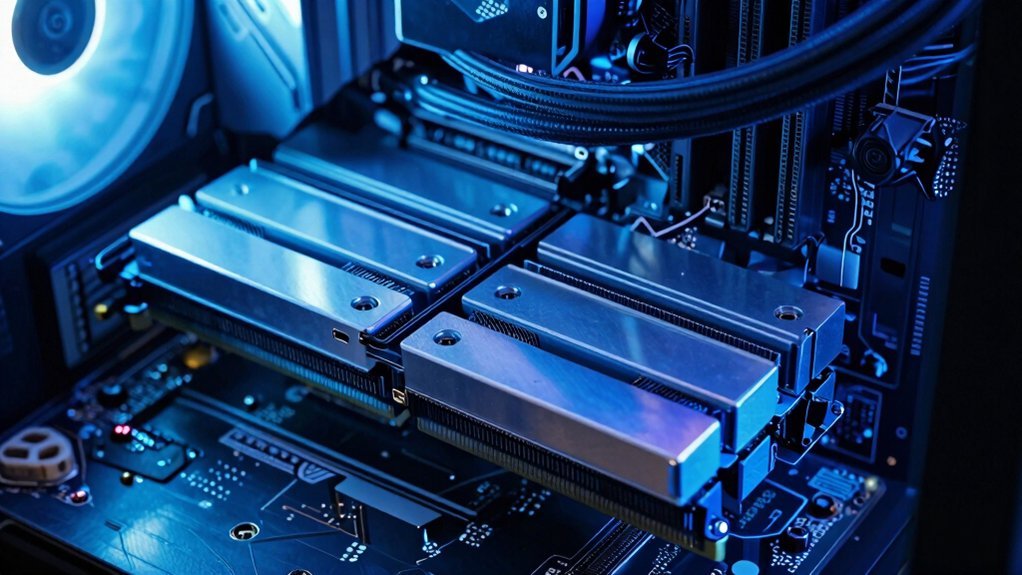
Dual‑channel RAM pairs two identical sticks, turning one 64‑bit lane into a 128‑bit data path, which doubles memory bandwidth. That extra bandwidth lets the CPU feed textures, geometry, and AI data to the GPU faster, cutting frame‑time spikes and raising average FPS, especially in memory‑bound games. You’ll notice smoother multitasking and quicker load times, and if you keep reading, you’ll discover how matching speed, timings, and capacity maximizes those gains.
What Is Dual‑Channel RAM and How It Works?
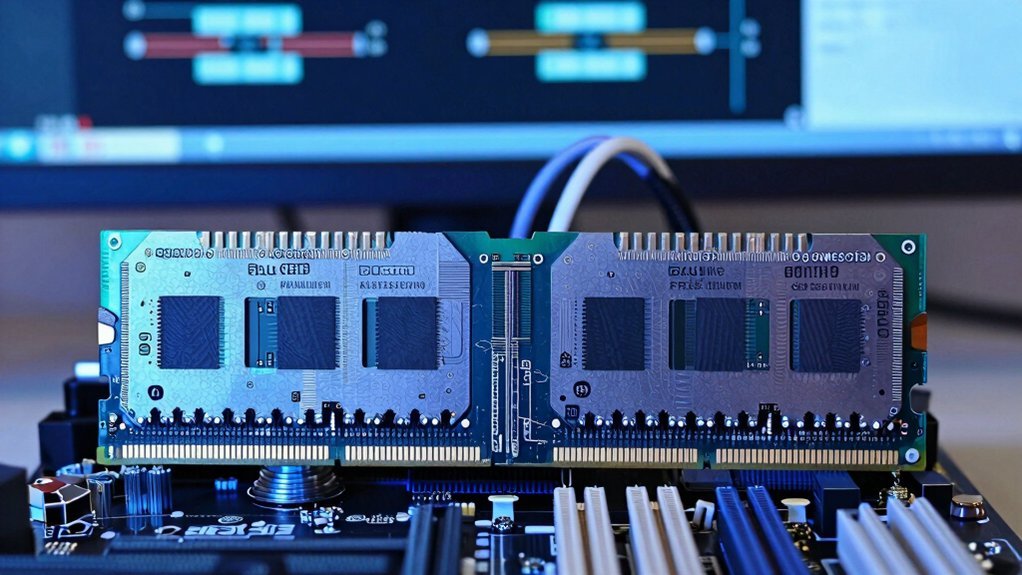
Ever wonder how a simple memory setup can double your bandwidth? You install two matching modules in the dual‑channel slots of a compatible motherboard, and the CPU talks to both at once. Each module sends data over a 64‑bit channel, creating a combined 128‑bit data path that doubles memory bandwidth compared to a single‑channel configuration. This extra headroom cuts bottlenecks, letting heavy applications shuffle data faster and boosting overall performance. DDR5 support can further influence memory bandwidth and overall system responsiveness by enabling higher speeds and efficiency on newer boards. The motherboard’s color‑coded slots guide you to the right positions, and the RAM sticks must share capacity, speed, and timings for the mode to engage. When everything lines up, you’ll notice smoother multitasking and quicker load times, all thanks to the dual‑channel advantage.
Why Bandwidth Matters for Game Frame Rates and Latency?
Why does bandwidth matter for your game’s frame rate and latency? Because memory bandwidth determines how quickly data moves between RAM, CPU, and GPU. Dual‑channel architecture doubles the 64‑bit channels, boosting data throughput and cutting bottlenecks. When bandwidth rises, textures, geometry, and AI data stream faster, letting the GPU render more frames per second and smooth out frame rates.
You’ll notice 10‑25 % FPS gains in memory‑intensive titles, and lower latency because the CPU receives needed assets without waiting. Faster data delivery also steadies 1 % lows, reducing stutter in open‑world scenes or rapid texture swaps. In short, higher memory bandwidth directly translates to higher frame rates and lower latency, enhancing overall gaming responsiveness. Best Monitor Integration
Real‑World Gaming Benchmarks for Dual‑Channel RAM

Around 12 % FPS uplift is typical when you switch from single‑channel to dual‑channel RAM, though the exact gain hinges on the game and settings. Real‑world benchmarks confirm gains of 10–25 % across titles, with 1 % low‑framerate improvements that smooth out dips. Faster memory (e.g., 3600 MHz) and low latency amplify the effect, especially on integrated GPU platforms where memory bandwidth limits performance. Properly installing matching sticks in color‑coded dual‑channel slots reveal the full potential. Dual‑channel configurations also tend to improve memory‑bound scenarios more noticeably, particularly in titles that rely on higher memory bandwidth memory bandwidth benefits.
Game Genres That Gain the Most From Dual‑Channel Memory
How much does your game genre rely on raw memory bandwidth? If you love titles that stream massive textures, a dual-channel setup can slash frame times and boost gaming performance. Memory‑intensive games—open‑world RPGs, sprawling strategy sims, and high‑resolution shooters—see the biggest FPS jumps, often 10‑25 % over single‑channel. CPU‑bound strategy or simulation titles also benefit from steadier frame times, while GPU‑bound shooters gain less but still notice smoother gameplay on integrated graphics. In addition, dual‑channel configurations can support fireproof reliability improvements in sustained workloads.
| Genre | Why Dual‑Channel Helps |
|---|---|
| Open‑world RPGs | Heavy texture streaming, high memory bandwidth demand |
| Real‑time strategy | Large AI datasets, frequent memory accesses |
| Simulation & city‑builder | Complex calculations, constant asset loading |
| High‑resolution shooters | Large frame buffers, rapid texture swaps |
Matching RAM Speed, Timings, and Capacity for Optimal Dual‑Channel Gains
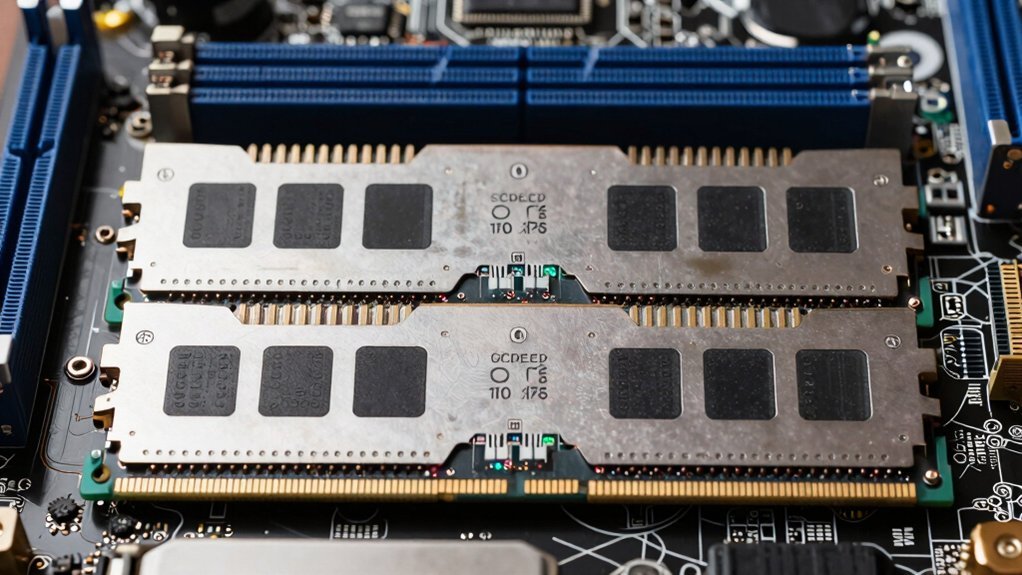
Ever wondered why a mismatched RAM kit can cripple your dual‑channel setup? You need identical modules so the memory controller can split workloads evenly, delivering true bandwidth. When you pair two sticks with the same speed, timings, and capacity, the system stays in dual‑channel mode instead of defaulting to slower single‑channel performance.
- Speed – Choose a frequency both sticks support; a 3600 MHz kit runs at that rate, not the slower one.
- Timings – Match CL values; mixing CL16 with CL18 forces the higher latency setting on all modules.
- Capacity – Use equal sizes, like two 8 GB sticks, to keep the channel balance and avoid half‑width operation.
Achieving balanced modules also helps ensure stability across platforms, which is especially important when enabling XMP/DOCP/EXPO profiles to reach advertised performance stability requirements. Following this matching strategy maximizes dual‑channel gains, boosts frame rates, and keeps your gaming rig humming efficiently.
How to Install Dual‑Channel Modules: Slot Placement and BIOS Checks
You’ll want to insert the two identical sticks into the matching color‑coded slots, usually the first and third or second and fourth positions.
After you power up, jump into the BIOS/UEFI and look for the Memory Channel Mode or a “Dual Channel” indicator to confirm the configuration is active.
If the system shows only one channel or a mismatched speed, re‑seat the modules and double‑check the slot order before retrying.
Hemudu 2-pack offers a sturdy glass design that can help you keep a clean, organized setup while adjusting height for comfort.
Correct Modules Color‑Code
Wondering which slots to fill for dual‑channel? You’ll see color coding on the motherboard; each pair of matching colors marks a dual‑channel set. When you insert identical RAM modules into those matched slots, the memory controller activates dual‑channel mode, doubling bandwidth and boosting game performance. Follow the board’s guide—often labeled A1/B1 or the same‑colored slots—to ensure proper activation. After installation, you can verify the mode in BIOS, but the right placement is what makes it work.
- Identify the color‑matched memory slots.
- Insert the two identical RAM modules into the same‑colored pair.
- Confirm the sticks sit firmly and the latch clicks before powering on.
BIOS Dual‑Channel Verification
If you’ve already placed matching RAM sticks in the color‑coded slots, the next step is to confirm that the motherboard has enabled dual‑channel mode. Power on and press the key for BIOS/UEFI, then navigate to the “Advanced” or “Memory” tab. Look for a line that reads “Channel Mode” or “Memory Channels” and verify it shows “Dual‑Channel.” You can also run memory information tools within the OS, like CPU‑Z or Windows Task Manager, to confirm dual‑channel verification after reboot. Regularly checking that the memory channels remain balanced helps prevent performance drops when you add or rearrange modules. Memory Channels
Slot Order Optimization
After confirming dual‑channel mode in the BIOS, the next step is placing the sticks in the right slots. You’ll notice color‑coding on the motherboard; the matching color pairs define the dual‑channel RAM slots. Insert the matching modules—identical capacity, speed, and timings—into those paired slots to activate full memory bandwidth. Once seated, power on and re‑enter the BIOS to verify the channel mode, then double‑check in the OS memory report.
- Identify the color‑coded slot pairs and note which are designated for channel A and channel B.
- Align the notch on each stick with the slot key, then press firmly until the clips click.
- Boot into BIOS/UEFI, confirm “dual‑channel” is active, and run a quick benchmark to validate expected bandwidth.
Common Pitfalls: Mismatched Modules, Single‑Channel Fallbacks, and Fixes
Even with the right sticks, a simple mistake can knock your system out of dual‑channel mode. If you install mismatched RAM—different capacities, speeds, or timings—the motherboard may default to a single‑channel fallback, slashing bandwidth.
Even identical sticks can suffer if you slot them incorrectly; many boards require the two modules to occupy the same‑colored channels. Check the BIOS/UEFI and ensure Channel/Memory Mode is set to dual‑channel, because some firmware won’t toggle it automatically.
The safest route is to buy a matched pair, guaranteeing RAM compatibility and optimal timing. When you must mix modules, expect the system to run at the slower stick’s speed, which erodes the performance boost you were aiming for.
Dual‑Channel RAM’s Impact on Integrated vs. Discrete GPUs
How much faster can your games run when the memory subsystem stops bottlenecking the GPU? With an integrated GPU, you feel every boost because the chip pulls textures and buffers directly from system RAM. Dual‑channel doubles memory bandwidth, slashing frame times and smoothing stutter. A discrete GPU still benefits, but its own VRAM and internal bus often become the limiting factor, so gains taper at around 10‑25% in most benchmarks.
- Integrated GPU – dual‑channel can cut frame times by up to 25%, especially at 3600 MHz.
- Discrete GPU – improvements hover 10‑15% unless the game is CPU‑bound.
- Memory speed – matching modules and higher frequencies amplify the bandwidth advantage for both GPU types.
Budget‑Friendly Dual‑Channel RAM Kits for Gamers
If you’ve seen the FPS jump from dual‑channel memory on integrated graphics, the same principle applies when you’re building a budget gaming rig. Look for budget-friendly kits that pair two identical sticks—2x8GB 3200MHz is a sweet spot—so you get full Dual-channel RAM without timing conflicts. Brands like Lexar, Crucial, and Corsair ship verified 2x kits with XMP profiles, letting you enable optimal settings in the BIOS with a single click. Those profiles lock in 1.35–1.5 V and CL16‑CL18 timings, delivering the bandwidth boost that translates into a 10‑25% improvement in memory‑hungry titles. Color‑coded slots on the motherboard keep installation straightforward, ensuring you reap the full performance gain without extra hassle.
Do You Need Dual‑Channel RAM for Future Games?
You’ll notice future games demanding more bandwidth as engines push larger textures and complex physics. By using dual‑channel RAM you’ll meet those higher data‑throughput needs and keep stutter at bay. It’s a cheap, low‑risk upgrade that helps future‑proof your system against evolving game requirements.
Future Bandwidth Requirements
Will future titles really need the extra bandwidth that dual‑channel RAM provides? You’ll see that as assets swell and AI workloads rise, memory bandwidth becomes a decisive factor. Dual‑channel setups double the data pipe, easing system bottlenecks and meeting future requirements without a GPU overhaul. Higher RAM speed paired with this bandwidth lets the CPU feed the GPU efficiently, keeping frame‑rates stable even in texture‑heavy scenes.
- Bandwidth‑heavy textures – larger files demand faster transfer rates.
- AI‑driven NPCs – real-time calculations tax memory lanes.
- Complex physics simulations – more data per frame stresses the bus.
Investing in matched dual‑channel, high‑speed modules (e.g., 3600 MHz CL16) offers a cost‑effective way to future‑proof your rig against these rising demands.
Game Engine Demands
Why do modern game engines push memory bandwidth to its limits? They stream massive textures, complex shaders, and high draw‑call counts, demanding continuous data transfer. Dual‑channel RAM doubles the 64‑bit pathway, boosting memory bandwidth enough to keep the CPU‑GPU pipeline fed. That extra headroom cuts stutter and shortens load times, especially in open‑world or ray‑traced scenes. You’ll notice smoother frame times and quicker asset streaming without a full platform overhaul.
| Feature | Single‑Channel | Dual‑Channel |
|---|---|---|
| Bandwidth | 1× 64‑bit | 2× 64‑bit |
| Texture Load | Limited | Faster |
| Shader Compile | Slower | Faster |
| Draw Calls | Bottleneck | Smoother |
| Load Times | Longer | Shorter |
Investing in dual‑channel RAM now prepares your system for the next wave of game engine demands.
Future‑Proofing Considerations
Is it worth investing in dual‑channel RAM now to stay ahead of tomorrow’s games? You’ll see that dual‑channel RAM boosts memory bandwidth, letting the CPU feed data faster and keeping gaming performance smooth as titles demand more. It’s a cheap system upgrade that delays a full platform overhaul, but remember CPU and GPU bottleneerns can still limit gains.
- Bandwidth headroom – two 64‑bit channels double throughput, helping future titles that stress memory.
- Cost‑effective future‑proofing – matching sticks cost less than a new motherboard or CPU, extending relevance of your rig.
- Targeted impact – benefits appear when games become memory‑bandwidth‑sensitive; otherwise gains stay modest.
Quick Checklist: Verify Your System Is Fully Leveraging Dual‑Channel Memory
Ever wondered if your PC is truly exploiting dual‑channel memory? First, open your case and locate the memory slots; they’re usually color‑coded. Install two matching RAM sticks in the paired slots—one per color—to enable dual-channel. Power up and enter BIOS/UEFI; the auto‑detect feature should list “dual‑channel” under memory mode. If it shows “single‑channel,” double‑check that the modules are seated correctly and that you didn’t mix capacities or speeds. Use a system‑info tool (e.g., CPU‑Z) to confirm the channel status from the OS. Finally, run a quick benchmark or game benchmark; higher frame rates and smoother multitasking indicate you’re fully leveraging dual‑channel memory.
Frequently Asked Questions
Does Dual Channel RAM Improve Gaming?
Yes, you’ll notice smoother frame rates and fewer stutters, especially in CPU‑bound titles. Dual‑channel doubles bandwidth, letting your system feed the GPU faster, which often translates into 10‑25% FPS gains.
Should I Put My RAM in A1 and B1 or A2 and B2?
You should install the RAM in the paired slots—either A1 and B1 or A2 and B2—whichever your motherboard labels as the dual‑channel pair, and make sure both sticks match in size and speed.
Is 128 GB RAM Overkill for Gaming?
You’ll find 128 GB overkill for gaming; most titles never use more than 16–32 GB, so you’re spending money on unused capacity while lower‑speed, dual‑channel kits deliver better performance.
Will 32GB of RAM Increase FPS?
You’ll see modest FPS gains only if the game is memory‑bound or you’re using integrated graphics; otherwise, 32 GB mostly prevents stutters, but it won’t dramatically boost frame rates.
In Summary
You’ve seen how dual‑channel RAM doubles the data path, slashes latency, and lifts frame rates—especially in CPU‑bound titles and when using integrated graphics. Pairing the right speed, timings, and capacity lets you squeeze every ounce of performance without breaking the bank. If your system already runs in dual‑channel mode, you’re set for today’s games and ready for the next generation. Keep your modules matched, and enjoy smoother, faster gameplay.


Leave a Reply