

First, power down and unplug your laptop, then use short bursts of compressed air and a soft brush to clear dust from vents and the fan, feeling the airflow to ensure it’s still strong. Next, elevate the machine on a DIY riser—cardboard or a wooden pallet—to keep vents unobstructed and add a cooling pad or a small USB desk fan for extra airflow. Finally, open the bottom panel, replace the old thermal paste with a thin layer of ARCTIC MX‑6, and adjust the fan curve in BIOS or software for higher speeds when temperatures climb; keep going for more detailed steps.
Laptop Cooling 101: Clear Dust, Preserve Airflow
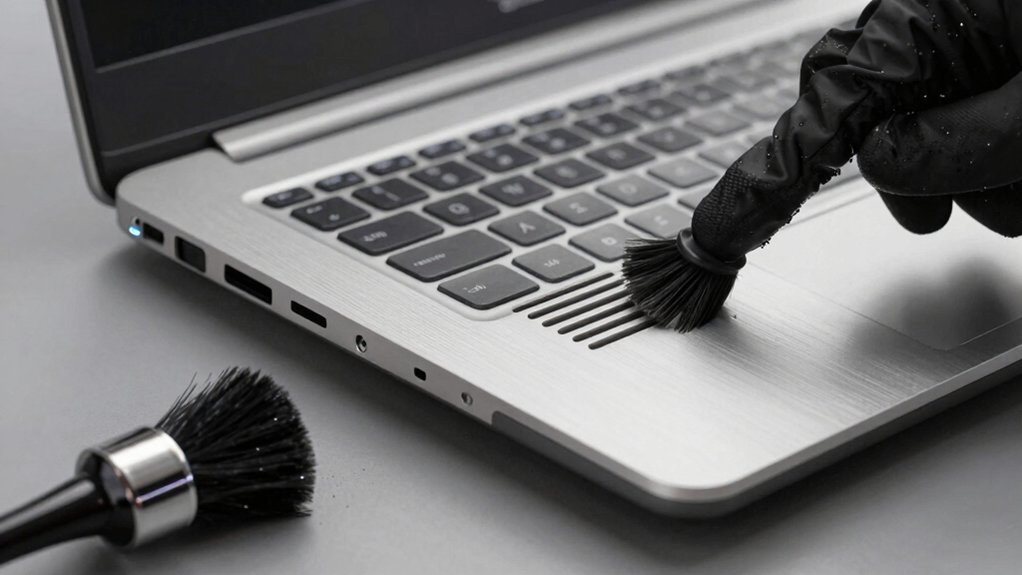
Ever wondered why your cheap laptop overheats so quickly? You probably have dust clogging the vents and fan, choking airflow and forcing the cooling system to work harder. First, power down and unplug the laptop. Grab a can of compressed air and give the vents short bursts, letting the dust and debris blow out. Use a soft brush or cotton swab to sweep any remaining particles from the vent openings. Feel the fan’s breath—if you barely notice airflow, the fan may still be blocked or failing. Keep the laptop on a hard, flat surface so nothing blocks the vents. Regular cleaning preserves airflow, reduces overheating, and extends your laptop’s life. Voltage and compatibility considerations can also influence cooling performance and safety during maintenance.
Elevate Your Laptop: DIY Stands and Riser Tips
Why not turn a simple DIY riser into a powerful cooling ally? You can elevate your laptop with a homemade riser made from a sturdy cardboard box or a wooden pallet, creating a hard surface that keeps the underside clear.
Elevate your laptop with a DIY cardboard or pallet riser for clear airflow and cooler performance.
Position the laptop stand so its vents line up with unobstructed openings, letting airflow flow freely for passive cooling.
If you add a cooling pad, choose one with built‑in fans for active cooling; the fans push air under the device, further boosting circulation.
Make sure the riser’s height doesn’t block the vents and that the pad’s foam aligns with them.
4-inch USB desk fan provides an additional compact option to boost airflow around the laptop during extended sessions.
Clean, Paste, and Tune: Maintenance Steps for Budget Laptops
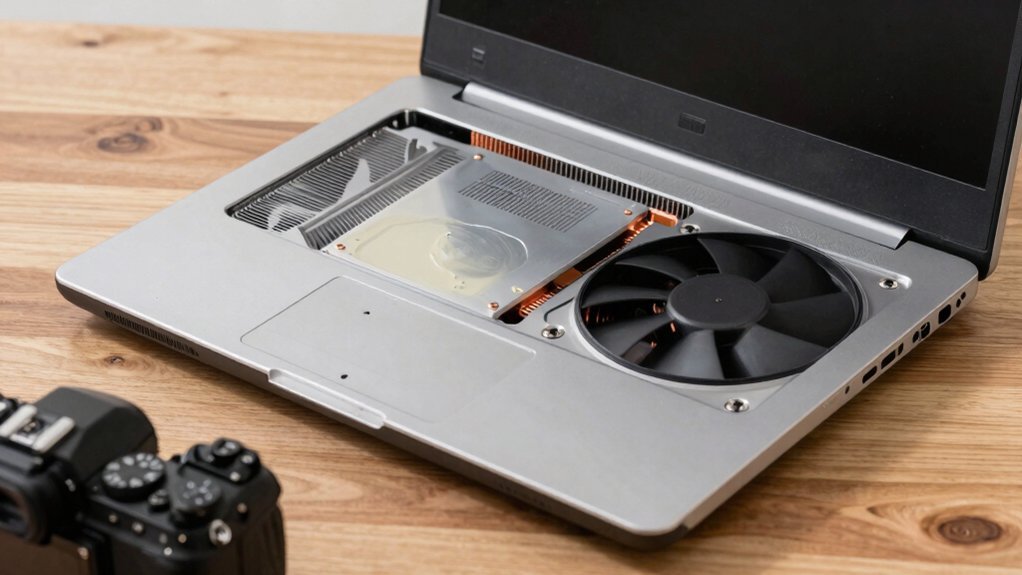
Even if you’re on a shoestring budget, keeping your laptop clean, re‑pasting the CPU/GPU, and fine‑tuning the fan curves can dramatically lower temperatures. Start with dust cleanup: power down, unplug, and use short bursts of compressed air on air vents, fans, and the heatsink. Remove the bottom panel, gently brush away debris, then reseat the heatsink evenly during reassembly. Next, strip the old thermal paste and apply a thin layer of ARCTIC MX‑6, a non‑conductive, high‑performance paste that works well on budget laptops. Let it cure briefly, then reconnect all cables. Finally, adjust fan curves in your BIOS or software to keep fans spinning faster when temperatures rise. These steps boost laptop cooling and extend the life of your device. In addition, consider using a compact, USB-powered cooling pad to further improve airflow around budget systems thermal management and maintain consistent performance.
Frequently Asked Questions
How to Improve Laptop Thermal Performance?
You boost thermal performance by lowering CPU max power to 75%, raising the laptop on a hard stand, cleaning vents regularly, using a cooling pad, and capping FPS with monitoring tools.
How Do You Stop Your Laptop From Thermal Throttling?
You stop thermal throttling by capping FPS, clearing vents, using a cooling pad, undervolting or disabling turbo boost, and switching to a balanced power plan while monitoring temperatures regularly.
Do Laptop Cooling Pads Actually Work?
Yes, they work when you match the pad’s airflow to your laptop’s bottom intake, keep the surface firm, and avoid blocking vents. Proper alignment and foam seals boost cooling, reducing throttling.
Is a 7 Year Old Laptop Too Old?
Yes, a seven‑year‑old laptop is probably past its prime; you’ll see thermal paste drying, dust clogging vents, and fan wear, so expect throttling, reduced performance, and higher power consumption.
In Summary
By keeping dust out, giving your laptop space to breathe, and regularly cleaning and re‑applying thermal paste, you’ll squeeze the most performance out of a cheap machine. These simple steps prevent overheating, extend battery life, and keep the system running smoothly without breaking the bank. Stick to the routine, and your budget laptop will stay cool and reliable for years to come.


Leave a Reply