
You’ll get the biggest jump in frame rates and new features when you buy a GPU just after a new generation launches and before the old cards’ prices drop. At that sweet spot the performance boost often exceeds the 15 % threshold that feels worth it, while you still snag a discount on the previous generation. Waiting a few weeks also lets drivers mature, so you avoid early‑release bugs. Keep reading to discover how to benchmark and avoid bottlenecks before you upgrade.
When a GPU No Longer Meets Your Gaming Goals
When does your GPU stop keeping up with your gaming goals? You’ll notice it the moment frame rates dip below your target, stutter, or you have to slash settings in modern games. If the GPU hits 90‑100% usage while the CPU stays under 70%, a bottleneck is throttling performance, even a faster card could’t fix it.
Missing features like ray tracing, DLSS/FSR, or advanced upscaling also signals it’s time for a new GPU. But before you chase higher FPS, check power and compatibility—an under‑powered PSU or cramped case can turn an upgrade into a sidegrade. Remember, if your monitor caps at 60 Hz or 1080p, a new GPU may deliver diminishing returns compared to a display upgrade. Maintaining proper power delivery and spacing for devices ensures optimal performance and protection, especially when upgrading power-related components surge protector and ensuring safe outlet layouts. Timing GPU upgrade decisions around these signs keeps your system balanced and your gameplay smooth.
The Performance‑Percentage Threshold That Makes a GPU Upgrade Worthwhile
How much of a performance boost actually justifies splurging on a new GPU? You’ll find the sweet spot when the performance percentage lifts you into your FPS targets without breaking the bank. A 50‑70% jump usually clears the hurdle, especially on high‑refresh monitors where every frame counts. Anything under 15% often feels like a waste, unless new features or stability win you over. Timing your upgrade right—when a game’s demands outpace your current card—maximizes gaming value. Acknowledging how effective driver optimizations and feature support can also influence the perceived gain performance thresholds and overall value.
Why New‑Generation GPU Releases Create the Best Price‑Performance Window
A 50‑70% performance jump feels great, but you can often get a similar lift for far less by timing your purchase around a new‑generation launch. When the latest cards debut, retailers slash the previous generation’s prices, opening a sweet price‑to‑performance window. Early adopters may wrestle with bugs, so waiting a few weeks lets driver maturity smooth out performance and stability. Monitoring driver updates and game patches can further optimize gains as you plan your upgrade.
How to Measure Your Current Gpu’s FPS Gain With a 15 % Boost
First, run a benchmark on your current GPU at your usual settings and note the average FPS. Then calculate a 15% gain threshold by multiplying that baseline by 1.15. If your new card consistently hits or exceeds that number, you’ve confirmed the expected boost. Additionally, consider testing across multiple games to ensure the improvement is consistent with the 1000 charging cycles reference for reliability long-term durability and verify compatibility with your controller setup to avoid bottlenecks in performance.
Benchmark FPS With Baseline
Wondering how to prove a 15% FPS boost on your current GPU? Start by setting a baseline benchmark. Run each title at your usual settings, record average FPS and 1% low FPS, then repeat with the same scenes, preload times, and graphics options after the upgrade. Compare the numbers; a 15% gain should lift 60 FPS to roughly 69 FPS, but check consistency with 1% low FPS too. Three representative games should be used as part of this process to ensure representative results across titles. – Choose three representative games and a synthetic benchmark. – Use an in‑game FPS counter or overlay for real‑time data. – Keep resolution, texture quality, and ray‑tracing identical. – Log average FPS and 1% low FPS for each run. – Calculate the percentage change to verify the 15% gain.
Calculate 15 % Gain Threshold
After you’ve logged baseline FPS numbers, you can actually determine whether a GPU upgrade delivers the promised 15% boost.
Run three to five representative titles at your usual settings, capture average FPS with an in‑game counter or MSI Afterburner, then repeat the same runs after installing the new card.
Compare the two sets; a 15% gain means 60 FPS becomes 69 FPS, 120 FPS becomes 138 FPS, or similar.
If the uplift appears only in CPU‑bound scenes, the upgrade threshold may be illusory, indicating a CPU bottleneck rather than a GPU win.
Factor in power draw, cost, VRAM, and DLSS/FSR benefits before deciding whether the 15% gain justifies the purchase. 1TB External SSD with 2100MB/s Transfer Speed
How to Spot CPU Bottlenecks Before Buying a Faster GPU
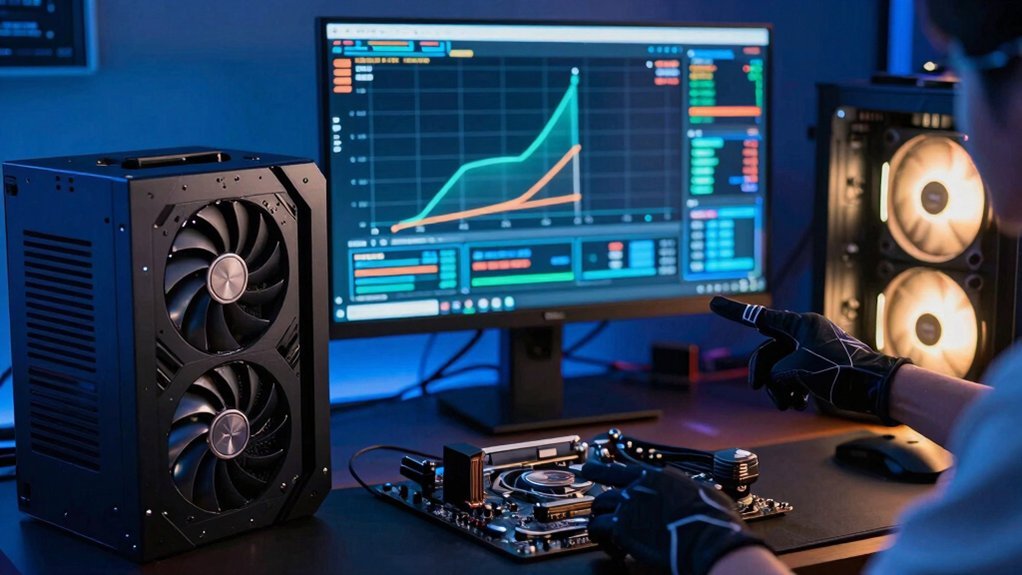
Ever wondered why your frame rates stall even after cranking up the graphics settings? You’re likely staring at a CPU bottleneck. When GPU utilization hovers near 100% but the CPU stays under 70%, the processor caps performance. Watch frame times for spikes—wild variations usually signal CPU‑driven stutters. Flip on Task Manager or MSI Afterburner, compare real‑time usage, and note if the GPU is maxed out while the CPU idles. Before you spend on a new GPU, ask whether a faster CPU or more RAM would give a bigger boost. CPU bottleneck shows low CPU usage, high GPU utilization. Frame times jitter when the CPU can’t keep up. Bottleneck detection uses side‑by‑side utilization graphs. Resolution changes can expose hidden CPU limits. Upgrade decision hinges on which component is the true choke point. CPU Bottleneck can be mitigated by balancing system resources and optimizing game settings for your hardware.
How to Eliminate a CPU Bottleneck Before Upgrading
Why let a sluggish CPU drag your frame rates down before you buy a new GPU? First, check your in‑game HUD or monitoring tool; if the GPU hovers near 100 % while the CPU stalls around 70 %, you’ve got a CPU bottleneck. Reduce the settings that tax the processor—lower draw distance, disable complex physics, or turn off upscaling. Enable DLSS or FSR to shift work to the GPU, which eases the bottleneck. Clean up background processes, update BIOS, and enable XMP for RAM to squeeze extra cycles. If the issue persists, consider a modest CPU upgrade that matches your GPU’s power. A balanced system—CPU, GPU, and RAM in harmony—delivers smoother gaming performance and primes you for a future GPU upgrade.
How Driver Maturity and Patches Affect Upgrade Timing
Wondering when to pull the trigger on a new GPU? You’ll get more bang for your buck when driver maturity hits a sweet spot. Early releases often ship with bugs, while a few months of patches and game‑ready drivers unlock performance optimization that can swing your FPS dramatically. Waiting for those updates can turn a pricey mid‑generation jump into a smart upgrade timing decision.
- Fresh GPUs launch with raw specs but limited optimization.
- Driver maturity adds hidden gains as profiles mature.
- Game‑ready drivers and patches boost stability and frame rates.
- Performance optimization often arrives weeks after launch.
- Upgrade timing should align with the next driver cycle, not just hardware launch.
Is Your New Card a Side‑Grade or a Real Generational Upgrade?
You’ll notice the raw performance gain first—if it’s only 20–30% you’re probably looking at a side‑grade.
Next, check whether the new card’s feature set (DLSS, ray tracing, etc.) actually translates into smoother gameplay at your target resolution.
Finally, make sure your monitor and CPU can keep up, otherwise even a generational jump may feel like a marginal upgrade.
Raw Raw Performance Gains
Ever wondered if your new GPU is truly a generational leap or merely a side‑grade? You’ll notice real‑world FPS jumps rarely match textbook percentages, but a 50 % theoretical bump often translates to ~70 % in practice if you compare a 1080 Ti to a 3080‑ward. Still, sidegrades like a RTX 4060 Ti versus RTX 3070 barely lift performance 20‑30 %, making price‑to‑-performance ratios suspect. To gauge upgrade value, weigh raw FPS against your monitor’s refresh, CPU headroom, and whether DLSS/FSR can recover lost frames.
- Check FPS per dollar on your favorite titles.
- Measure raster vs. ray‑tracing gains across resolutions.
- Factor in DLSS/FSR scaling efficiency.
- Spot CPU bottlenecks that cap FPS.
- Align higher settings with actual monitor capabilities.
Feature Set Enhancement
Raw FPS numbers only tell part of the story; the real test is whether the new GPU brings features that actually improve your gameplay. When you compare a side‑grade to a true generational jump, look beyond raw frames.
A genuine upgrade usually adds more VRAM, stronger ray tracing cores, and newer technologies like DLSS 3 or frame generation that smooth motion even when FPS stays similar. Those feature enhancements can cut input lag, improve visual fidelity, and let you crank up resolution or refresh rate without sacrificing fluidity.
If the card you’re eyeing only matches the older model’s performance and offers no extra DLSS or RT gains, you’re probably looking at a side‑grade, not a real generational leap.
Monitor & CPU Compatibility
How will your new GPU actually shine if the rest of your setup can’t keep up? You might’ve a beast of a card, but without CPU compatibility and a monitor that matches its output, you’ll see side‑grade performance instead of a true generational leap. The key is aligning rasterization power with frame pacing and display capabilities, while avoiding a bottleneck that throttles FPS.
- Verify your CPU can feed the GPU enough instructions to prevent a bottleneck.
- Match the monitor’s refresh rate (120‑144 Hz or higher) to the GPU’s target FPS.
- Ensure the display resolution lets the GPU’s rasterization shine (1440p/4K).
- Test frame pacing across both rasterized and ray‑traced scenes for smoothness.
- Confirm the GPU and monitor together sustain the desired frame rate without stutter.
How to Leverage DLSS, FSR, and Frame‑Generation on a Modest GPU
Struggling to squeeze extra frames out of a modest GPU? Turn on DLSS or FSR and let their upscaling handle the heavy lifting. DLSS 3 adds frame generation, which predicts intermediate frames and can push FPS 1.5‑2.5× higher in supported titles, while FSR 2.x offers temporal upscaling without new frames. Choose the technology your game supports, enable it in the graphics menu, and lower the internal render resolution to a comfortable setting—often 1080p for a 1440p display. Pair this with a high‑refresh monitor and dial back demanding options like ray tracing or ultra‑high shadows. The result is smoother gameplay, respectable visual fidelity, and a noticeable performance boost without a hardware upgrade.
Checking Power‑Supply and Case Clearance for Your GPU Upgrade
First, make sure your PSU can deliver the GPU’s rated wattage and has the right PCIe connectors with headroom for spikes.
Next, measure the card’s dimensions and compare them to your case’s interior space to avoid conflicts with drives or fans.
Finally, plan for adequate airflow so the larger GPU stays cool under load.
Wattage Compatibility Check
A solid power‑supply check starts with confirming your PSU’s wattage and available PCIe cables can meet the new GPU’s demands, including the 12V rail’s amperage capacity. Use a wattage calculator to tally CPU, GPU, and peripheral draw, then compare that total against your PSU wattage rating. Verify the 12V rail can sustain the extra amperage and that the PCIe power connectors match the GPU’s 8‑pin, 6‑pin, or 12VHPWR requirement. If the numbers line up, you’ve secured power compatibility and can avoid throttling or crashes.
- Check PSU wattage against GPU’s TDP
- Confirm PCIe power cable count and type
- Measure 12V rail amperage headroom
- Run a wattage calculator for whole‑system load
- Ensure connectors meet power compatibility standards
Case Space Clearance Assessment
After confirming your PSU can handle the GPU’s power draw, the next step is to make sure the card physically fits. Start a case space clearance assessment by measuring the interior from the rear bracket to the nearest drive bay or fan. Modern GPUs often exceed 300–350 mm in GPU length, so verify that your chassis accommodates that dimension with any installed cooling solutions. Check that the motherboard’s PCIe slot isn’t blocked by cables, front‑panel connectors, or adjacent cards. Ensure your power supply capacity includes the required PCIe power connectors—typically two 8‑pin or one 8‑pin plus one 6‑pin for high‑end models. Leave extra room for a dual‑slot or triple‑slot cooler and route cables cleanly to preserve airflow and future‑proof your build.
Building a Future‑Proof Upgrade Roadmap for Budget‑Conscious Gamers
Wondering how to stretch every dollar while staying ready for next‑gen graphics? You can lock in upgrading timing that delivers feature‑driven value without blowing your budget. Pair each GPU jump with a monitor that matches its sweet spot—1440p 144‑180 Hz or a 4K panel—to keep the FPS gains tangible. Keep your CPU and RAM in step, crafting a balanced system that won’t choke the new card. Watch driver rollouts and benchmark reports before leaping, and let each step fit a future‑proof roadmap tailored for budget‑conscious gamers.
- Wait for the next GPU generation launch, then grab the previous tier at a discount.
- Choose a monitor that fully showcases the GPU’s resolution and refresh capabilities.
- Upgrade CPU and memory to avoid bottlenecks and maintain a balanced system.
- Prioritize DLSS/FSR, ray tracing, and frame generation as feature‑driven value drivers.
- Use real‑world benchmarks and driver maturity to decide when to commit.
Frequently Asked Questions
Is It a Good Time to Upgrade My GPU?
You should wait a bit; new generations are dropping prices on older cards, and your current CPU or monitor may bottleneck gains, so holding out maximizes performance‑per‑dollar for your gaming goals.
Should the GPU Be Maxed Out While Gaming?
No, you shouldn’t max out your GPU while gaming; instead, set it to a balanced performance level that matches your monitor’s refresh rate and avoids unnecessary power draw, heat, and diminishing FPS gains.
Does GPU Clock Speed Matter for Gaming?
Yes, GPU clock speed matters for gaming, but only up to the point where other components—CPU, RAM, or VRAM—stop being bottlenecks; beyond that, higher clocks give diminishing FPS returns.
Is 40 C Too Hot for a GPU?
No, 40 °C isn’t too hot for a GPU; it’s actually a comfortable idle temperature. You’ll see higher temps under load, but staying below 85 °C keeps performance stable and lifespan long.
In Summary
By timing your GPU upgrade just before a new generation drops, you’ll snag the best price‑performance balance, avoid diminishing returns, and keep your system running smoothly with 15 %‑plus FPS gains. Check for CPU bottlenecks, ensure power and space compatibility, and leverage upscaling tech to stretch modest cards further. This strategic approach maximizes gaming value while staying budget‑friendly and future‑proof.


Leave a Reply