
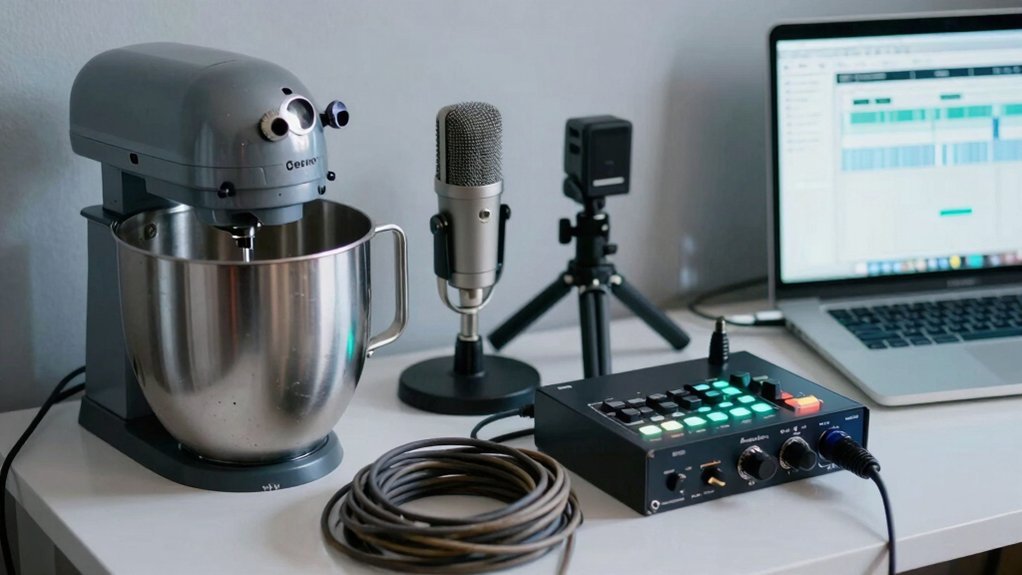
You’ll get solid sound by picking a used USB mic like a Blue Yeti or Rode NT‑USB Mini, adding a pop filter, and placing it 6–8 inches from your mouth; pair it with simple foam panels or curtains to cut echo. For video, a second‑hand Logitech C920 webcam or a mirrorless Sony ZV‑E10 (or Canon M50 Mark II) hooked up via an affordable 1080p60 capture card will give sharp images. Power everything with a 10,000 mAh USB‑C PD bank, keep cables tidy, and you’ll see a professional‑looking stream—keep going to discover the finer setup tweaks.
Why Audio Matters Most in a Budget Streaming Setup

Why does audio matter most in a budget streaming setup? You’ll find that audio quality drives viewer engagement more than any visual tweak. Harsh or muffled sound instantly turns viewers away, so clear, warm tones become a non‑negotiable priority. A USB microphone like a Blue Yeti or Rode NT‑USB Mini gives plug‑and‑play performance without an audio interface, keeping costs low while boosting consistency. Position the mic 6–8 inches from your mouth and add a pop filter to tame plosives. USB microphone also benefits from simple room treatment—foam panels, a rug, or curtains—creating sound isolation and cuts echo, delivering effective noise reduction. When you nail these basics, your budget setup feels professional, and viewers stay longer, praising the crisp, immersive experience.
Choose Essential Audio Gear for a Budget Streaming Setup
After you’ve nailed the basics of sound treatment, the next step is picking the mic that fits your budget and growth plans. For a budget setup, a USB microphone like the blue Yeti or Elgato Wave:3 gives plug‑and‑play quality without an audio interface. Pair it with a pop filter and place it 6–8 inches from your mouth, then add foam panels or a rug for room treatment. As you scale, consider an XLR mic such as the Audio-Technica AT2020 or Shure MV7 and connect it to a modest audio interface to maintain higher fidelity and upgrade paths Anti-static features in gear can help keep dust and fingerprints off sensitive components over time.
Select a Reliable Second‑Hand Webcam or Mirrorless Camera

Looking for a solid video source without breaking the bank? A used webcam like the Logitech C920 or Elgato Facecam gives you sharp visuals and plug‑and‑play USB connectivity, perfect for quick setup. If you crave higher fidelity, a second‑hand camera such as the Sony ZV‑E10 or Canon M50 Mark II can deliver 4K or crisp 1080p, but you’ll need a capture card to feed the signal into your encoder. Before you buy, run a condition assessment: check shutter count, lens cleanliness, and any sensor dust. Verify encoder compatibility with your streaming software to avoid nasty hiccups. Balancing price, performance, and reliability lets you build a professional‑grade stream without overspending. Cable Clips
Pick a Budget‑Friendly Capture Card and Configure It
Need a capture card that won’t drain your budget yet still delivers clean, low‑latency video? Choose a budget-friendly capture card that handles video capture from consoles or cameras and fits your streaming setup. Verify it supports your target frame rate—1080p60 is solid now, while 4K60 future‑proofs you. Check PC compatibility and pick a USB/PCIe interface that minimizes dropped frames and latency. Install the latest software drivers; stable drivers keep overlays and scenes running smoothly. Look for a card with a reliable driver ecosystem and optional external encoder support, so you can expand to multi‑camera workflows later. Once installed, configure the capture resolution, bitrate, and audio sync in your streaming software, and you’re ready to broadcast without breaking the bank driver ecosystem.
Secure Portable Power for Your Budget Streaming Setup

You’ll want a power bank that delivers at least 10 000 mAh and supports fast‑charge USB‑C so your encoder runs all day. In addition, choose a model with a 6‑port USB configuration and USB‑C PD 20W per port to maximize simultaneous charging of multiple devices USB-C Power Delivery. Keep an eye on battery life by swapping out removable packs like the TVU Powerpac when you hit the four‑hour mark. Pair the bank with a compact charger that can replenish both the bank and your phone while you stay mobile.
Power Bank Essentials
How can you keep your mobile stream alive without hunting for outlets? Choose a reliable power bank that matches your portable power needs and encoder compatibility. A high‑capacity battery pack (mAh/Wh) gives you the runtime you need for field streaming, while a portable streaming backpack keeps the external power organized for continuous broadcast. HUNIAN 8 OUTLETS provides eight widely spaced outlets with built-in mounting options and USB-C port to reduce charging bricks, which complements a mobile setup by offering flexible power access for multiple devices.
| Feature | Example | Benefit |
|---|---|---|
| Capacity | 20 000 mAh / 74 Wh | Up to 4 hours of TVU Powerpac‑style runtime |
| Output | 5 V / 3 A USB‑C | Powers most encoders and cameras |
| Form factor | Slim, rugged pack | Fits in a backpack, easy transport |
Pair the bank with your encoder, camera, and accessories, and you’ll avoid frequent recharges while staying mobile. This setup lets you focus on content, not power hunting.
Battery Life Management
A solid power bank gets you on the road, but managing that juice throughout a broadcast is what keeps the stream alive. When you pack a portable encoder like the TVU One, count on its removable battery and a Powerpac for up to four hours of continuous broadcast. Plan your field broadcasts in four‑hour blocks, then bring spare batteries or a high‑capacity power bank to extend the streaming session duration. Track each device’s battery draw—camera, encoder, lighting, audio—to avoid surprises. Use multi‑network redundancy not only for signal stability but also to spread power load across backup sources. Effective power management means you’ll finish a live event without a sudden shutdown, keeping your audience engaged from start to finish Four‑hour blocks.
Compact Charger Solutions
Ever wondered how to keep your budget streaming kit powered without lugging a toolbox of cables? Compact charger solutions give you secure portable power that fits in a backpack, so you stay on‑location and ready.
Choose power packs that match your encoder’s voltage and support multiple hours of operation; they double as streaming gear backup when batteries run low.
Integrate charging accessories with magnetic connectors and built‑in cable management to shave seconds off each swap.
Design for redundant power by keeping a spare battery or secondary pack on hand, preventing interruptions during live segments.
Smart power management boosts power efficiency, letting you stream longer on a single charge.
With these steps, your setup stays lightweight, reliable, and budget‑friendly.
Organize Cables, Add Acoustic Treatment, and Upgrade Lighting
Where does clutter hide in your stream? You’ll find tangled USB cords, stray mic cables, and a noisy room that steals focus. Start with cable management: attach Velcro ties, run strips along your desk, and mount a mic arm to keep wires out of sight.
Next, apply acoustic treatment—hang curtains, lay rugs, and add soft furnishings to dampen reverb and sharpen voice clarity. For a lighting upgrade, place a ring light or two softboxes at 45‑degree angles; they deliver even illumination without breaking the bank.
Aim for a clutter‑free background and organized workspace, so viewers see a professional setting. This budget gear upgrade transforms audio, visual, and aesthetic quality in one smooth sweep.
Frequently Asked Questions
What Gear Do Streamers Use?
You’ll use a USB mic like the Blue Yeti, a webcam such as the Logitech C920, a ring light, a quad‑core CPU with 16 GB RAM, a mid‑range GPU, and OBS for encoding.
Can You Make $1000 a Month on Twitch?
Yes, you can hit $1,000 a month on Twitch if you stream consistently, engage viewers, grow subscribers, collect bits, and secure sponsorships—while keeping production reliable and content compelling.
How to Boost Streaming Quality?
Upgrade your mic, add a pop filter, and position it close. Use softbox lights at 45°, clean background, and a reliable encoder like OBS. Test privately, adjust audio, lighting, and CPU to eliminate dropped frames.
What Do I Need for a Good Streaming Setup?
You need a quad‑core CPU, 16 GB RAM, a mid‑range GPU, a USB or XLR microphone with interface, a ring or softbox lighting kit, a decent webcam, and a reliable encoder or streaming backpack.
In Summary
By focusing on solid audio, a decent webcam or mirrorless camera, an affordable capture card, portable power, and tidy cabling with a touch of acoustic treatment and lighting, you can pull together a streaming rig that sounds professional without breaking the bank. Prioritize each component, test your setup, and tweak as needed—your viewers will notice the polish, and you’ll stay within budget.


