

Grab an inexpensive HDMI capture card and a USB‑powered AV‑to‑HDMI converter, hook them up to your retro console and PC, then add the card as a Video Capture Device in OBS. Balance game audio and your mic, lock the output at 720p/1080p 60 fps, and use a simple three‑point lighting setup to make CRT visuals pop. Create a console‑specific OBS profile so you can switch inputs and settings in a flash, and you’ll discover even more tricks to boost your stream.
Choose Cheap Capture Card & HDMI Converter for Retro Game Streaming
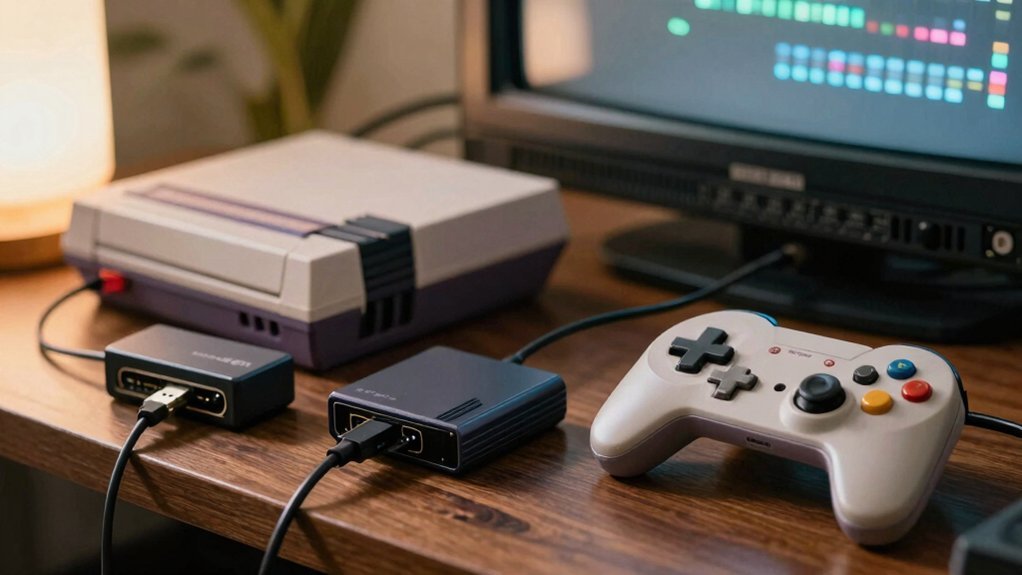
Looking for a budget‑friendly way to stream retro games? Grab an inexpensive capture card—like the Elgato HD60S—and pair it with a USB‑powered HDMI converter that turns your console’s red‑white‑yellow AV outputs into a clean 720p or 1080p HDMI signal. Plug the converter into the console, run the HDMI cable into the capture card, then connect the card to your PC via USB 3.0. This setup lets you capture retro gaming footage without splurging on high‑end gear. If OBS/Streamlabs doesn’t automatically detect the card, add it as a fallback video source and switch to display capture only as a last resort. Stick to this workflow for reliable, low‑cost streaming. Take advantage of a dedicated surge‑protected power strip to keep your streaming station stable during long sessions USB‑PD charging and to prevent device outages while you game and stream.
Connect Your Capture Card to PC and Set Up OBS for Retro Game Streaming
How do you get that vintage console’s signal onto your PC without lag? Plug an Elgato capture card into a USB 3.0 port, then run the console’s AV output through an AV-to-HDMI converter into the capture card’s HDMI input. In OBS, add a new Video Capture Device source and select the Elgato device. Adjust the mixer so the game audio and your microphone sit at a comfortable level, achieving a solid game audio/video balance. Save an OBS profile for this console, tweaking input device, color range, and bitrate for optimal retro gaming quality. If the capture card doesn’t appear, drop in a Display Capture as a temporary fallback to show the capture software window while you troubleshoot. This setup keeps latency low and your stream looking sharp Surface Compatibility.
Fine‑Tune Audio, Lighting & Stream Settings for Retro Game Streaming

Ever wondered how to keep your retro stream crisp without drowning viewers in noise or flat lighting? Lower the game audio in OBS’s audio mix so sound‑effect spikes don’t drown dialogue or chiptune music.
Set up a three‑point lighting rig—key, fill, and a tiny backlight—to give CRT‑era graphics depth without pricey gear.
In your capture card software, enable full 720p or 1080p output, then lock 60 fps capture in OBS for buttery‑smooth gameplay.
Add a webcam as a separate source and Alt‑drag it to a corner, creating a polished overlay that doesn’t obscure the game.
Finally, create OBS profiles for each console, saving input, audio, and color range settings so you can switch instantly between systems during a live stream.
Bias lighting can help maintain color accuracy and reduce eye strain during longer sessions, especially in dim rooms.
Frequently Asked Questions
Can I Stream Without a Dedicated Capture Card?
Yes, you can stream without a dedicated capture card by using software‑based capture solutions like OBS’s Game Capture, screen‑mirroring apps, or built‑in console streaming features, though quality may vary.
Do I Need a High‑End PC for Retro Streaming?
You don’t need a high‑end PC for retro streaming; a modest system with a decent GPU and enough RAM can handle emulators and OBS. Focus on optimizing settings and using lightweight capture software.
How Often Should I Upgrade My Streaming Hardware?
Upgrade your streaming hardware every two to three years, unless a major performance bottleneck appears sooner. Keep an eye on codec updates, platform requirements, and your audience’s expectations to time upgrades wisely.
Can I Use a Smartphone as a Microphone?
You can use a smartphone as a microphone by connecting it via USB or Bluetooth, installing a recording app, and selecting it as the input device in your streaming software.
What’s the Best Free Software for Overlay Graphics?
You should grab OBS Studio; it’s free, open‑source, and lets you stack images, text, and alerts. Its scene editor is intuitive, supports chroma key, and works on Windows, macOS, and Linux.
In Summary
Now you’ve got a budget‑friendly capture card, your PC hooked up, and OBS dialed in, you’re ready to stream retro classics without breaking the bank. Keep tweaking audio, lighting, and bitrate until the picture looks crisp and the sound stays clear. Stick to these basics, and you’ll deliver smooth, nostalgic gameplay that fans will love—without spending a fortune. Enjoy the stream!


