
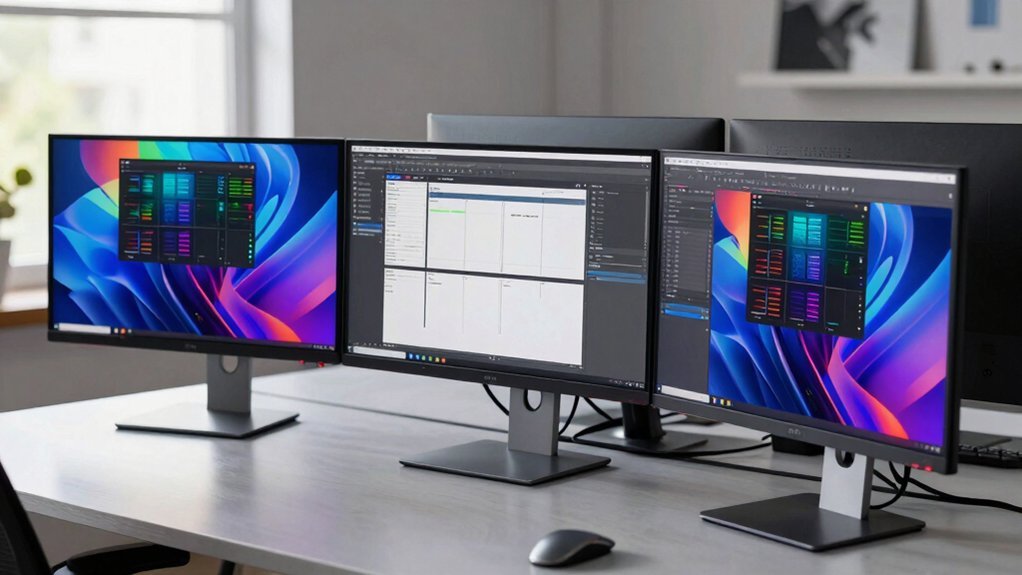
You’ll get crisp 4K detail, decent refresh rates and low latency without breaking the bank, making a cheap 4K monitor a practical upgrade for budget‑conscious gamers and creators. The high pixel density gives you sharper images and more workspace, while 60‑Hz panels with 5 ms response times keep motion smooth enough for most titles. IPS, VA, or TN panels let you balance color accuracy, contrast, and input lag. HDR and USB‑C options add extra value, and you’ll see why 1440p can sometimes be a smarter choice.
Quick Verdict: Should You Buy a Cheap 4K Gaming Monitor?
So, should you buy a cheap 4K gaming monitor? If you’re chasing pixel density on a budget, a 4K panel looks tempting, but the refresh rate often stalls at 60 Hz with 5 ms response times. VA panels give deep blacks, yet ghosting and narrow viewing angles can hurt fast‑paced titles. Some models add adaptive‑refresh and HDMI 2.0/DisplayPort, but the GPU load to drive true 4K may outweigh the visual gain. A 1440p 27-inch as a value option; it delivers smoother motion and sharper perceived detail for similar money. Weigh the extra GPU power you’ll need against the modest performance trade‑offs, and decide whether future‑proofing truly justifies the cost. USB Desk Fan with 100 Speeds and a consideration of battery‑powered peripherals can highlight how peripheral performance trade‑offs mirror monitor choices in budget setups.
Cheap 4K Monitor Core Specs: Resolution, Refresh Rate, and Response Time
A cheap 4K monitor delivers a crisp 3840 × 2160 canvas, giving you plenty of detail and screen real estate while staying budget‑friendly. You’ll get true 4K resolution, which expands workspace and sharpens images compared with 1080p or 1440p options. Many budget monitors stick to a 60 Hz refresh rate, which is fine for everyday tasks and casual gaming, and they typically quote around a 5 ms response time, keeping motion blur minimal for non‑competitive play. Some higher‑priced budget units add adaptive refresh features to smooth motion without demanding a high‑end GPU, but the core specs remain focused on delivering a solid, affordable 4K experience. USB-C Power Delivery support can also streamline charging and data in compact setups, reinforcing the practical value of these affordable panels.
Choosing the Right Panel for Fast‑Paced Gaming: IPS vs. VA vs. TN

Which panel type best suits your fast‑paced gaming needs? You’ll weigh IPS for color consistency, VA for contrast, and TN for raw speed. IPS delivers stable hues and wide angles, keeping teammates visible from any seat. VA offers deeper blacks and higher contrast, but its narrower viewing cone can cause ghosting in frantic fights. TN shines with the lowest input lag and quickest response, yet sacrifices color accuracy and angle stability. Understanding these panel trade‑offs helps you match a budget 4K monitor to your play style. panel types also influence long‑term satisfaction when you’re gaming competitively over extended sessions.
How Refresh Rate and Response Time Impact Budget 4K Gameplay
Ever wonder how a 60 Hz panel feels compared to a 120 Hz one when you’re chasing enemies at 4K? A higher refresh rate directly boosts frame delivery, sharpening motion clarity and making fast‑paced action feel smoother. On a budget 4K monitor, 60 Hz is common, but if your GPU can push 120 fps, a 120 Hz panel will noticeably reduce jud.
Response time, measured in milliseconds, governs how quickly pixels change; 1‑5 ms on a budget 4K screen curbs ghosting and keeps moving targets crisp. Even if you can’t hit 120 fps, adaptive sync tech like FreeSync or G‑Sync smooths out frame‑rate dips, preventing stutter. Pairing a decent refresh rate with low response time gives you the best possible gameplay experience without breaking the bank.
Cheap 4K Monitor HDR, Color Gamut, and Connectivity Overview

You’ll notice most budget 4K panels support HDR, but their peak brightness and color‑gamut coverage sit below premium models. IPS units keep colors consistent, VA panels boost contrast, and a few TN screens squeeze the price even tighter. Connectivity usually includes HDMI 2.0 and DisplayPort, with occasional USB‑C for multi-device switching. Cable Size Compatibility Across Clips shows how different connector standards can influence what you can plug into these displays, especially when integrating accessories.
HDR Color Gamut Range
Can a budget 4K monitor truly deliver the HDR experience you expect? You’ll find most cheap 4K panels support HDR10, but their brightness caps around 250–300 nits, far below premium units. The color gamut often shrinks to a sRGB or NTSC‑close range, so vibrant reds and deep blues may look muted. Still, the 4K resolution gives sharp text and fine detail, which helps when you’re grading photos or video frames. Look for HDMI 2.0 or DisplayPort 1.4 inputs that can carry the HDR signal without compression. If a model lists a wider DCI‑P3 coverage, you’ll notice richer hues, but expect trade‑offs: lower peak luminance and less precise color depth compared to higher‑end monitors. In budget options, features like HDR10 support and sturdy ergonomic options can still offer practical value for light editing and general gaming HDR Color Gamut accessibility.
HDR Support Levels
How much HDR can a cheap 4K monitor actually deliver? You’ll find HDR on budget units, but peak brightness usually sits between 250 and 400 nits, limiting the dramatic punch you see on premium panels. The tonal range is modest, so highlights may look flat and shadows less deep. Panel type matters: IPS offers wider color consistency, VA gives better contrast, while TN often sacrifices both. Some models support HDR10 or HLG, yet without local dimming the effect stays muted. Expect color‑gamut coverage to exceed basic sRGB, but calibration variance means results differ per unit. In short, cheap 4K monitors give a taste of HDR, but brightness and tonal range remain constrained. HDR brightness guidance is particularly relevant when comparing similar budget panels.
Connectivity Options Overview
HDR may be modest on a budget 4K panel, but the way you hook it up can make a big difference. You’ll usually find HDMI 2.0 and DisplayPort inputs, giving you enough bandwidth for 4K60 content and decent HDR peaks. HDMI 2.0 handles most consoles and PCs, while DisplayPort can deliver higher refresh rates for gaming. A budget-friendly monitor setup should also consider a reliable USB‑C connection for single‑cable desks, including power delivery and a built‑in KVM. USB-C with Power Delivery can simplify switching between devices without extra dongles, enhancing workflow efficiency. Multiple inputs mean you can toggle between a console, a PC, and a media box with a simple button press. Prioritize the mix of HDMI, DisplayPort, and USB‑C that matches your workflow for a seamless connectivity experience.
Setup, Calibration, and When 1440p Beats a Cheap 4K Option
Why settle for a cheap 4K panel when a 27‑inch 1440p display can give you sharper images and smoother gameplay? You’ll notice that 1440p vs 4K on a 27‑inch monitor delivers comparable pixel density while demanding far less GPU power. Upscaling from 1080p to 1440p adds minimal distortion, so older games look cleaner than when stretched to 4K. Wall‑mounting pushes the screen farther back, further shrinking the perceived benefit of ultra‑high resolution. For budget monitors, the 1440p choice frees up frames per second and reduces heat, letting you enjoy fluid play without breaking the bank.
| Aspect | 0p Advantage | |
|---|---|---|
| GPU load | Lower | |
| Upscaling quality | Better | |
| Pixel density (27″) | Comparable | |
| Viewing distance effect | Minimal | |
| Cost efficiency | Higher |
Frequently Asked Questions
Do 4K Monitors Make a Difference?
Yes, you’ll notice crisper text and richer detail, especially on larger screens or close distances, but cheap panels may suffer ghosting, limited angles, and lower brightness, so the impact varies.
Is 1440 Vs 4K Noticeable?
You’ll notice a difference at 27 inches: 1440p looks sharper up close, while 4K only marginally improves detail but demands more GPU power, so the gain isn’t always worth it.
Is 4K Necessary for a Computer Monitor?
You don’t need 4K unless you crave ultra‑sharp detail or massive workspace; 1440p often feels just as crisp on 27‑inch screens, saves GPU power, and costs less.
Which Is Better, 4K 60HZ or 4K 120HZ?
You’ll find 4K 120Hz better for fast‑action gaming because it delivers smoother motion and lower input lag, while 4K 60Hz suffices for casual play, productivity, and media consumption.
In Summary
You’ll find a cheap 4K monitor can be a solid choice if you prioritize resolution over ultra‑high refresh rates. Expect decent colors, modest HDR, and acceptable response times for most games, but don’t expect buttery‑smooth 144 Hz performance. If you’re okay with occasional frame drops and can tweak settings, you’ll enjoy crisp visuals without breaking the bank. Otherwise, a 1440p panel may still give you a smoother, more reliable gaming experience.


