
You’ll get the most immersive, budget‑friendly PC audio by weighing a compact 2.1 speaker system’s room‑filling soundstage against a high‑quality headphone’s pinpoint directional cues, then allocating your funds to a clean USB DAC, the output device, and a few DIY acoustic panels. Speakers need placement and sub‑woofer space, while closed‑back headphones give isolation and a mic for chat. Open‑back models add natural ambience for single‑player games. Choose the setup that matches your space, budget, and gaming style, and the next sections will show you how to fine‑tune it.
Decide Between Speakers and Headphones for Your Gaming PC?
So, should you go with speakers or headphones for your gaming PC? If you crave a wide soundstage and want the room’s ambience to wrap around you, speakers win. They spread audio across the space, making single‑player worlds feel expansive. But you’ll need to mind room acoustics—place speakers away from walls, elevate them, and consider basic treatment to tame reflections and desk diffraction.
Headphones, on the other hand, deliver pinpoint directional cues and include a mic for multiplayer chat, while sealing out external noise. They’re ideal when space is tight or neighbors hear’t tolerate bass thumps. Just remember long sessions can cause ear fatigue and cut you off from real‑world sounds.
Your decision hinges on whether you value immersive room sound or precise, private in‑game cues. room acoustics
Set a Realistic Audio‑Gear Budget for Your PC Audio Setup
First, figure out how much you’re willing to spend and stick to that number.
Then, allocate the bulk of the budget to the gear that makes the biggest audible difference—like a solid DAC and a pair of decent speakers or headphones.
Finally, trim the rest for accessories and cables, keeping the core components high‑quality.
Include hardware context considerations: evaluate whether to prioritize a PC setup with capable audio peripherals to maximize value from your subscription‑style libraries and ensure compatibility across devices. Device Compatibility
Define Your Budget
Starting with a clear picture of how much you can spend, break your budget into four main buckets—source (PC/streaming), DAC/amp, speakers or headphones, and room treatment—then allocate roughly equal weight to the source and the output devices.
Aim for a total budget that covers a decent source, a capable DAC/amp if the onboard audio is noisy, and quality output devices.
Reserve 30‑35 % for speakers or headphones, another 30‑35 % for the source, and split the remaining 30‑40 % between DAC/amp and room treatment.
Don’t forget space constraints; compact bookshelf speakers or open‑back headphones fit desks well.
Keep a small contingency for future upgrades like a subwoofer, wireless streaming, or a closed‑back pair to stay flexible, and consider the impact of USB-C powered devices on overall noise and interference in a compact setup USB Port Specs and Charging Limits.
Prioritize Essential Gear
With your budget already split, focus now on the gear that will deliver the biggest audible impact without crowding your desk. Prioritizing essential gear means choosing desk‑friendly solutions that fit your space and listening style. First, decide whether you want immersive room sound or precise positional cues. Then allocate funds to the component that will most improve clarity and balance.
- Bookshelf speakers – compact, desk‑friendly, and strong mid‑bass for desktop setups.
- Open‑back headphones – wide soundstage, ideal for gaming and music without room reflections.
- USB DAC – clean analog output, isolates computer noise, and powers active speakers or headphones.
- Speaker stands or isolation pads – elevate speakers to ear level, toe them in, and reduce desk vibrations.
These essential gear choices maximize impact while keeping your workspace tidy.
Key Audio Specs to Compare When Choosing Budget Gaming Gear
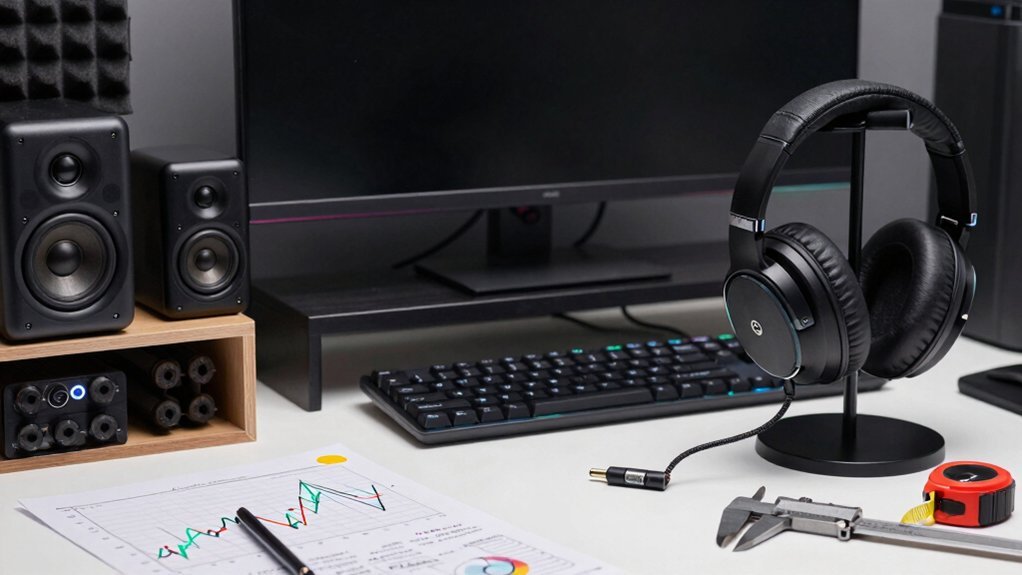
What should you look at when weighing budget speakers against headphones? Focus on soundstage, frequency response, and isolation. Speakers give you a broader soundstage and ambient realism, while headphones deliver precise directional cues and block external noise. Compare the frequency response range: a wider band captures deep lows and crisp highs, essential for both explosions and subtle footsteps. Additionally, consider how different setups handle crossovers and driver configurations for balanced imaging across genres driver configurations and how a compact desktop system may still deliver immersive sound with proper placement and room interaction. Check impedance and sensitivity; lower impedance eases drive from a typical sound card, and higher sensitivity means louder output without extra amplification. Look at driver size and design: larger drivers often produce richer bass, but open‑back headphones like the HD6XX provide a spacious feel without room reflections. Finally, consider mic integration if you need voice chat, which headsets handle better than pure speakers.
Choose a DAC for Your PC Audio Setup: When It Matters and Which Models Fit the Budget
If you’re hearing hiss or lacking detail, it’s time to upgrade your DAC, especially when you stream high‑resolution audio or use balanced connections. Budget‑friendly options like the AudioQuest DragonFly, Schiit Modi, or S.M.S.L. USB DACs sit between $120 and $400 and pair well with a modest headphone amp. Choose a model that matches your computer’s output (USB, TOSLINK, S/PDIF) and your speaker or headphone inputs for the best bang for your buck. Smart charging protections and safe power delivery features highlighted in the context of gear design high‑quality protection help ensure reliable operation with long-term use.
When to Upgrade DAC
A few hundred dollars can turn a noisy PC jack into a clean, balanced line that lets your headphones or powered speakers shine.
First, gauge your current DAC’s noise isolation: if hiss or hum is audible, a USB DAC with better shielding can make a noticeable difference.
Next, check your chain—headphones, amp, and speakers. If you’ve added a high‑impedance pair or a powerful active monitor, the upgrade decision hinges on matching output power and balanced connectivity.
Finally, consider future proofing: a model with TOSLINK or SPDIF will keep you from swapping again soon.
Identify audible noise problems noise isolation and ensure the DAC you choose can reduce hiss or hum without compromising overall sound quality.
- Identify audible noise problems
- Match DAC output to your gear
- Choose USB DAC with balanced option
- Plan for expanded inputs and power needs
Budget‑Friendly DAC Options
Ever wondered how a modest‑priced DAC can transform your PC’s sound? A budget‑friendly USB DAC isolates you from motherboard noise, delivering cleaner analog output that boosts audio fidelity. When you plug a DAC like AudioQuest’s Mojo, Schiit’s D10S, or S.M.S.L’s Sanskrit 10th MK2, you bypass the noisy 3.5 mm jack and unlock balanced or single‑ended outputs for headphones or speakers. Pair it with a headphone amp or a streaming amp for desktop setups, and you’ll hear detail that your stock sound card never revealed.
Themed Decor Integration helps you visualize how to place your setup in a gamer room for optimal acoustics and aesthetics.
| Brand | Model | Key Feature |
|---|---|---|
| AudioQuest | Mojo | Portable, balanced XLR |
| Schiit | D10S | Compact, low‑latency USB |
| S.M.S.L | Sanskrit 10th MK2 | High‑resolution, balanced |
| FiiO | K3 | Affordable, dual‑mode (USB/optical) |
2.0 vs. 2.1 Speaker Systems: Pros, Cons, and Price Points for PC Audio
Where does a 2.1 speaker system fit into your PC audio setup? It adds a dedicated subwoofer, giving richer bass and fuller midrange than basic 1 speaker systems, but it also occupies more desk space and costs more. You’ll need to think about room acoustics, because reflections can muddy the sound. Here are the key trade‑offs:
- Immersion – 2.1 delivers ambient depth that headphones can’t match.
- Footprint – The subwoofer and two satellite speakers need careful placement.
- Price points – Expect a few hundred dollars up to $1,000 for quality models.
- Complexity – Integrated amplification simplifies setup, yet you still must manage desk reflections and boundary effects.
We these factors helps you decide whether the richer, room‑filling experience outweighs the larger footprint and higher price.
Closed‑Back vs. Open‑Back Headsets for PC Gaming
After weighing the space and cost of a 2.1 speaker system, you’ll notice that headsets bring a different set of trade‑offs to PC gaming. Closed‑back models like the Focal Celestee give you tight isolation and a detailed, punchy sound that keeps external noise out, which is essential for competitive play and clear mic pickup.
Open‑back options such as the Sennheiser HD6XX create a natural, speaker‑like soundstage, letting you hear subtle positional cues and environmental ambience—great for immersive single‑player experiences.
Your decision hinges on whether you value isolation and loud‑mic performance (closed‑back) or a broader, airy soundstage and long‑term comfort (open‑back). Both types work well in PC gaming, so match the headset to your gaming style and environment.
Wiring and Connection Basics: 3.5 mm, RCA, USB, and Bluetooth for PC Audio
How do you connect your PC audio to speakers or headphones without hassle? You have four reliable options, each with its own quirks and perks. Choose the one that matches your gear and listening style.
- 3.5 mm (5 mm) jack – Plug the tiny plug into your PC’s line‑out, then use a 3.5 mm‑to‑RCA cable to feed an aux input on a receiver or powered speakers. It’s simple, analog, and works with most desktop setups.
- RCA cables – If your speakers or amp only accept RCA, connect the 3.5 mm‑to‑RCA adapter and enjoy stereo playback without extra hardware.
- USB DAC – Connect a USB DAC to your PC’s USB port; it bypasses the internal DAC, delivering cleaner analog output to your headphones or speakers.
- Bluetooth – Pair a Bluetooth transmitter or built‑in Bluetooth module with your PC for wireless streaming, perfect for clutter‑free desk space.
Configure Windows Audio for Speakers and Headsets
Ever wondered why your game audio sounds flat while voice chat is crystal‑clear? Open Windows audio settings and set the default playback device to your external DAC/amp setup or high‑quality speakers. Disable any “enhancements” that color the signal, and pick a spatial sound mode that matches your setup. If you use a separate headset for voice chat, make it the default communication device so the mic routes correctly while the speakers stay the primary playback outlet. Keep system volume separate from in‑game and chat sliders to avoid clipping. Wire your music source directly into the DAC/amp rather than through the built‑in jack; this cuts jitter and electrical noise. The result is a clean speakers vs headphones experience that lets games roar and chats stay crisp.
Budget Room‑Treatment Hacks for Small Spaces
You can build cheap absorptive panels with rockwool and fabric to tame early reflections. Placing DIY bass traps in the room’s corners will smooth out boomy low‑frequency buildup.
Adding a few ceiling‑cloud tiles above your listening spot further reduces flutter echo and improves overall clarity.
Absorptive Panel DIY
With a few inexpensive materials you can turn a cramped desktop setup into a much cleaner listening environment. DIY absorptive panels—Rockwool wrapped in fabric—cut reflections, tighten mids, and tame muddy bass for both desktop speakers and headphones. Start by measuring critical reflection points: the wall behind your monitor, the ceiling above your desk, the side wall opposite your listening position, and the back wall near your sub. Then follow these steps:
- Cut Rockwool to 12×12 in pieces.
- Wrap each slab in breathable fabric, securing with spray adhesive.
- Mount panels with command strips or 4‑in..
- Perform a clap test after each install to hear the improvement.
Treating these spots often yields bigger gains than upgrading gear alone.
Bass Traps Corner Placement
A few well‑placed corner bass traps can slash muddiness and tighten low‑end response in a cramped desk setup without breaking the bank. By stuffing Rockwool or dense foam into each vertical corner, you create a cheap room‑treatment hack that tames booming bass response. Pair the traps with a quick clap test; if the decay lingers, add a second layer or a thin fabric panel. Keep your speakers a few inches from the walls and toe‑in them, letting the corner placement absorb excess energy while preserving a clean bass response.
| Material | Approx. Cost | Placement |
|---|---|---|
| 2‑inch Rockwool panel | $12 each | All four vertical corners |
| 1‑inch acoustic foam | $8 each | Upper corners only |
| Fabric‑covered panel | $15 each | First‑reflection points |
| DIY PVC frame with insulation | $20 total | Corner walls |
Ceiling Cloud Acoustic Tiles
Corner bass traps tame low‑end muddiness; now turn your attention upward. Ceiling clouds give you a cheap, reversible acoustic treatment that tames reflections and boosts sound quality in cramped PC rooms. By hanging lightweight panels above your desk you cut flutter echoes and tame desk‑bound reverb, sharpening room acoustics without a remodel.
- Choose mineral‑wool or fiberglass tiles with a breathable fabric cover.
- Target absorption peaks around 500 Hz–2 kHz for mid‑range clarity.
- Suspend panels in a simple grid or attach them directly to the ceiling with adhesive hooks.
- Keep the layout symmetric to avoid uneven diffusion.
These steps let you improve intelligibility and imaging while staying budget‑friendly, making your listening spot feel larger and more balanced.
Test Soundstage and Bass Response on a Tight PC Audio Budget
Ever wonder how to gauge soundstage and bass on a shoestring PC audio budget? Start by positioning your desktop audio speakers a few inches off the desk, toeing them toward your ears. This reduces desk reflections and sharpens imaging, letting you hear a wider soundstage without expensive gear. Play a track with distinct instruments spread across the stereo field; if you can locate each element cleanly, your placement is working. For bass response, add a modest subwoofer or use a bookshelf pair with strong vertical dispersion. Set the crossover low enough to blend smoothly, avoiding a boomy, localized thump. Finally, plug an external USB DAC into see a noticeable drop in computer‑generated noise, giving a clearer, tighter bass and a more spacious stage in your budget setup.
Switch Seamlessly Between Speakers and Headsets in Windows
Want to hop between your desktop speakers and headset without missing a beat? Windows lets you toggle audio output on the fly, so you stay in the game or movie while swapping gear. Set a default playback device—usually your speakers—then let per‑app volume overrides route voice chat or streaming to the headset. For instant swaps, assign hotkeys that trigger the active device. Here’s a quick workflow:
- Open Settings → System → Sound, pick your default playback device.
- Right‑click the speaker icon, choose “Open Sound settings,” then “App volume and device preferences” to set per‑app volume.
- Use a third‑party tool (e.g., Audio Switcher) to bind hotkeys for speaker ↔ headset toggling.
- Prefer wired USB or 3.5 mm connections for lower latency and stable sync.
Now you can switch seamlessly, keeping the audio experience smooth and uninterrupted.
Troubleshoot Common PC Audio Issues and Ensure Compatibility
After you’ve set up quick hotkey swaps, the next step is to make certain the audio actually sounds clean and stays compatible with your hardware. Start by checking your DAC connection—use USB or optical TOSLINK and verify the device appears in the desktop audio settings. If you hear hiss or dropouts, toggle the Windows audio format to 24‑bit/48 kHz and disable exclusive mode, then run a quick troubleshooting test in the sound control panel. Confirm that the DAC’s driver is up‑to‑date and that the output is set to the correct balanced line if available. Finally, inspect speaker placement: keep subs a couple of inches from walls, toe‑in bookshelf speakers, and ensure no EMI sources sit near the audio jacks. This routine secures compatibility and eliminates common PC audio problems.
Frequently Asked Questions
Why Do Most Modern PCS Not Need Sound Cards Anymore?
You don’t need a sound card because onboard DACs already deliver decent audio, and cheap USB or external DACs give cleaner, higher‑fidelity output, eliminating interference and providing better amplification for headphones or speakers.
Are 2.0 or 2.1 Speakers Better for PC?
You’ll find 2.1 speakers better for PC because the subwoofer adds deeper, more consistent bass, especially in larger desks or gaming setups, while 2.0 can suffice if space and budget are tight.
Is 5.1 Better Than 2.1 for Gaming?
You’ll find 5.1 can feel more immersive, but only if your room fits the speakers and the game supports surround. Otherwise, a well‑tuned 2.1 delivers clearer positioning and stronger bass with far less hassle.
Is Using Speakers Better Than Headphones?
You’ll find speakers better for immersive, room‑filling sound, but headphones give precise cues, privacy, and mic isolation; choose based on whether you prioritize ambience or competitive accuracy.
In Summary
Pick the setup that fits your play style, space, and budget, then fine‑tune it with a solid DAC, proper speaker placement, and a quick Windows toggle. Keep an eye on key specs—frequency response, impedance, and power handling—to get the most bang for your buck. With a little room‑treatment and regular testing, you’ll enjoy clear, immersive audio whether you’re gaming, streaming, or just listening to music.


Leave a Reply