
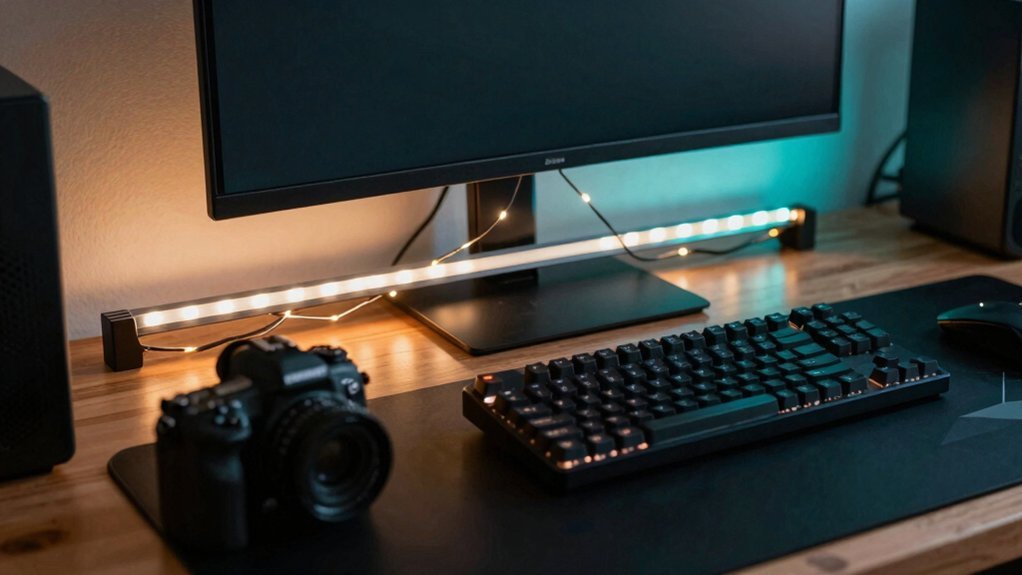
Grab a budget-friendly RGB strip like BASON’s, stick it behind your monitor or under the desk, and power it with a cheap smart plug so you can tweak hue and intensity from your chair. Choose a 5 V addressable strip (WS2812B) for per-pixel effects, match it with a 12 V controller, and use clip channels or adhesive backing to avoid drilling. Add a low‑cost neon sign for a signature glow, hide cords with cheap trays, and sync everything to game audio via Razer Chroma or a simple script. Adjust brightness to a 120‑180 cd/m² bias light and you’ll cut eye strain while boosting immersion—more tips await if you keep going.
Start With the Best Ambient LED Lights for a Cheap Gaming Desk
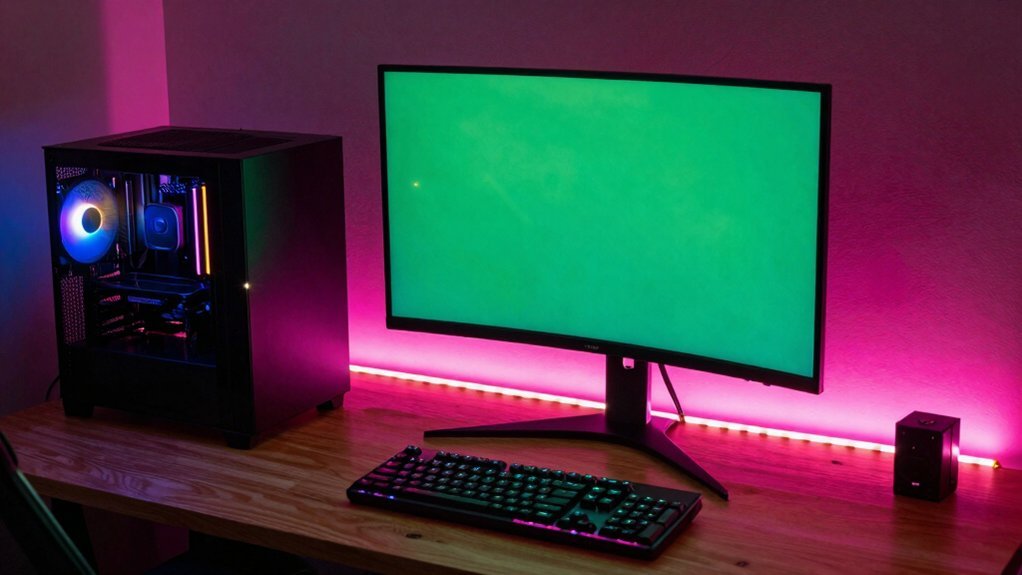
Looking for affordable ambient LED lights that won’t blind your eyes or break the bank? You’ll want lighting lighting that’s easy on the eyes and blends into your gaming setup. BASON Lighting offers budget‑friendly RGB lighting strips that deliver vibrant colors without overwhelming your space. Choose indirect placement—behind the monitor, under the desk, or on a low shelf—to add depth and cut glare. Smart controls let you tweak intensity and hue from your chair, so you stay focused while the mood shifts. Mix accent pieces with the main strip to create dimension, keeping the core desk view clean. By prioritizing versatile, low‑cost ambient lighting, you set a comfortable backdrop that enhances gameplay without draining your wallet. Explore RGBIC technology to achieve richer multi‑color effects without extra gear.
Select the Right LED Strip and Controller for Flexible Gaming‑Desk Lighting
You’ll want a 24‑48 V or 5 V addressable strip like WS2812B for pixel‑perfect color control, and a controller that matches its voltage and protocol—Arduino, ESP32, or a dedicated LED driver will do. Make sure the power supply can handle the strip’s total current at full brightness and includes proper fusing and cable management. Finally, pick mounting options and a color temperature range that keep the light even and easy on your eyes during long gaming sessions design and mounting features.
LED Strip Types
Which LED strip will give your gaming desk the perfect glow without breaking the bank? You’ll want a flexible RGB LED strip that balances brightness, color range, and cost. The 5050 SMD chips deliver vivid, multi‑color output and handle 4–14.4 W per meter, perfect for immersive gaming vibes. If you prefer a subtler look, 3528 strips use less power but offer single‑color tones. Choose between single‑color, RGB, or RGBW variants based on whether you need simple ambient lighting or full spectrum color shifts. Keep power supply capacity in mind and avoid unnecessary IP‑rated waterproof strips unless moisture is a concern.
- 5050 RGB strips for bright, dynamic effects
- 3528 single‑color strips for low‑power, steady glow
- RGBW strips for a touch of white alongside color bursts
Controller Compatibility Guide
After picking the right LED strip—whether it’s a bright 5050 RGB, a low‑power 3528, or an RGBW with built‑in white—you need a controller that talks to it. First, verify LED strips voltage; most desk projects run on 12 V, while addressable versions like WS2812B need a 5 V or 12 V controller that supports per‑pixel data. For single‑color runs, a basic PWM controller works, but multicolor effects demand an addressable controller such as the SP108E or a dedicated WS2812B board. Choose USB‑powered units if you want a tidy desk‑side plug, or wall‑powered models for stable brightness. Finally, consider Wi‑Fi or Bluetooth controllers for smart‑home sync, letting you trigger scenes via app or voice without extra wiring. In addition, ensure your case or desk setup provides adequate radiator and cooling considerations to maintain performance when lighting effects are active.
Power Supply Considerations
What power supply you choose determines whether your desk lighting stays bright or flickers out. Pick a 4–5 V RGB or 12 V RGB strip that matches your controller’s voltage and calculate the total wattage: each 1 m draws 4–14 W, so multiply by length and add a margin for dimming. Then select a power supply rated at least 1.5×–2× that load, preferably regulated and non‑dimmable if your controller handles the dimming itself. Secure USB‑powered or mains adapter‑powered connectors and use adhesive backing or cable channels to keep the setup tidy and reliable. When integrating with an RGB strip, consider models that support multiple modes and temperatures, so you can synchronize lighting with device activity and cooling cues from your gaming gear RGB lighting for a cohesive setup.
Mount LED Strips Without Drilling (Adhesive, Clip, Channel)
You can stick the strip directly to the desk edge with a strong double‑sided tape for a clean, hidden look.
If the surface is curved or textured, snap‑on clips keep the strip flat and prevent sagging.
For a softer glow and easier cable routing, press an adhesive‑backed aluminum channel over the strip and let it cure for a day before powering up.
Adhesive Backed Strips
Ever wonder how to light up your gaming desk without drilling holes? Adhesive-backed LED strips give you a clean, tool‑free solution. First, wipe the surface with is‑free to strip oils, then press the strip onto wood, plastic, or metal. The strong double‑sided tape holds fast within 15 minutes, letting you enjoy instant lighting. Choose a 5‑12 V strip that matches your power supply, and pick dimmable RGB for mood or white‑only for subtle glow. If you want extra protection, slide the strip into a clip channel that hides the tape and diffuses the light evenly behind monitors or along desk edges. The strips can use hot‑swappable and customizable RGB concepts found in budget mechanical keyboard options for richer, programmable lighting effects macro capabilities.
Snap‑On Clip Mounts
| Feature | Benefit | Typical Use |
|---|---|---|
| Tool‑free | No drills or screws | Quick install |
| Reversible | Easy removal | Reconfiguration |
| Vibration‑proof | Stable during play | Long‑term durability |
| Compatible | 10–12 mm strips | Single or RGB |
Surface‑Mounted Channels
Snap‑on clip mounts gave you a quick, tool‑free way to attach strips, but when you want a cleaner look and extra protection, surface‑mounted channels take over. You’ll slide adhesive‑backed LED channels onto the desk edge, then snap the strip into the profile. The channel’s diffuser spreads light evenly, eliminating harsh hotspots, while its walls guard against bends, moisture, and dust. Clips lock the channel in place for a sturdier hold, and built‑in knockouts let you route power cords, delivering tidy cable management without visible mess. This method preserves your desk surface, offers a sleek ambient glow, and stays budget‑friendly.
- The sleek glow makes your gaming zone feel futuristic.
- You’ll feel proud seeing a flawless, damage‑free installation.
- The hidden wires give a professional, clutter‑free vibe.
Power and Control Gaming Desk Lighting Cheaply With Smart Plugs
Wondering how to keep your desk lights on cue without constantly hopping up? Smart plugs give you that freedom. Plug your LED strips, desk lamp, or floor lamp into a Kasa or similar device, then control everything from your phone. You can toggle on/off, dim, or switch colors without leaving your chair, which is a game‑changer during long gaming marathons or recording sessions. Budget SSDs can also upgrade your setup by improving boot times and overall responsiveness when running streaming or gaming PC software capacity and performance for smoother workflows.
Add Gaming‑Desk‑Specific Neon Signs for Ambient Glow
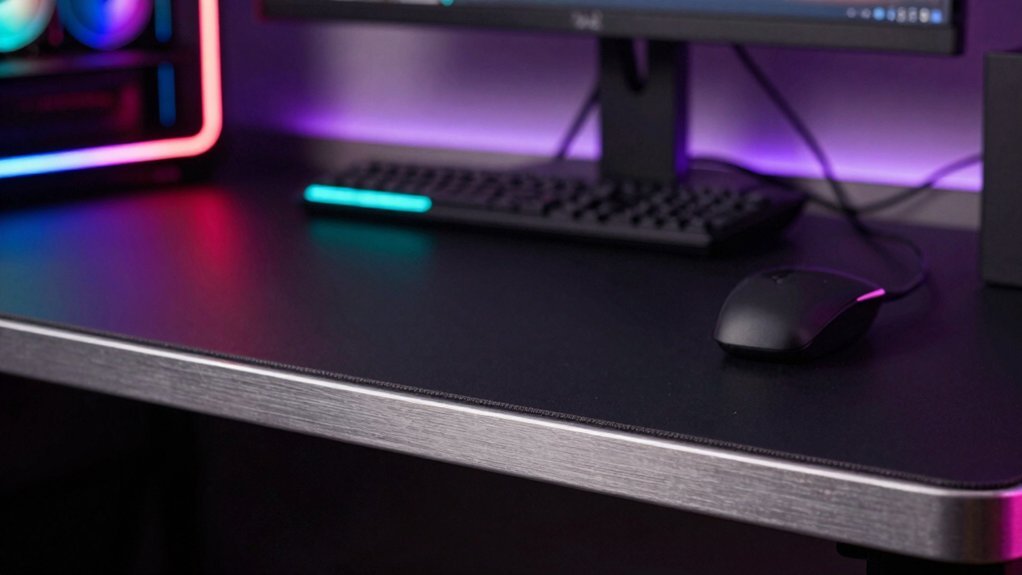
Ever thought a cheap neon sign could give your gaming rig a cinematic edge? A $20‑$30 neon sign behind your desk adds a blue‑toned ambient glow that deepens the vibe without blinding the monitor. Mount it on the wall, keeping a few inches of clearance so the light washes the back of your setup. The sign’s fixed hue pairs nicely with RGB strips, and you can dim it with a smart plug to avoid sleepless nights. If the paint chips, touch up the area to keep the look crisp. This low‑cost accent creates depth, makes the space feel larger, and gives you a signature look that rivals pricey commercial kits.
A cheap neon sign adds cinematic, blue‑toned ambient glow, depth, and a signature gamer vibe.
- A subtle, immersive backdrop that screams “gamer.”
- Easy installation and instant visual upgrade.
- Affordable, replaceable, and customizable for any theme.
Hide Cables and Manage Power With Low‑Cost Cable Trays
After the neon sign lights up your desk, the next step is to keep the area tidy by hiding cables and managing power with inexpensive trays. First, unplug everything and group cords by function—power, display, USB—then secure each bundle with Velcro ties. Route the bundles along the desk frame or dedicated channels to cut clutter and protect the wires. Mount a power strip underneath the desk; it keeps outlets handy while preserving a clean surface and boosting power efficiency. Slip low‑cost cable trays or raceways along the desk edge to conceal and secure routing, improving airflow and simplifying upgrades. Label each cable, leave a small slack loop, and you’ll enjoy reliable cable management and a sleek, organized gaming station. Cable management remains a crucial step to maintain accessibility and airflow for optimal gaming performance.
Sync Gaming Desk Lighting to Game Audio and System Events
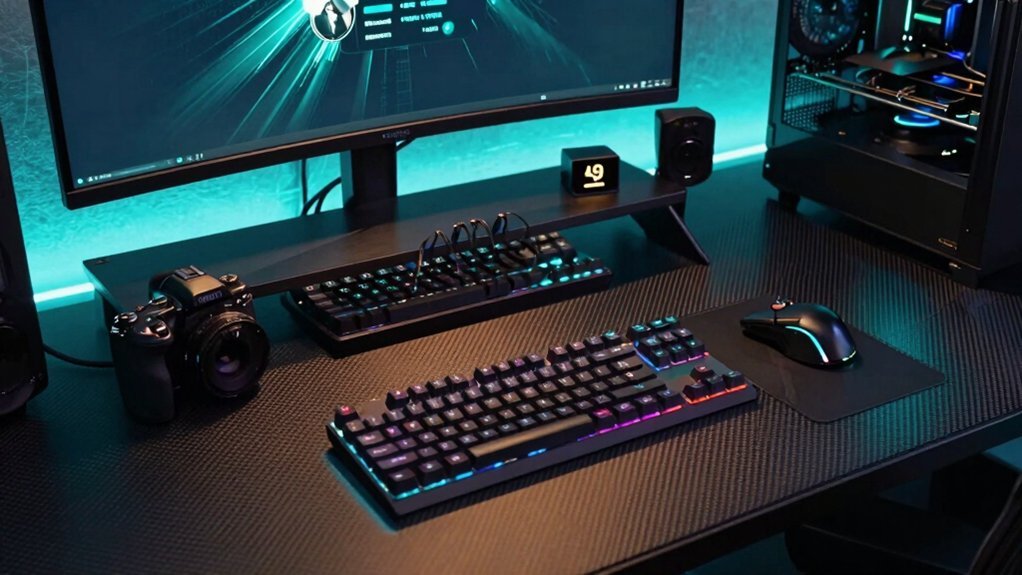
Sync your desk lights to game audio and system events to turn every explosion, gunfire, or victory chime into a visual pulse that pulls you deeper into the action. Hook RGB lighting into your PC with Razer Chroma, Logitech G HUB, or Corsair iCUE, then map audio spectra to color bursts that flash on gunfire and pulse on ambient music. Tie desk LEDs to system triggers—launch a game, start a recording, or receive a chat message—so each event sparks a satisfying glow. If you prefer a DIY route, script a lightweight timer that cues lighting changes during load screens or victory screens, keeping latency invisible while the room reacts in real time.
- Explosions become blazing red flashes that make your heart race.
- Victory chimes trigger a cool blue wave, rewarding your win.
- Chat alerts flash a soft green, letting you stay connected without missing a beat.
Fine‑Tune Brightness and Color to Reduce Eye Strain and Boost Immersion
How can you keep your eyes comfortable while still feeling fully immersed? Start by targeting a 120–180 cd/m² ambient lighting level that mirrors your monitor’s brightness. Use indirect, blue‑leaning light at 6500 K–4000 K with low saturation; it creates a soft glow without washing out the screen and cuts down eye strain. Install a bias light behind the monitor to even out contrast glare and form a uniform visual field. Dim any RGB effects and avoid rapid pulsing or color shifts that distract and fatigue your eyes. Test the setup on a wobble‑free desk, tweaking brightness and temperature in small steps while maintaining a 1:1 luminance ratio between screen and ambient lighting. This fine‑tuning keeps your vision relaxed and deepens immersion.
Frequently Asked Questions
How to Light up a Gaming Desk?
You’ll mount LED strips under the desk edge, attach a flexible strip behind the monitor, plug a cheap controller, then use the app or voice to set colors and brightness for ambient, accent, and task lighting.
How to Make a Gaming Light?
You’ll build a gaming light by attaching flexible LED strips to the desk’s underside, linking them to a smart plug, setting a muted color, and adding a small ring light for focused illumination.
Which Is Better LED or RGB?
You’ll find LED cheaper and brighter, so it’s better for simple, low‑cost lighting, while RGB gives you mood‑changing colors but costs more and needs extra wiring and a controller.
What Lighting Is Best for Gaming?
You’ll want soft, indirect ambient lighting—LED strips behind the monitor and subtle desk‑under lights—using a single, low‑intensity color palette to reduce glare, eye strain, and distraction during long gaming sessions.
In Summary
Now you’ve got a budget‑friendly, immersive lighting setup that’s easy to install, tweak, and sync with your games. By picking cheap LED strips, mounting them without drills, powering them with smart plugs, and adding a neon accent, you’ll boost ambiance while keeping eye strain low. Keep cables tidy, fine‑tune colors, and let the glow react to your gameplay for a truly personalized gaming desk.


Leave a Reply