
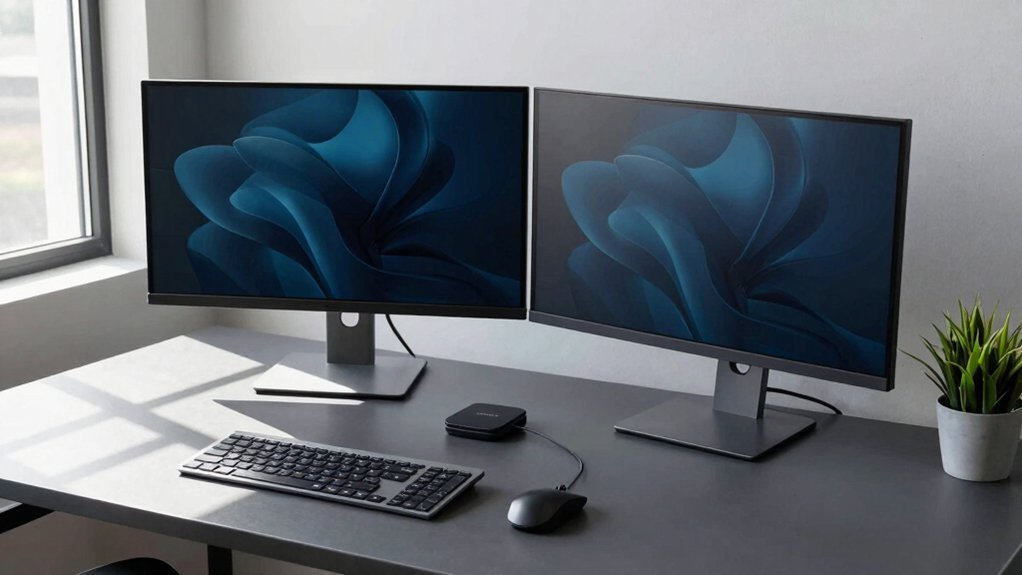
Building your own dual‑monitor desk gives you a sturdy, height‑adjustable surface that lines both screens at eye level, cutting neck strain and keeping your spine neutral. You can mount low‑cost, flexible arms on a grommet or clamp, route cables cleanly through built‑in channels, and keep forearms at 90 degrees for comfortable typing. The setup lets you fine‑tune ergonomics, future‑proof upgrades, and stay productive—plus you’ll discover even more tips ahead.
Why a Proper Desk Surface Matters for a Dual‑Monitor Desk
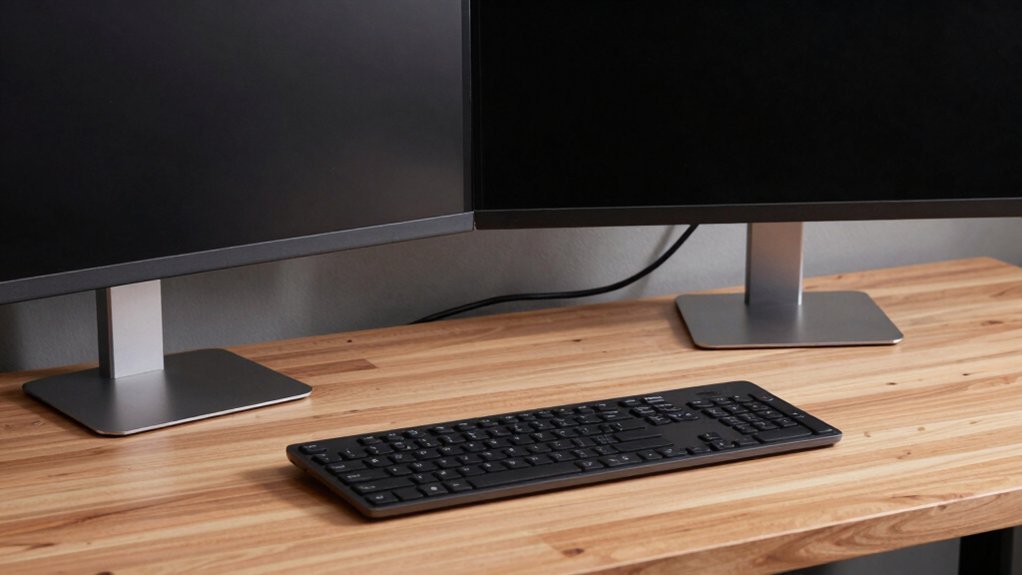
Why does a proper desk surface matter for a dual‑monitor setup? You need a solid, height‑adjustable desk surface to align both screens at eye level, keeping the main monitor straight ahead and the secondary at the same height. This eliminates neck twisting and downward glances, which strain muscles and eyes. A stable platform lets you mount a dual‑monitor arm that tilts and slides, preserving ergonomic posture: back engaged, feet flat, forearms at 90 degrees. When the surface supports smooth arm movement, you maintain a neutral spine while reaching for peripheral tools, reducing cognitive load. The result is a comfortable, efficient workspace where multi‑screen tasks flow naturally without fatigue.
Create a Budget‑Friendly, Adjustable Monitor‑Arm Setup for Dual‑Monitor Desks
A budget-friendly, adjustable monitor-arm setup starts with picking a versatile, low-cost arm—Herman Miller’s Flo or Ollin models are solid choices that balance price and performance. Install the arm on a sturdy desk grommet or clamp, then attach your dual monitor panels using the built-in VESA brackets. The Flo lets you tilt, swivel, and raise each screen, so you can shift between sitting and standing without strain. The Ollin accommodates light laptops, giving you extra screen real estate for reference windows. Tighten the tension knobs until the arms hold steady, then connect HDMI or USB-C cables and enable Extend mode with Win + P. You’ll have an adjustable setup that maximizes ergonomics while staying within budget. GaN technology in compact charging stations underscores how modern hardware can deliver high performance in small footprints, a principle that also informs choosing compact, capable accessories for a clean, affordable desk setup.
Wire and Cable‑Manage Your Dual‑Monitor Desk Efficiently
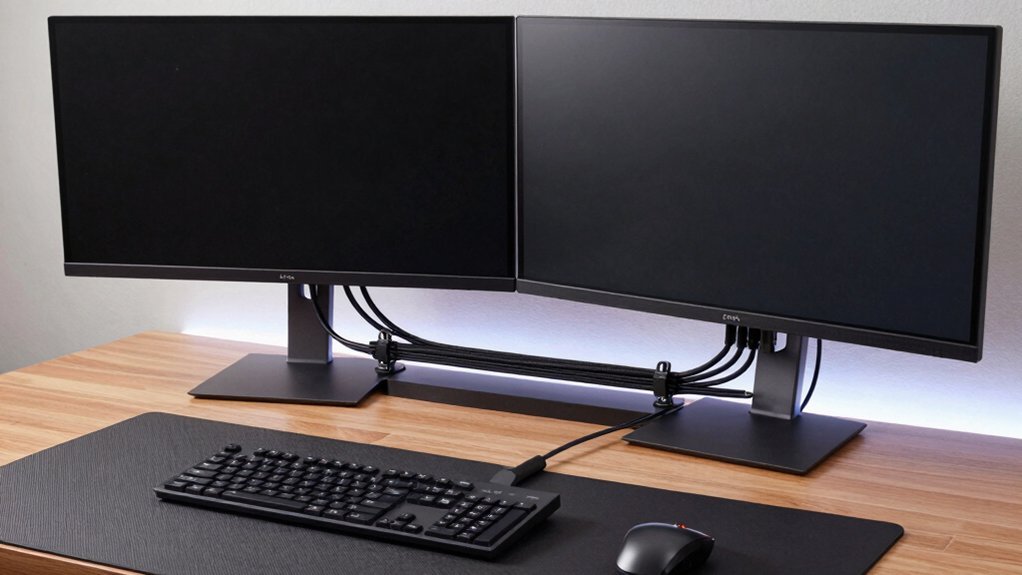
How can you keep your workspace tidy while still enjoying full freedom of motion? Start by attaching your dual monitor arms to a sturdy desk mount, then route all video, power, and data cables through the arm’s built‑in channels. Use a centralized cable management system—clip‑on sleeves or a raceway—so each cord runs straight to its destination without crossing your work surface. Connect your laptop or desktop to a docking station, then plug HDMI, USB‑C, and DisplayPort cables into the dock’s labeled ports. Choose short, braided cables and label each end to avoid tangles. Finally, install grommets or an under‑desk tray to hide excess length, keeping everything organized and easy to access. Cable management supports cleaner setups and easier maintenance in professional environments.
Optimize Ergonomics for a Dual‑Monitor Desk: Position, Mouse Orientation, and Eye Level
Ever thought about how a few simple adjustments can turn a dual‑monitor setup into a comfort powerhouse? Start by engaging your back’s lower‑back support, keeping feet flat, and bending forearms to a 90‑degree angle. Designate your primary monitor for typing and place the secondary screen for reference tasks. Align both displays at parallel height and eye level; this reduces neck rotation and eye strain. Position the mouse so it points toward the main screen, keeping the elbow close to your body and avoiding over‑reaching. Consistent monitor placement and mouse orientation let you maintain ergonomic posture while switching between tasks. These tweaks create a balanced workstation that boosts productivity and protects your body during long sessions. Ergonomic balance supports sustained comfort during long work or gaming sessions.
Test, Tweak, and Future‑Proof Your Dual‑Monitor Gaming Desk
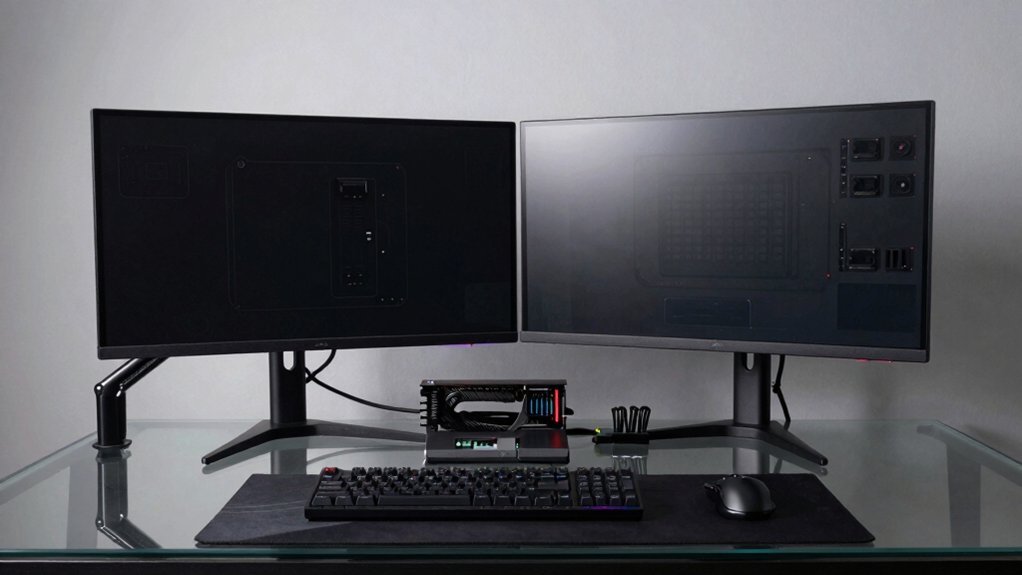
Ready to push your gaming rig to its limits? You’ve built a solid dual‑monitor desk, now test, tweak, and future‑proof it. Grab a demanding title, crank the settings, and watch for frame‑drops; if the GPU can’t sustain both screens at 144 Hz, consider a higher‑tier card. Adjust the arm’s tilt and height until the screens sit at eye level, eliminating neck strain and keeping the ergonomic feel tight. Check cable management and ensure power delivery can handle future upgrades. Finally, lock in your configuration with a profile in your GPU software so you can revert after hardware changes. Best Monitor Integration will guide you toward compatible setups and features when integrating multiple displays.
Push your dual‑monitor rig to the max: stress test, tweak arm angles, and lock in GPU profiles.
- Run stress tests on both monitors simultaneously.
- Fine‑tune arm angles for a neutral posture.
- Verify GPU headroom for higher resolutions.
- Label cables and reserve extra ports for future rigs.
Frequently Asked Questions
What Are the Benefits of a Dual Monitor Setup?
You’ll cut down on tab‑switching, see more data at once, and keep reference material visible, which boosts speed, lowers cognitive load, and lets you juggle tasks—often delivering up to a 43% productivity lift.
Is a Dual Monitor Really Necessary?
You’ll find a dual monitor essential if you juggle multiple apps, need quick reference material, or want to cut tab‑switching; it boosts efficiency, eases cognitive load, and supports ergonomic workflow.
What Is the Point of Dual Mode Monitors?
You get instant visual separation, so you can keep reference material on one screen while working on the other, cutting context‑switching, boosting focus, and finishing tasks faster without constantly tab‑switching.
What Are the Disadvantages of Dual Monitors?
You’ll face higher costs, increased desk clutter, and more cables; aligning screens can strain your neck and eyes; power draw and heat rise, and managing content across two displays often overwhelms limited workspace.
In Summary
You’ve got the right desk, a flexible arm setup, tidy cables, and ergonomic positioning—all tuned for comfort and performance. Keep tweaking the heights, angles, and lighting as your needs evolve, and you’ll stay ahead of any future upgrades. With this foundation, your dual‑monitor workstation will stay efficient, healthy, and ready for whatever tasks or games you throw at it.


