
First, go to Settings → System Software Update on your PS4 or PS5 to see the current version and any pending notifications. Turn on “Update Files Automatically” and “Install Update Files Automatically” so the console stays online, even in Rest Mode, and fetches new firmware. If it won’t update online, format a USB drive to FAT32/exFAT, create a PS4 or PS5 → UPDATE folder, drop the proper UPDATE.PUP file in, then boot the console into Safe Mode (second beep) and choose “Update from USB Storage Device.” After installation, check Settings → System Information to confirm the version matches the latest release notes. If the update still fails, repeat the Safe Mode USB process and select “Reinstall System Software” for a clean reset. Continue for more detailed steps.
How to Check the Current System Software Version on a Refurbished PS4/PS5
Wondering which firmware your refurbished PlayStation is running? You’ll find the system software version quickly.
On a PS4, open Settings, select System Software Update, and the screen shows the current version and any update check prompts.
Open Settings → System Software Update on a PS4 to see the current version instantly.
On a PS5, go to Settings → System → System Software → System Software Update and Settings; the display lists the current version and whether a newer build is available.
Both consoles also push notifications about recent updates, so glance at the Notifications menu for a quick reminder.
If you can’t reach the home screen, power the console into Safe Mode, choose Update System Software, and the interface will reveal the installed version without needing an internet connection.
This method works for any refurbished console. Update Process Requirements
How to Perform an Automatic Internet Update on a Refurbished Console
Want to keep your refurbished PlayStation up to date without lifting a finger? Open Settings, go to System > System Software > System Software Update and Settings, then enable Update Files Automatically and Install Update Files Automatically. Keep the console on the Internet, even in Rest Mode, so it can download and install new firmware on its own. Occasionally open Settings > System > System Software > System Software Update and Settings, select Update via Internet or Check for Update to confirm a pending release. Watch Notifications for progress and verify the new version in Update History. If the console never finds an update, you may need to boot into Safe Mode and run a manual update, but normally the automatic flow handles everything. Bluetooth connectivity can sometimes enable more reliable data transfer for accessory updates.
How to Manually Update PS4/PS5 System Software via USB and Safe Mode
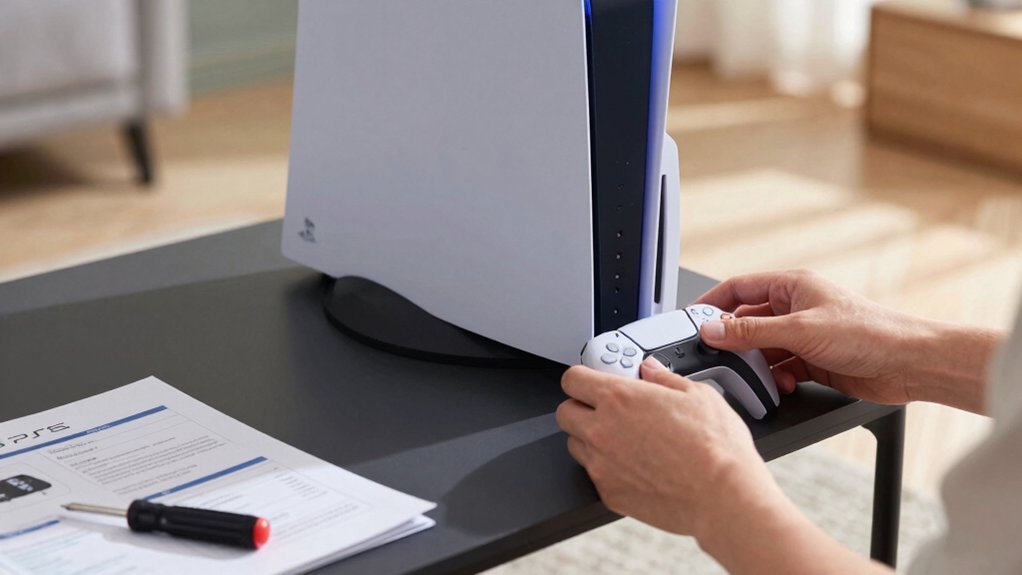
Need a reliable way to get your refurbished PlayStation up to date when the internet won’t cooperate? First, format a USB drive to FAT32 or exFAT. Create a folder named PS4 or PS5, then inside it an UPDATE folder. Place the correct UPDATE.PUP file—PS4UPDATE.PUP for PS4 or PS5UPDATE.PUP for PS5—in uppercase. Plug the drive into the console, power it off, then hold the power button until you hear the second beep to enter Safe Mode. Choose “Update System Software” and then “Update from USB Storage Device.” The console will read the UPDATE.PUP, install the system software, and reboot with the new version. This manual update via Safe Mode ensures your refurbished console stays current without internet access. Safe Mode provides a reliable recovery path when network access is unavailable.
How to Verify the Update Installed Correctly
How can you be sure the update actually installed? Open Notifications or go to Settings → System Software Update and confirm the latest update appears. Then verify the system software version number by navigating to Settings → System → System Information; the version should match the one announced in the update release notes. Next, open the update log to see the new patch listed with today’s date. Check that any new features—like automatic download options—are enabled under Settings → System Software Update. If something looks off, restart in Safe Mode and run an update from USB or Internet, then re‑check the version number and update log to ensure the installation succeeded. Versioning accuracy helps ensure you’re running the intended build and not a partial or failed install.
How to Reset and Reinstall PS4/PS5 System Software When Updates Fail
| Step | Action | Result |
|---|---|---|
| 1 | Power off, hold button until second beep | Enters Safe Mode |
| 2 | Insert USB with UPDATE folder | Recognizes update file |
| 3 | Select “Update from USB” | Starts System Software Update |
| 4 | Confirm Reinstall | Completes Factory Reset |
Frequently Asked Questions
How to Fix Outdated Software on PS5?
You fix outdated PS5 software by opening Settings → System → System Software → System Software Update, then selecting “Update System Software.” If it fails, restart in Safe Mode and choose “Update from Internet.”
How to Update System Manually?
Plug the USB with PS4/UPDATE/PS4UPDATE.PUP into the console, power it off, hold the power button until the second beep, then in Safe Mode select “Update System Software” and follow the prompts.
How Long Until PS4 Is No Longer Supported?
You’ll probably see official PS4 updates stop by late 2024 or early 2025, depending on region. After that, new firmware won’t arrive, though online services may still work for a while.
How to Manually Update PS?
You plug a FAT‑32/FAT‑EX formatted USB, create a PS4 (or PS5) folder, inside an UPDATE subfolder, place the uppercase PS4UPDATE.PUP (or PS5UPDATE.PUP), then boot Safe Mode and choose “Update System Software” from USB.
In Summary
You’ve now got the tools to keep your refurbished PS4 or PS5 running smoothly. By checking the version, using automatic updates, or flashing the firmware via USB in Safe Mode, you can stay current without hassle. Verify the install, and if anything goes wrong, a reset and reinstall will get you back on track. Regular maintenance ensures your console delivers the best performance and latest features every time you play.


