

You’ll notice that stock coolers keep your PC safe for everyday tasks, but they heat up fast during marathon gaming, throttling performance and getting noisy. Aftermarket air or AIO units use larger fin arrays, more heat pipes, and better fans, so they stay cooler, quieter, and give you extra boost headroom for overclocking. They also last longer because the bearings and brackets are higher‑quality. If you’re ready for deeper details on sizing, compatibility, and value picks, keep going.
Why Cooling Matters for Gaming: Stock vs. Aftermarket Coolers
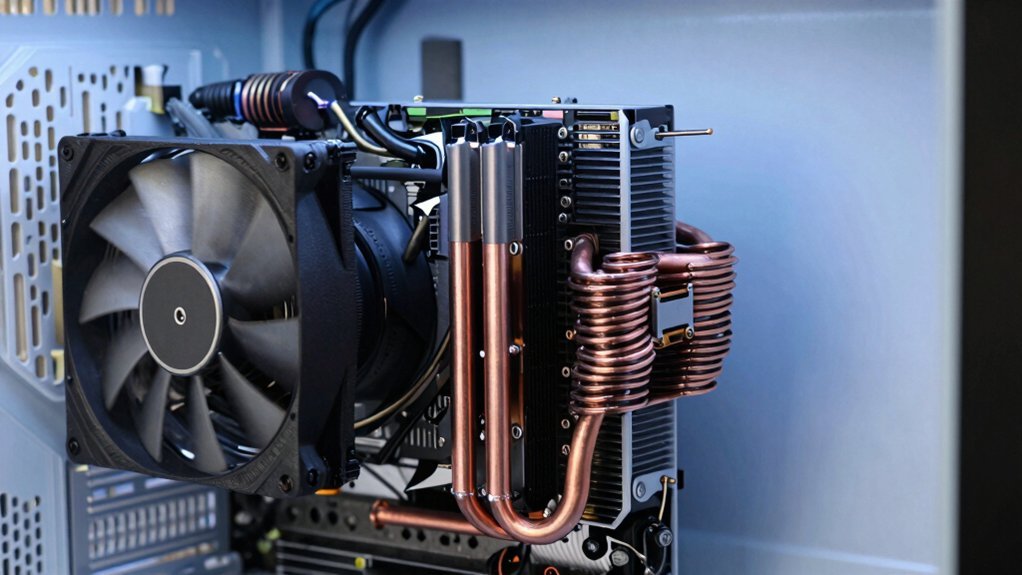
Why does cooling matter when you game? You push your CPU hard, and heat spikes can throttle performance, cause frame drops, and shorten component life.
Effective cooling prevents throttling, frame drops, and premature hardware wear during intense gaming sessions.
A stock cooler keeps temperatures safe for everyday tasks, but its modest heatsink and fan often struggle during marathon sessions or in warm rooms, forcing the fan to spin louder.
Switching to an aftermarket cooler gives you a larger heatsink, more heat pipes, and better airflow, which translates into lower temps and quieter operation even under sustained loads.
This extra headroom lets you maintain boost clocks, overclock safely, and keep your rig stable.
Just check clearance, compare specs, and balance price against the noise level you tolerate.
Thermal headroom can also influence how consistently your system performs under longer gaming sessions, preventing unwanted throttling.
How Stock Coolers Perform Under Gaming Loads Compared to Aftermarket Coolers?
You’ll notice that stock coolers often hit higher temperatures during intense gaming, limiting thermal headroom for sustained performance. Their fans tend to ramp up louder, which can be distracting compared to many aftermarket solutions that stay quieter at similar loads. Because of these thermal and acoustic constraints, stock coolers usually offer less overclocking headroom and shorter lifespan under heavy use. USB-C PD ports (up to 20W) and multiple USB ports can help keep peripherals powered without stressing the main system USB-C Power Delivery.
Thermal Headroom Under Load
How much heat can your stock cooler tolerate when you push the CPU hard in a marathon gaming session? You’ll notice the stock cooler’s temperature climbs quickly, often hitting the upper‑mid‑70s °C under sustained load.
Aftermarket cooling, especially larger air towers or AIO liquid units, gives you a wider thermal headroom, keeping peaks in the low‑60s °C range. This gap widens if your room runs hot or if you game for hours; the stock cooler’s fan ramps up, raising noise and temperature, while the aftermarket solution maintains steadier temps.
Even without overclocking, a good case flow helps a stock cooler survive, but heavy gaming pushes it toward higher junction temps. Choosing an aftermarket cooler consequently protects performance and longevity when you demand sustained power.
Noise Levels During Gaming
When the temperature climbs, the stock cooler’s fan ramps up, and the noise spikes, while many aftermarket air coolers keep the same RPM slower thanks to larger, more efficient blades. You’ll notice the stock cooler whining louder as the GPU pushes 200 W+, whereas an aftermarket cooler maintains a gentle hum even under the same load. In hot rooms or marathon sessions, the stock cooler’s pitch climbs, but a quality aftermarket unit preserves a near‑silent profile, thanks to bigger heat‑pipes and optimized fan curves. AIO liquid coolers can drop the fan RPM further, though a faint pump whine may appear. Choose the solution that matches your tolerance for audible distraction. The selection often hinges on the balance between cost, performance headroom, and the importance of a quiet build in long gaming sessions magnetized components and organized tool storage.
Longevity and Overclocking Potential
Ever wondered why your CPU seems to age faster with the stock cooler? You’ll notice it heats up quickly under gaming loads, pushing temps into the thermal throttling zone and forcing the fan to spin louder. That extra heat accelerates wear, shortening the processor’s lifespan. Aftermarket air coolers keep peak temperatures lower, giving you more headroom for overclocking potential without hitting throttling thresholds. Liquid AIO units go even further, maintaining steadier temps during long sessions and reducing thermal stress. The performance gap widens when you push the chip hard or game for hours; stock coolers hit higher temps and louder curves, while aftermarket options preserve stability and longevity. Choosing a better cooler protects your CPU and Best Accuracy: ±1°F temperature higher overclocking potential.
How Quiet Are Aftermarket Fans Compared to Stock Fans?
Ever wondered why your PC sounds softer after swapping to an aftermarket cooler? When you compare aftermarket coolers to stock fans, the noise comparison is striking. Larger, higher‑quality fans spin slower while moving the same air, so you hear less whine at idle or light loads. Their optimized blade designs cut turbulence, letting heat dissipate efficiently without revving to high RPMs. Even under heavy gaming, those fans stay quieter than stock units that must crank up speed.
High‑end air coolers with multiple fans can still be audible at full load, but they usually remain softer than stock.
AIO liquid coolers often win the silence race, though their pumps add a different hum.
How Much Extra Cooling Do You Get per Dollar With Aftermarket Coolers?
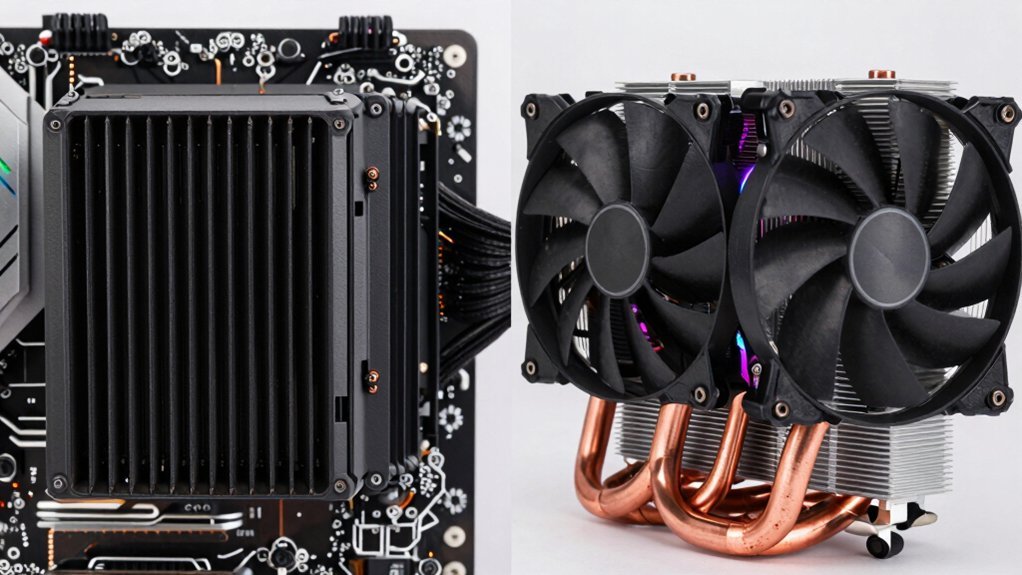
You’ll see a clear performance‑to‑price ratio when you swap a stock cooler for a $30‑$40 aftermarket air unit, often dropping CPU temps by several degrees for a modest spend. Pairing a higher‑quality cooler with an optimized case airflow can yield even more noticeable headroom without breaking the bank joule rating and protection considerations also matter for power delivery and efficiency in high‑load setups.
Performance‑to‑Performance Ratio
How much extra cooling can you actually squeeze out of each dollar spent on an aftermarket cooler? You’ll find that air cooling often hits a sweet spot between $25 and $40, delivering a solid performance‑to‑performance ratio that beats stock units without breaking the bank. The gains taper off as you climb into premium models, where each extra dollar yields diminishing temperature drops. AIO liquid coolers can edge out air at the same price, but only if the radiator matches your CPU’s heat output. Budget air coolers sometimes outpace cheap AIOs, making the dollar‑per‑degree advantage highly variable and workload‑dependent. Two-controller charging station
Cost‑Effective Cooling Gains
The sweet spot for budget air coolers—roughly $25 to $40—means you can shave about 5–7 °C off stock temperatures for each dollar you spend, far outpacing the modest gains of cheap AIOs. You’ll notice that a $30 air cooler typically drops temps 20 °C vs stock, while a $80 AIO cooler only saves ~12 °C for the same cost. Mid‑range air coolers keep the cost‑per‑degree ratio low, especially when you have good case airflow. High‑end liquid loops (> $200) deliver the best absolute temps but the extra cooling per dollar dwindles quickly.
| Price | Cooler Type | Δ°C per $ |
|---|---|---|
| $30 | Air cooler | 0.67 |
| $45 | Air cooler | 0.55 |
| $80 | AIO cooler | 0.15 |
| $150 | AIO cooler | 0.08 |
| $200+ | Custom | 0.04 |
Which Cooler Is More Reliable Over Time: Stock or Aftermarket?
Typically, you’ll find that aftermarket air coolers outlast stock units when it comes to long‑term reliability. You’ll notice that stock coolers have fewer moving parts, but they run hotter under sustained load, which accelerates fan wear. Aftermarket air cooling designs use larger heatsinks and higher‑quality fans, keeping temperatures low and reducing stress on bearings. Over years of heavy use, the robust construction of aftermarket units translates into fewer failures and quieter operation. You’ll also benefit from better thermal paste application and more consistent performance, especially if you push the CPU beyond stock settings.
Aftermarket coolers outlast stock units, offering cooler temps, quieter operation, and longer‑lasting fan bearings.
- Larger fin array dissipates heat faster
- Higher‑quality bearings last longer
- Stronger mounting brackets reduce vibration
- Better airflow design minimizes dust buildup
- Consistent fan speed control prevents overheating
What Height and RAM Clearance Do You Need for a New Cooler?
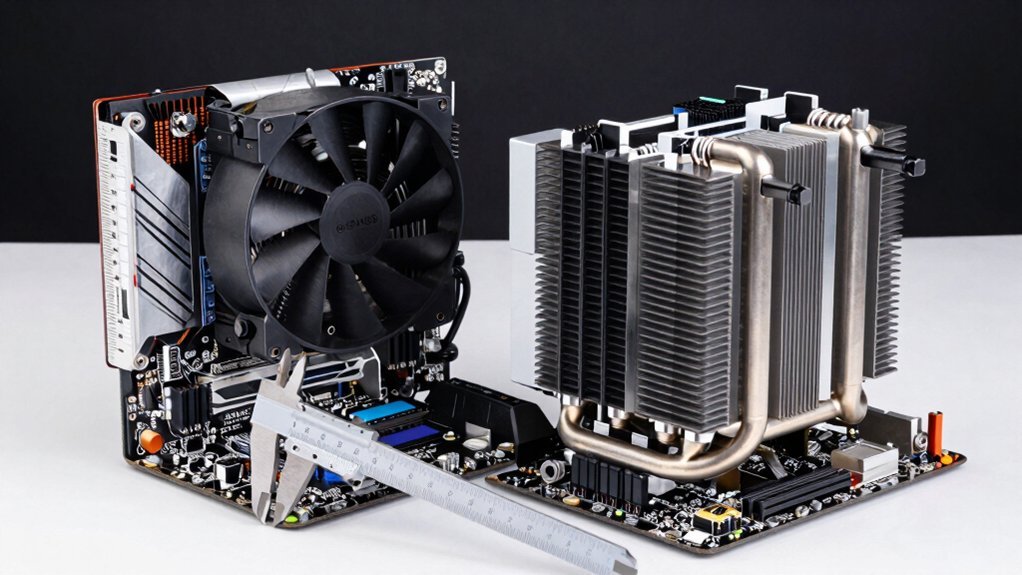
Wondering how tall a cooler you can fit before checking its RAM clearance first? Measure your case’s CPU cooler clearance in millimeters—most low‑profile units sit around 60 mm, while tower air coolers can exceed 160 mm. Next, look at RAM clearance: tall coolers often overhang DIMMs, so you need enough space for your memory modules and any heat‑spreader fins. Consult the cooler’s spec sheet for exact clearance dimensions, and compare them to your motherboard’s socket layout and fan orientation. If you have a tight build, choose a slim air cooler (60–75 mm) or a compact AIO with a narrow radiator to keep both cooler height and RAM clearance within safe limits. This double‑check prevents unwanted interference with RAM or GPU backplates.
Installation & Compatibility Checklist for Aftermarket Coolers
After checking that your case can accommodate the cooler’s height and RAM clearance, you’ll want to verify the unit fits your specific CPU socket and stays within its TDP limits. First, pull the motherboard manual and locate the socket type—LGA 1151, AM4, etc.—then confirm the cooler’s mounting kit supports it. Next, match the cooler’s TDP rating to your processor’s power draw; a 95 W TDP cooler won’t keep a 125 W chip safe. Finally, assess airflow paths: make certain the fan’s direction aligns with case vents and that the tower won’t block tall RAM modules.
- Confirm socket compatibility (LGA/AM4) and mounting hardware
- Check TDP rating versus CPU power requirements
- Verify height clearance and RAM module interference
- Make sure fan orientation matches case airflow
- Review the cooler’s footprint for case space and ventilation
Which Aftermarket Air Cooler Gives the Best Value at $25‑$40?
Looking for a $25‑$40 air cooler that actually upgrades your system? You’ll want a tower‑style Aftermarket CPU cooler with multiple copper heat pipes, big aluminum fins, and a single 120 mm or 92 mm fan—these specs drive the best value‑perf. Cooler Master’s Hyper 212 EVO, Deepcool’s Gamer Storm, and be quiet! S1 Nano all hit this price band, offering solid thermal performance while staying quiet. Check that the cooler clears your RAM and supports your socket (AM4, LGA 1200/1151). Compare user‑reported temps and dB levels against your CPU’s TDP and case airflow. When the cooler bundles a warranty and simple mounting hardware, you get a reliable upgrade without breaking the bank.
When Should You Choose an AIO Liquid Cooler Over an Air Cooler?
If your CPU consistently hits high thermal loads, an AIO can keep temperatures down where an air cooler would struggle.
When your case is cramped or airflow is limited, the radiator’s larger surface area fits better than a bulky heatsink.
And if you prioritize a quiet system, the AIO’s low‑rpm fans usually produce less noise than high‑speed air‑cooler blades.
Thermal Load Thresholds
When your CPU consistently runs 100 W or more, an AIO liquid cooler usually outperforms air cooling. You’ll notice the temperature curve flattening, especially under sustained workloads that push the chip past its stock TDP. If the CPU spikes above 85–90°C in an open case, the liquid loop can keep temps in a safer zone, giving you headroom for overclocking or heavy multitasking. For builds where space is tight but you still need strong cooling, an AIO offers a compact radiator that fits where a large tower can’t. Conversely, moderate gaming or productivity under 100 W with good airflow may be adequately served by a high‑quality air cooler.
- 100 W+ sustained power → AIO advantage
- 85–90°C+ temps → liquid cooling needed
- Overclocking beyond stock → AIO maintains stability
- Tight clearances → AIO fits better
- Sub‑100 W with airflow → air cooler sufficient
Case Space Constraints
Why settle for a bulky tower cooler that forces you to sacrifice RAM clearance or motherboard real estate? If your case has limited vertical clearance, a low‑profile AIO—especially 120 mm or 240 mm radiators—slips in where a tall tower air cooler can’t. AIOs free up RAM slots and motherboard space because the pump sits on the CPU and the radiator can be mounted on the top, front, or rear. Choose a slim radiator to maximize case space efficiency, especially in ultra‑compact builds. When a large air cooler would block RAM modules or interfere with cable routing, an appropriately sized AIO solves the clearance issue while still delivering strong cooling performance at lower fan speeds. This makes the AIO the practical option for tight case space constraints.
Noise Preference Priorities
Quiet performance often decides whether you reach for an AIO liquid cooler instead of a traditional air cooler. When you push your CPU hard, an AIO can keep RPMs low, so cooler noise stays barely audible, while a stock cooler often ramps fans up, raising the decibel level. If you game or render for hours, that near‑silent operation can be a game‑changer. In cramped builds, the AIO’s slim radiator frees airflow, preventing fans from screaming. Yet, if you prefer simplicity and a proven low‑noise floor, a high‑quality stock cooler with a single fan may still satisfy you.
- AIO maintains lower RPM at high load
- Stock cooler fans spin faster, increasing noise
- AIO’s radiator reduces airflow turbulence
- Quiet operation matters for long sessions
- Choose AIO for minimal audible distraction under heavy workloads
How Much Overclocking Headroom Does an Aftermarket Cooler Provide?
How much extra headroom can you expect from an aftermarket cooler? You’ll see a tangible boost in cooling headroom that translates directly into overclocking potential. Most air coolers drop CPU temps by 5–15 °C versus stock, letting mid‑range chips add a few hundred megahertz and high‑end models push modest GHz‑range gains.
Liquid AIOs go further, shaving extra degrees and often unlocking 1–2 GHz extra stable frequency on mainstream silicon when voltage is managed. The exact margin hinges on your CPU’s TDP, bin quality, motherboard power delivery, case airflow, and the cooler’s rated dissipation. Choose a cooler whose TDP rating meets or exceeds your CPU’s heat output, mount it correctly, apply fresh paste, and ensure good case ventilation for repeatable, safe overclocking headroom.
Frequently Asked Questions
Do Aftermarket Coolers Affect CPU Boost Clock Behavior?
Yes, aftermarket coolers can keep temperatures lower, letting your CPU maintain higher boost clocks longer; you’ll notice fewer throttles, especially under sustained loads, compared to stock cooling.
Can I Use a Stock Cooler With a Non‑Standard Motherboard Socket?
Yes, you can mount a stock cooler on a non‑standard socket, but you’ll need an adapter bracket or custom mounting kit; otherwise the cooler won’t align with the holes or contact the CPU properly.
Do Aftermarket Coolers Require Special Thermal Paste?
You don’t need special thermal paste for aftermarket coolers; any high‑quality paste works. Just apply a thin, even layer, assure the cooler’s base is clean, and you’ll get proper heat transfer.
How Do Cooler Warranties Compare Between Stock and Aftermarket?
You’ll find aftermarket warranties usually last longer and cover more defects, while stock warranties tend to be shorter and limited to basic failures; always compare terms before deciding.
Will a Larger Cooler Interfere With Case Cable Management?
Yes, a larger cooler can block or crowd your cables, especially if your case has tight routing holes. Plan your airflow, use zip ties, and check clearance before installing to avoid headaches.
In Summary
In the end, if you game hard and want the best temps, noise, and overclocking headroom, an aftermarket cooler—especially a solid air unit in the $25‑$40 range—wins out over stock. It’s generally more reliable, easier to upgrade, and gives you extra cooling per dollar. Stick with a stock cooler only if you’re on a tight budget or don’t plan to push your CPU.


