

Pick a laptop with a quad‑core CPU (hyper‑threading), at least 16 GB RAM, and a discrete GPU that supports NVENC (RTX 2060/3060 or GTX 1050+). Use a USB 3.0+ HDMI capture card like the Elgato Cam Link 4K for low latency, and connect it to a wired Gigabit Ethernet network. Keep the system cool with a pad, set Windows to a Performance power plan, and disable power‑saving features. With these tweaks you’ll stream smoothly, and the next steps will show you how to fine‑tune OBS and peripherals.
Pick the Right Old Laptop for Streaming
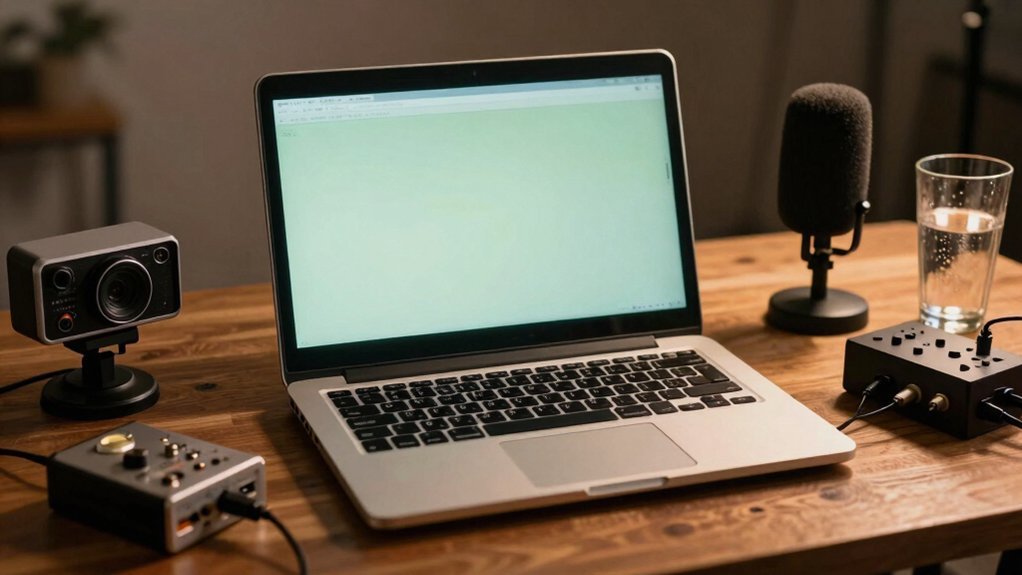
Which old laptop should you pick for streaming? You need a machine that still packs a decent multi‑core CPU, at least 16 GB RAM, and a discrete GPU like an RTX 2060 or 3060. Budget‑friendly gems such as the Acer Nitro 5 or MSI GF65 hit those marks without breaking the bank. Their thermals stay balanced, so you won’t hit throttling during long sessions. tri‑mode versatility
Check CPU/GPU Compatibility for Live Encoding
How can you tell if your old laptop will handle live encoding without choking? First, check the CPU model; an Intel Core i5 or i7 (or comparable AMD) with at least four cores and hyper‑threading is ideal for video processing and multitasking. Look up its benchmark scores; if they sit above the 5,000‑6,000 range in single‑core tests, you’ll likely avoid bottlenecks.
Next, examine the GPU. A dedicated GPU such as an NVIDIA GTX 1050 or better can offload encoding and apply effects, while integrated graphics may struggle with high‑bitrate streams. Verify that the GPU supports hardware‑accelerated codecs like NVENC or AMD VCE.
Finally, ensure the laptop runs on AC power and has adequate cooling, as thermal throttling will cripple both CPU and GPU performance during prolonged streams. GPU hardware acceleration
How Much RAM and Storage Do You Really Need for Smooth Streams?
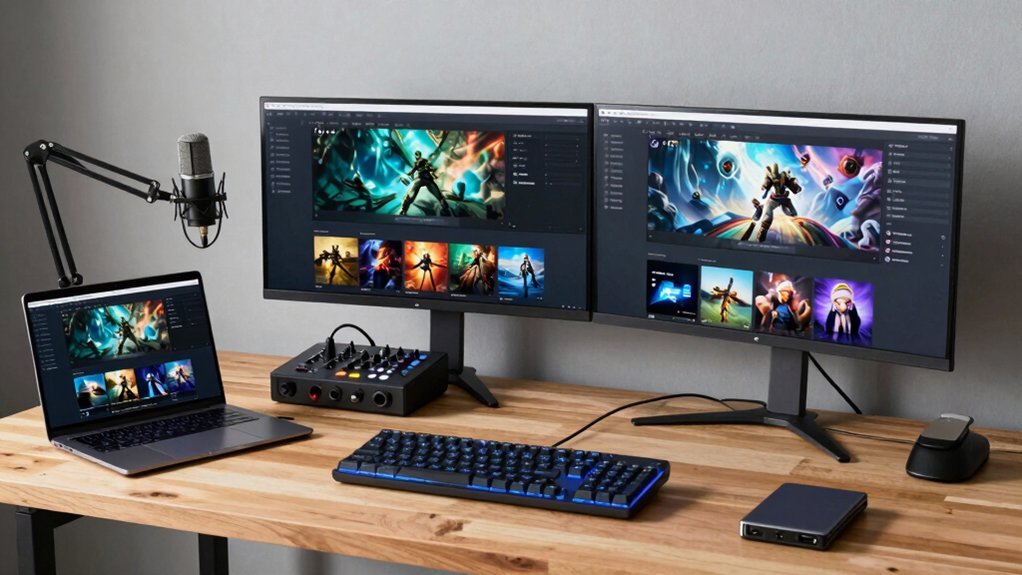
You’ll want at least 16 GB of RAM to keep OBS, encoding, and scene switching running smoothly, especially at 1080p/60 fps.
Pair that with an SSD so recordings load quickly and disk I/O stays fast, and stick to dual‑channel modules for maximum bandwidth.
If you’re upgrading an old laptop, moving from 8 GB to 16 GB usually gives the biggest performance boost for a modest price.
RAM for Streaming
I’ve found that 8 GB of RAM is the bare minimum for a decent stream, but 16 GB or more is the sweet spot when you’re juggling OBS, chat windows, and browser tabs. With 16 GB you’ll notice fewer encoding hiccups and smoother scene switches, especially if you run capture software and a browser simultaneously. Upgrading RAM before chasing a faster CPU or GPU helps prevent stuttering and dropped frames, since insufficient RAM often triggers lag. Speed matters too; DDR4 3200 MHz+ gives a modest boost, but capacity drives performance. Prioritise enough RAM to keep all streaming processes in memory, then you’ll enjoy a stable, responsive broadcast without the lag that plagues low‑memory setups. In addition, a modular, two-piece footrest system from the referenced list can indirectly reduce fatigue during long sessions by promoting better circulation and posture, which can complement a higher-quality streaming setup when you’re seated for extended periods. compression benefits
Storage Capacity for Recordings
Where does your storage bottleneck appear when you start recording 1080p 60 fps gameplay? You’ll hit it fast if you rely on a slow HDD or a tiny drive. Aim for at least 16 GB of RAM, but the real limiter is storage speed and capacity. A fast SSD, preferably NVMe, with 512 GB‑1 TB gives you headroom for the 20‑40 GB per hour H.264 files and the extra space needed for live‑stream buffers. Keep a second SSD for recordings and a larger HDD for archival backups. Plan for roughly double the game’s file size in total storage to avoid fill‑ups during long sessions. This setup lets you stream and record smoothly without constantly clearing space. 10‑year warranty
Balancing Speed and Size
After sorting out how much space you need, the next step is figuring out the right mix of RAM and storage speed. You’ll want at least 8 GB RAM for basic streams, but 16 GB eliminates stutters when you run OBS, chat, browser, and a game together. Pair that with a fast SSD—NVMe 256 GB minimum for OS and apps, 512 GB+ if you record locally. The SSD’s low latency keeps encoding smooth, while extra RAM stops the system from paging to disk. External power considerations and RGB/temperature monitoring can help keep the system stable during longer streams, especially on compact laptops with limited cooling. AI-assisted cooling can optimize performance by managing thermals during peak encoding and gaming bursts.
Select the Right Capture Card for Old Laptop Streaming
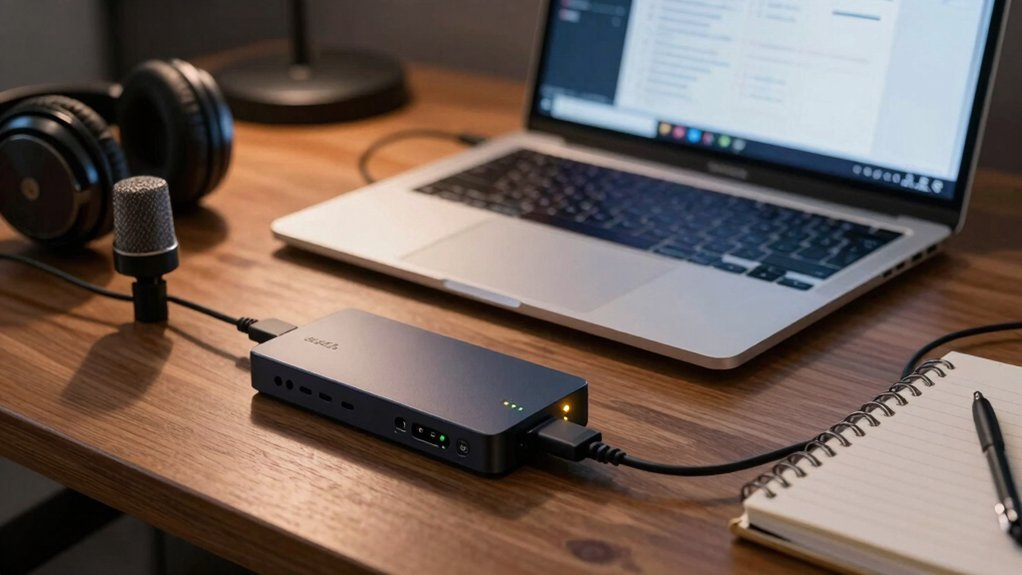
You’ll want a capture card that matches your laptop’s USB version, preferably USB 3.0+, to keep latency low. A budget-friendly option with solid VRM and cooling design can help ensure stable performance across longer streaming sessions DDR5 support and keep upgrade paths open for newer accessories.
Capture Card Compatibility
Looking for a capture card that actually works with your aging laptop? First, verify card compatibility with your OS and streaming software. Most USB‑based devices support 1080p HDMI input, which is sufficient for smooth gameplay capture. Check that the driver installs without errors on Windows 10/11 or macOS, and that OBS, XSplit, or Streamlabs can recognize the source. If you opt for a budget HDMI‑to‑USB adapter, confirm it advertises UVC compliance—this guarantees plug‑and‑play functionality. Avoid internal cards unless you’re comfortable opening the chassis; they often need PCIe slots that older laptops lack. Finally, test the card with a short trial stream to ensure the video feed appears correctly before committing to a full‑time setup. Universal-fit console covers like the BDZMC Auto Center Console Cover Pad provide edge-to-edge coverage with elastic bands for a secure fit universal-fit and can help protect your setup from wear during long streaming sessions.
Latency and Quality Trade‑offs
So, which capture card will keep your old laptop’s stream smooth without sacrificing visual fidelity? You’ll notice that HDMI‑to‑USB adapters add about 1–2 frames of capture latency, which can feel sluggish in fast‑paced games but is tolerable for casual play when you route the feed to a dedicated streaming PC.
The Elgato Cam Link 4K delivers low capture latency at 1080p 60fps, yet its price and scarcity may push you toward cheaper $40 AUD adapters that often suffer higher latency and color drift.
If you can open the laptop or use a compatible desktop, an internal PCIe capture card gives the best latency and stability, feeding a clean 1080p60 pipeline to your streaming PC.
Balance cost, latency, and visual quality to match your setup.
Install and Test Your Capture Card on the Old Laptop
How do you get an old laptop to handle a live game feed? First, plug an HDMI‑to‑USB capture card into the laptop’s USB‑3 port and connect the gaming PC’s HDMI output. If you can’t afford an Elgato Cam Link 4K, a $40 AUD adapter works for testing. Install OBS on the laptop, launch it, and add a Video Capture Device source pointing at the capture card. Verify the laptop meets the minimum 8 GB RAM (16 GB is smoother) and that the CPU isn’t maxed out. Set the display mode to mirror or extend the gaming PC, then watch the preview for latency, frame drops, and audio sync. Adjust OBS bitrate and resolution until the feed runs cleanly before you consider going live.
Set Up OBS (or Streamlabs) on Low‑Power Laptops
Ever wondered how to squeeze reliable streaming out of a modest laptop? First, install OBS or Streamlabs on your low‑power laptop and point it at a single scene. Keep the layout simple—just a webcam, a mic, and the game feed. Use an external capture device (HDMI‑to‑USB) to pull video from your gaming rig, letting the laptop handle only encoding. Choose a CPU‑focused build—newer Intel i5/i7 or equivalent—with 8–16 GB RAM for smooth performance. Disable extra sources and overlays to lighten GPU load. Update OBS regularly, secure a stable network connection, and add a USB switch for easy peripheral swapping. This lean setup maximizes bitrate while staying within the laptop’s limited resources.
Optimize Power Settings to Prevent Throttling
Why let power settings sabotage your stream? Switch Windows to the Performance plan so the CPU runs at full speed and avoids CPU throttling. Disable Intel SpeedStep or AMD Cool’n’Quiet, then set both minimum and maximum processor state to 100 %. Bind the GPU to a High‑Performance profile to keep it from downclocking during long sessions. Turn off USB selective suspend and hard‑disk sleep so drives and peripherals stay responsive while you encode. Add a cooling pad or elevate the laptop to keep surface temps low; thermal pressure often triggers throttling after sustained load. Finally, double‑check that your power settings stay on Performance mode after any reboot, ensuring consistent clock speeds throughout every stream.
Choose Budget‑Friendly Peripherals for Old Laptop Streaming
Power settings set the stage, but the next step is picking peripherals that won’t break the bank. You’ll find that a modest external capture device, a cheap USB switch, and a simple webcam can give you a solid streaming rig without blowing your budget. Focus on items that plug directly into your old laptop and keep power draw low, so you stay within the 8 GB RAM and CPU limits you already have.
- External capture – a $40 HDMI‑to‑USB dongle lets you mirror the main screen at 1080p, matching your laptop’s modest encoding ability.
- USB switch – a $15 hub lets you share a mic, camera, and stream‑deck between two laptops, cutting cable swaps.
- Budget peripherals – a $20 webcam and a $10 basic mic provide clear audio/video without demanding extra processing power.
Final Checklist: Network, Latency, and Upgrade Triggers
What’s the most reliable way to keep your stream smooth? Make sure your network is wired, preferably 1 Gbps + Ethernet, and connect a low‑latency switch directly between the gaming PC, capture card, and streaming PC.
Use an external capture card like the Elgato HD60 S or an internal solution for a straight HDMI/USB path, keeping latency low and frames intact. Verify audio sync by routing mic input through the same capture chain.
Monitor CPU and GPU usage on the streaming laptop; if they hover above 70‑80 % during broadcasts, it’s time to add cores, RAM, or a dedicated encoding GPU. These upgrade triggers keep performance steady and prevent dropped frames as your audience grows.
Frequently Asked Questions
What Laptop Specs Do I Need for Streaming?
You’ll need at least 8 GB RAM (16 GB+ ideal), a quad‑core i5/i7 or Ryzen 5/7 CPU, a dedicated GPU (RTX/NVIDIA or Radeon), a fast 256‑512 GB SSD, and a bright IPS display with decent battery life.
How Much RAM Does a Streaming Laptop Need?
You need at least 16 GB RAM for smooth streaming; 8 GB might work for basic setups, but 16 GB+ prevents stutter when running OBS, overlays, chat, and games simultaneously.
What Laptop Is Good for Streaming?
You’ll love the ASUS ROG Zephyrus G14: its Ryzen 9 CPU, 16 GB RAM, RTX 3060 GPU, 1080p IPS display, and solid battery life give you smooth, portable streaming without compromise.
Is RAM or CPU More Important for Streaming?
You’ll see bigger gains from a stronger CPU; it handles encoding and multitasking better. RAM helps, but without enough processing power the stream will still stutter and lag.
In Summary
You’ve got the basics: pick a laptop with a decent CPU/GPU, at least 8 GB RAM, and fast storage; add a compatible capture card; install OBS or Streamlabs and tweak settings for low‑power hardware; keep power plans set to performance and use budget peripherals that don’t tax the system. Finally, test your network latency and watch for signs you need an upgrade. Follow these steps, and your old laptop will stream smoothly.


Leave a Reply