
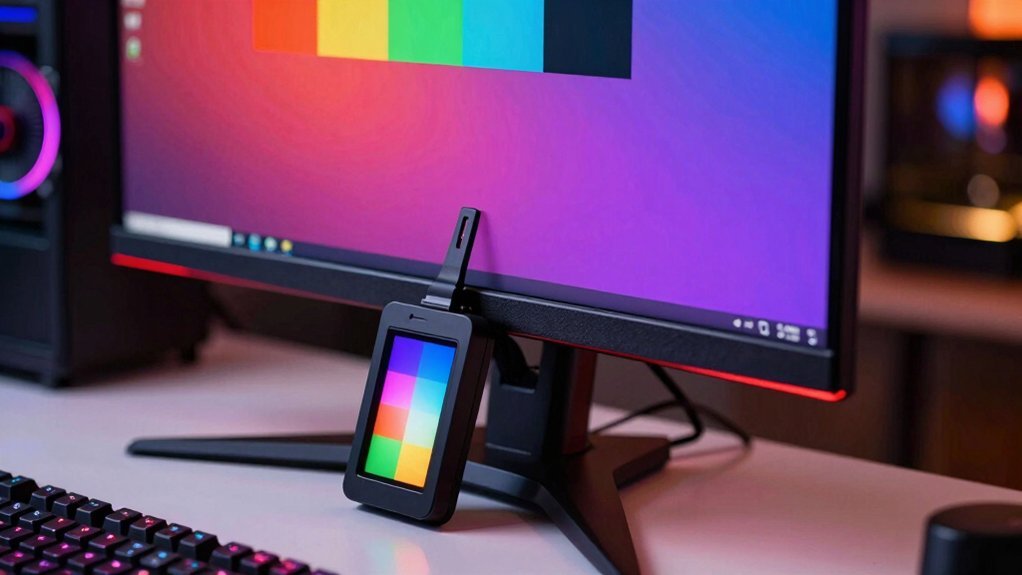
Warm up your monitor for about 30 minutes, then factory‑reset it and turn off Eco or Dynamic modes. Choose a neutral picture mode, set the white point to 6500 K, and lock that setting. Adjust brightness to 80‑120 cd/m², increase contrast until whites are bright but mid‑tones stay intact, and fine‑tune gamma to 2.2 with a test pattern. Balance RGB using OS tools, save a custom profile, and lock it. Schedule checks every 4‑6 weeks under consistent ambient light, and you’ll discover even deeper calibration tricks ahead.
Warm‑up Your Gaming Monitor and Reset to Factory Defaults
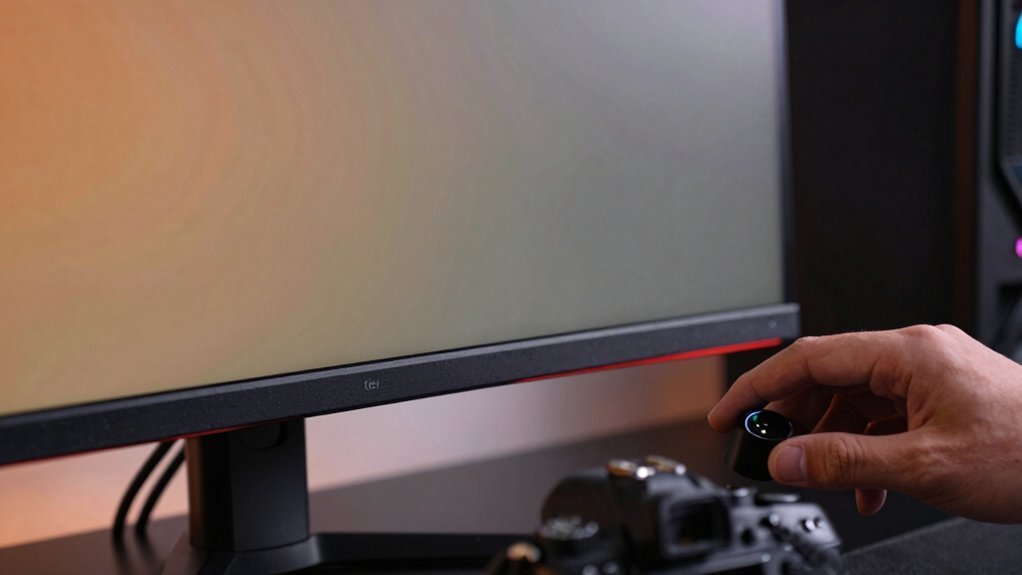
Give your monitor up for at least 30 minutes, displaying a static image before you begin any calibration. This calibration warm‑up lets the panel reach its operating temperature, which is essential for reliable color accuracy. Next, perform a factory reset to wipe previous profiles and establish a clean monitor baseline. Keep the room’s lighting environment the same as your typical gaming setup; consistent ambient light prevents shifts that would ruin stable measurements. During the reset, avoid changing brightness or contrast until the panel cools down. Once the reset finishes, you’ll have a fresh starting point for gaming monitor caliration, ensuring each subsequent adjustment builds on a dependable foundation and yields repeatable results. Regularly verify USB-C compatibility and cross‑OS support for future updates key layout options and ensure you maintain consistent viewing conditions across sessions.
Pick a Neutral Picture Mode and Set the White Point to 6500 K
Start by switching to a neutral picture mode like Standard or User and turn off any Eco or Dynamic settings. Then set the white point to 6500 K (D65) so the monitor has a stable, color‑accurate baseline. This neutral foundation lets your later gamma and RGB tweaks reflect the true performance of the display. A robust USB-C PD port setup 6 USB ports can support quick device charging without compromising display performance.
Neutral Picture Mode
Looking to lock in a reliable baseline before fine‑tuning brightness, gamma, and RGB balance? Start by selecting a neutral picture mode—usually Standard or a user‑created preset. Turn off Eco Mode, Dynamic Contrast, and any auto‑enhancement that could shift colors. Set the color temperature to 6500 K (D65) to establish the correct white point. If your monitor offers an sRGB or color‑managed option, enable it for a consistent reference. Verify that the mode and white point stay steady before moving on. This neutral picture mode gives you a solid foundation, ensuring subsequent brightness, contrast, and gamma adjustments are built on accurate, unbiased gray and white references. Additionally, consider how built‑in LED lighting options or ambient lighting in your setup can affect perceived accuracy color management features and adjust your environment accordingly.
6500 K White Point
Now that your neutral picture mode is locked, set the color temperature to 6500 K (D65) to establish a true white point. Choose the standard or user picture mode, avoid FPS or Cinema presets, and enable an sRGB calibration target if your monitor offers it. This anchors the white point at 6500K, the industry‑standard D65 reference, ensuring colors stay accurate across games and media. Next, run test patterns that display a neutral gray bar and verify that the gray appears truly neutral with no tint. If the gray shows a blue or orange cast, adjust the temperature in small increments until the test patterns confirm a consistent white point. This step locks in a reliable baseline before fine‑tuning hue and saturation. Maintaining a calibrated baseline helps ensure consistent color performance across different content and lighting conditions monitor calibration benefits.
Fine‑Tune Brightness and Contrast for Gaming Monitor Shadow Detail
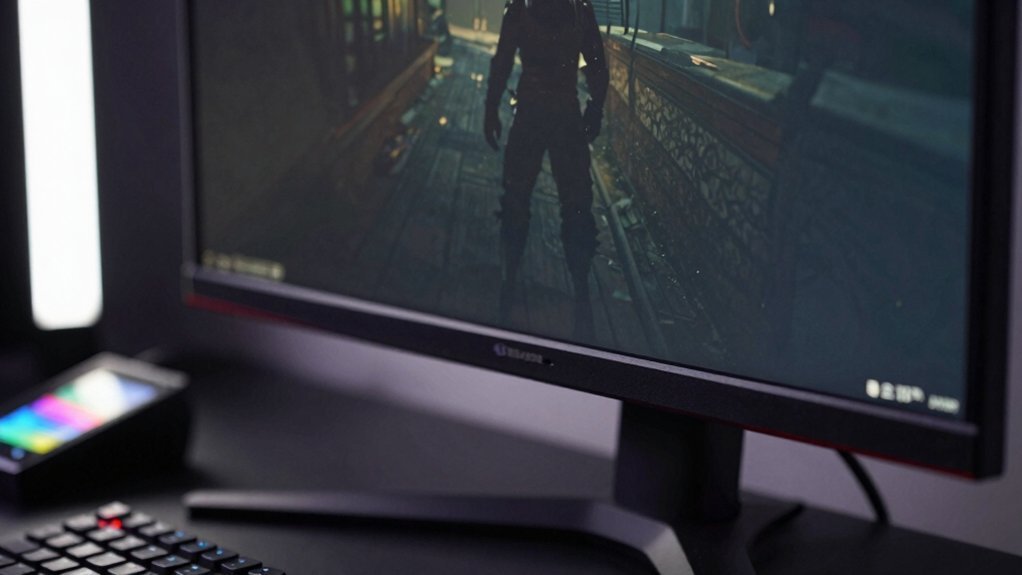
How can you make every in‑game shadow pop without washing out the highlights? First, disable Eco/Dynamic Contrast, switch to Standard or User mode, and set the color temperature to 6500 K. Load an online test pattern and lower the brightness until the darkest shades vanish. Then raise it just enough for the deepest shadow to reappear—this secures shadow detail.
Next, increase contrast until the brightest whites hit full intensity, then dial it back a notch to protect midtones and avoid clipping. Verify the balance with the same test patterns, confirming that neither darks nor lights are lost. Keep gamma near 2.2 using a gamma test pattern, then you’ll achieve a calibrated gaming monitor that renders shadows crisply while preserving highlight fidelity. Latency considerations help ensure low-latency visuals during fast-paced gaming, especially when fine-tuning color and brightness for shadow detail.
Lock Gamma at 2.2 for Gaming Monitor Calibration Using a Test Pattern
Locking your monitor’s gamma at 2.2 ensures that midtones appear natural and consistent across games, and you can achieve this quickly with a dedicated gamma test pattern.
Locking your monitor’s gamma at 2.2 yields natural midtones and consistent gaming visuals.
First, load the test pattern in your calibration software, then cycle through the gamma modes (1‑4) on your gaming monitor. Use displayCal to compare each mode’s output against the pattern; the mode closest to gamma 2.2 will show the smoothest gray ramp without clipping. Avoid mode 4 if you need any adjustment, and select the best‑matching mode before creating your sRGB color profile. Finally, save the profile and apply it for consistent gaming visuals.
- Open the gamma test pattern in displayCal.
- Switch the monitor to each gamma mode (1‑4).
- Observe which mode renders the gray ramp most accurately.
- Choose the mode nearest to gamma 2.2, skipping mode 4.
- Save the sRGB color profile and apply it to your gaming monitor.
Balance RGB Color Temperature for Gaming Monitor Calibration With OS Tools
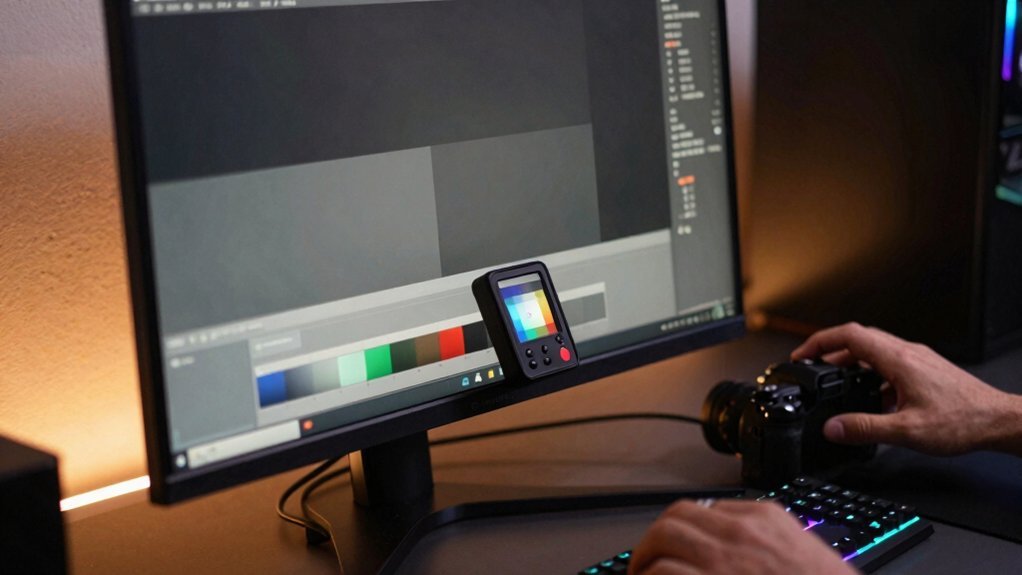
Ever wondered how to keep your game’s colors true to life? Set the white point to D65 (6500 K) using your OS’s calibration tools—Windows Calibrate Display Color or Mac Display Calibrator. Then adjust the RGB balance until the gray bars in the test patterns appear perfectly neutral. Avoid “As Measured” white points; stick to the 6500 K target to prevent unwanted casts in shadows and highlights. After you tweak gamma and brightness, re‑check the white point to keep midtones accurate. Use test patterns again under typical ambient lighting to confirm the color temperature stays stable. This quick OS calibration routine ensures consistent, lifelike visuals across every gaming session.
Preserve Your Settings: Save and Lock the Calibration Profile
You’ll want to lock the profile permanently so accidental tweaks can’t mess with your calibrated brightness, contrast, and gamma.
Additionally, ensure VESA mounting holes are kept in mind when configuring the monitor stand to maintain a stable calibration reference.
Lock Profile Permanently
Once you’ve fine‑tuned brightness, contrast, gamma, white point, and RGB balance, save those exact values as a custom profile—then lock it so the OS or any software can’t overwrite your calibration, ensuring the colors stay spot‑on every time you game. A locked calibration profile becomes your go‑to reference; it stops color management from sneaking in unwanted shifts and guarantees persistent settings for every session.
- Give the saved profile a clear name like “Gaming 6500K 120nits.”
- Use your monitor’s OSD to select that profile and enable the lock‑profile option.
- Disable dynamic contrast or auto‑adjust features that could reset the calibrated monitor.
- Keep a backup copy of the profile on a USB drive or in the cloud.
- Re‑verify and re‑save the profile every 4–6 weeks to maintain profile security. Profile integrity
Lock Settings From Accidental Changes
How can you guarantee that your meticulously calibrated colors stay exactly as you set them? Save the calibration as a custom user profile, then enable the monitor’s profile lock or brightness protection. This stops accidental tweaks to contrast, color temperature, and gamma settings. After you’ve saved the profile, turn off automatic updates in any color management software that might overwrite your values. Record the target numbers—say, 6500 K, gamma 2.2, 120 cd/m²—so you can reapply them if the lock ever fails. Some operating systems let you lock the profile at the OS level, ensuring consistent ambient lighting conditions across sessions. By combining monitor calibration, profile lock, and disciplined documentation, you preserve your visual fidelity for every gaming marathon.
Schedule Gaming Monitor Calibration Checks and Control Ambient Light
Because ambient light can shift perceived colors, schedule your calibration sessions under the same lighting conditions you use for gaming. Warm‑up the monitor for about 30 minutes, reset to factory settings, then turn off Eco or Dynamic modes. Pick a consistent brightness target (80–120 cd/m²) and verify it with test patterns. Follow a calibration schedule every 4–6 weeks, or every 2–3 weeks for competitive rigs, to lock in color accuracy.
Schedule calibrations under consistent lighting, warm‑up 30 min, reset settings, and maintain a regular brightness target.
- Keep ambient light constant during each session
- Use the same test patterns each time
- Record the brightness target you achieve
- Note any drift and adjust the calibration schedule accordingly
- Log the date, warm‑up time, and factory‑settings reset for future reference
Frequently Asked Questions
How Does HDR Affect My Calibration Workflow?
HDR forces you to balance brightness and contrast across a wider dynamic range, so you’ll need to adjust your target luminance, tweak tone‑mapping curves, and verify color accuracy at both SDR and HDR peaks.
Can I Calibrate Multiple Monitors With One Profile?
Yes, you can calibrate multiple monitors with a single profile, but only if they share the same panel type, brightness range, and color space. Apply the profile to each display, then fine‑tune individually if needed.
What Software Works Best for 4K Gaming Monitors?
You’ll get the best results with DisplayCAL for precise 4K calibration, but if you want a simpler setup, try the built‑in NVIDIA Control Panel or AMD Radeon Software, both support high‑resolution gaming monitors.
Do I Need a Hardware Calibrator for Accurate Results?
You don’t strictly need a hardware calibrator, but without one you’ll rely on software adjustments that can’t match the precision of a spectrophotometer, especially for HDR or color‑critical gaming.
How Often Should I Recalibrate After Firmware Updates?
You should recalibrate right after each firmware update, then check every three to six months. If colors shift noticeably, do it sooner; otherwise, stick to the regular interval for consistent performance.
In Summary
Now that you’ve fine‑tuned brightness, contrast, gamma, and RGB balance, your monitor will deliver crisp, true‑to‑life colors every time you game. Keep the profile locked, revisit the settings periodically, and control ambient light to preserve consistency. With these steps in place, you’ll enjoy immersive visuals and accurate shadow detail—no more guesswork, just reliable performance.

Leave a Reply